


Enabling the Tracking
What is ad tracking?
Ad tracking is a set of rules and other settings that link together a traffic channel and the promoted website inside RedTrack to provide you with the final link for directing traffic and monitoring your website’s performance.
How to enable the tracking?
1. Prerequisites
Before you enable a tracking, make sure you have the following in place:
1. Add a CNAME record pointing to your RedTrack default domain in your domain registrar.
2. On the left menu go to Tools → Domains → Create new domain.
3. Add the integrated domain to your RedTrack account and activate the Free SSL option.
Traffic channels → New From template/New From Scratch → Add.
1. Go to Stores → New from template/ New from scratch→ Add your store (it is the name of your shop or your website).
2. On the same page, add the purchase data parameters – Name/Description is what you will see in reports – Roles define their use with CAPI.
3. Go to Store tracking URLs → New → Add your store tracking URL (this is your product link).
4. Follow the suggested steps to generate the scripts. You will need it later for your e-commerce platform.
– this guide for additional details on Store and Store tracking URL setup in RedTrack.
– this guide for more info on e-commerce platform integration.
2. Compile your tracking
1. Ad Tracking → New Ad Tracking:
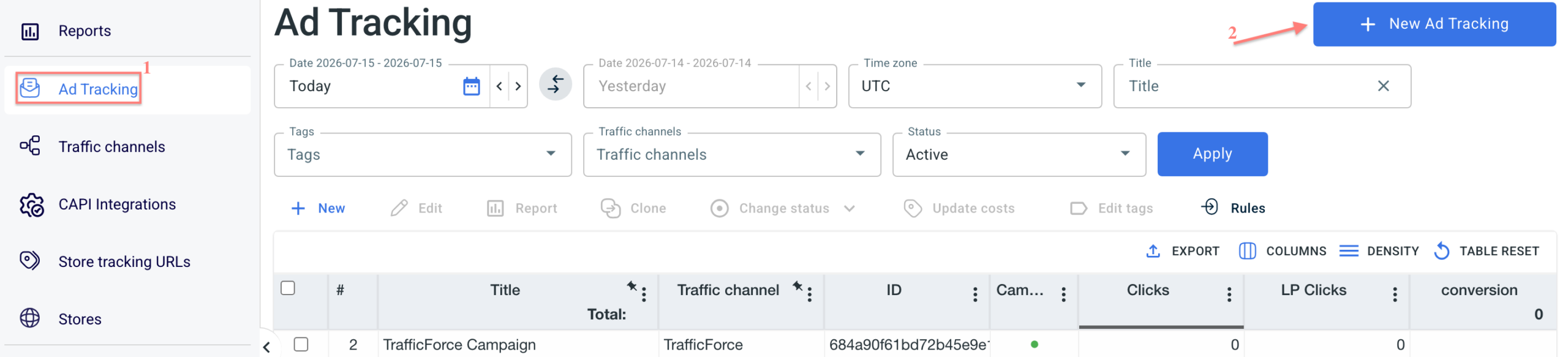
2. Edit/adjust the needed blocks as per the tips below:
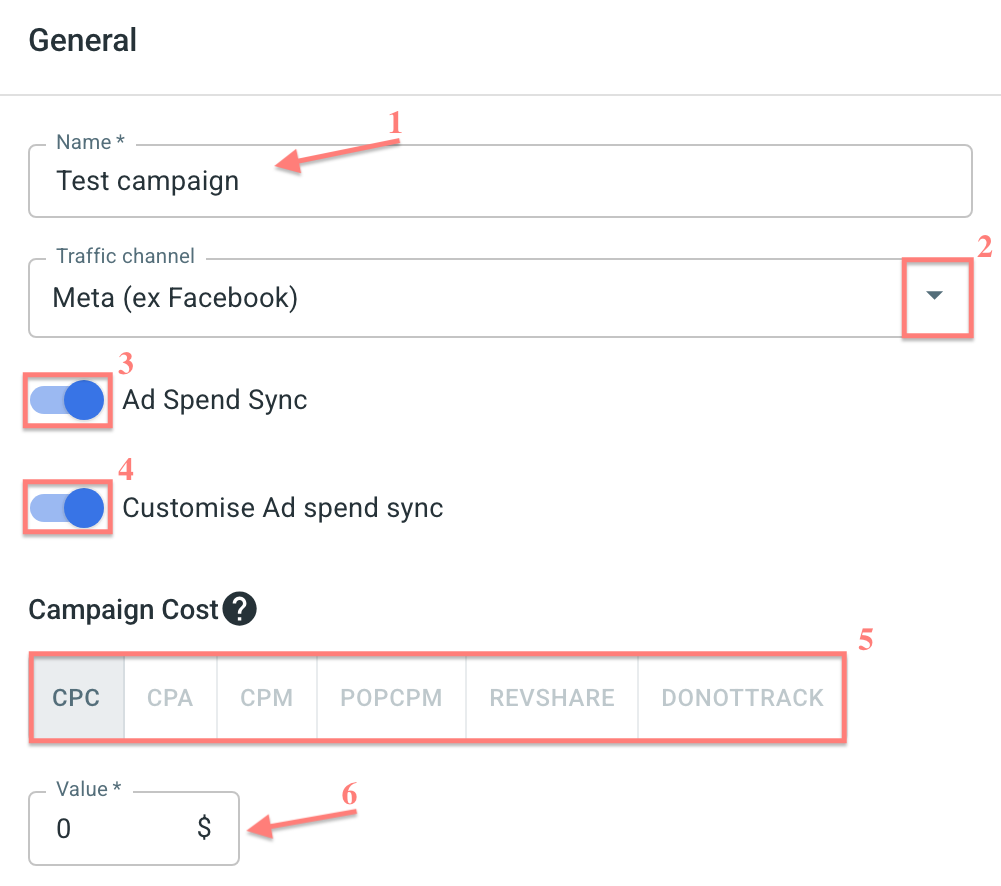
1. Give your tracking link a name.
2. Choose the Traffic channel.
3. Ad Spend Sync toggle is switched on automatically for the API-bound traffic channels. Refer to this guide for more details on this feature.
4. Turn on Customise Ad spend sync to reveal the Campaign Cost block, where you can manually define the cost model and fill in the Value if applicable.
Select the Store tracking URL you added earlier.
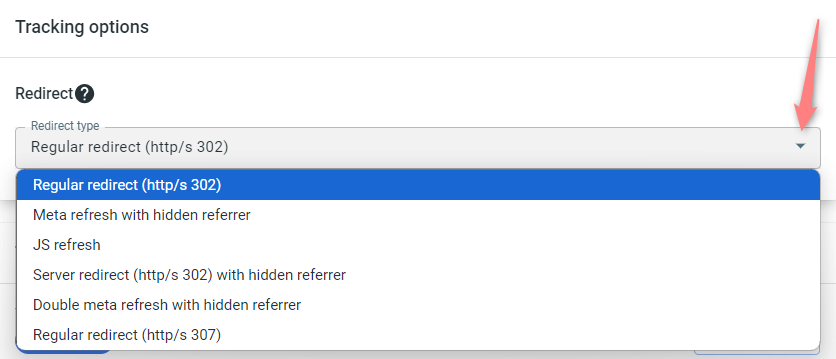
Redirect types decide how redirection to the store tracking URL is handled and whether the referrer data is passed through. First of all, click here to learn how the hidden referrer works and choose the required redirect type based on their explanation below:
- “Regular redirect (http/s 302)” is a standard temporary HTTP redirect that sends a visitor directly to the desired location (the offer you promote). The referrer data is passed to the campaign endpoint.
- “Meta refresh with hidden referrer” presupposes that after the redirect happens, another redirect takes place with the help of an HTML meta tag. As a result, the referrer points to RedTrack, not the initial referrer.
- “JS refresh” is similar to the meta refresh type, but it’s fulfilled with the help of JavaScript. That being said, this type is not generally recommended for SEO because search engines can have difficulty crawling and indexing sites that rely on them.
- “Server redirect (http/s 302) with hidden referrer” means the referrer is hidden when redirecting on the side of the TDS header.
- “Double meta refresh with hidden referrer” is similar to “Meta refresh with hidden referrer” but this method involves using two meta refreshes to mask the original source of the traffic, making it more challenging to identify where the user initially came from.
- “Regular redirect (http/s 307)” is similar to “Regular redirect (http/s 302)” but it’s working more efficiently with old version browsers.
To sum up, Server redirect (HTTP/S 302) with hidden referrer is faster than Regular redirect (HTTP/S 302) and Meta refresh with hidden referrer. This is because a server redirect is processed on the server side, while a meta refresh and JS refresh are processed on the client side. Server redirects are faster because the server does the work of redirecting the request for you, whereas in a meta refresh or JS refresh the client has to do this work. Moreover, server redirects can be cached, making them even faster.
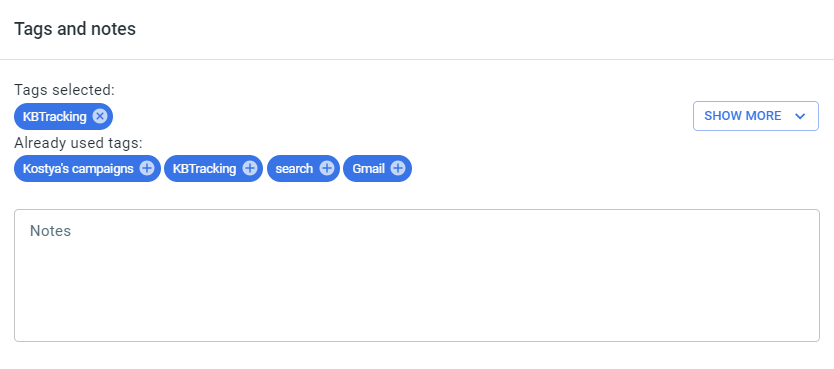
This section is optional. It serves for adding tags and additional notes to distinguish the added campaigns. Click here to learn more about tags and notes.
1. Add/edit the postback:
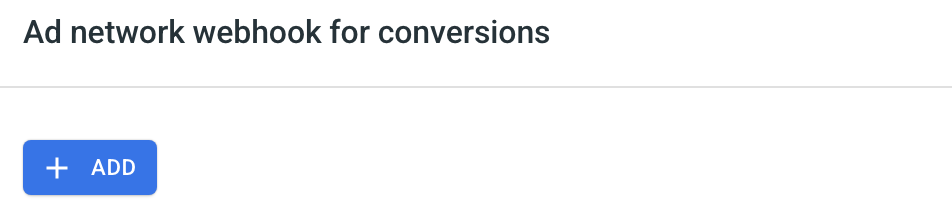
Go to the section Ad network webhook for conversions→ Add → add/edit the postback URL (or multiple URLs if that’s the case) → make sure that all the needed values for the source parameters are in place → Save changes to the Ad Tracking:
– If you changed the Postback URL in the Traffic channel template (added/removed some parameters to it), remember to manually update the link in Ad Tracking settings as well, as it won’t be generated correctly automatically.
– Some traffic channels require you to edit the postback with specific parameters for each campaign (e.g., the goal for Exoclick or ap_key for Go2Mobi). If the field remains blank or contains text such as “REPLACE”, it means you need to define the Postback conditions manually.
2. Other settings:
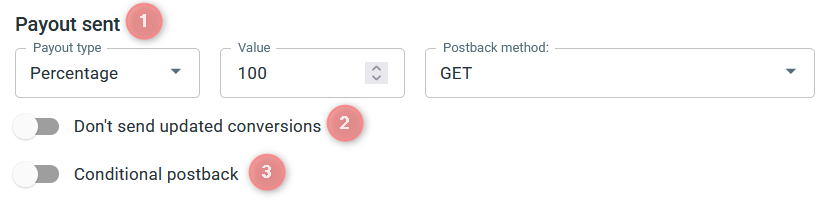
The Payout sent setting allows you to define what payout value will be sent with each conversion. By default, RedTrack sends 100% of the original payout (Percentage). However, you can adjust this value to send only a portion of the payout, or switch to Numeric to define a fixed value that will be sent for all conversions, regardless of the original payout. Examples:
- Percentage:
If you use the Percentage option, RedTrack will calculate the payout based on the original conversion value.
For example, if the Lead payout is $8 and you set 50%, RedTrack will send 50% of $8, which equals $4. - Numeric:
If you use the Numeric option, RedTrack will ignore the original payout and send a fixed value instead.
For example, if the Lead payout is $8 and you set 5, RedTrack will always send $5, regardless of the original amount.
You can choose between two methods to send the postback:
- GET: sends the data as an URL with parameters. Use this method if the external platform accepts postbacks and reads parameters directly from the URL.
- POST: sends the data in JSON format. Use this method for custom integrations where the external system requires structured data.
This setting is useful if you are working with postback modes such as “Keep original data, increment payout” or “Edit conversion with new data”, where conversion data may be updated after the initial event.
In such cases, RedTrack can send these updated conversions via S2S postback. If you prefer to send only the original conversion data, you can control this behaviour using the “Don’t send updated conversions” toggle.
When this option is enabled, only the initial conversion data will be sent, and any subsequent updates will not be included in the postback.
For detailed instructions on setting up conditional postbacks, including payout values and postback methods, please refer to this guide (“Conditional postback in the Ad network webhook for conversions” section).
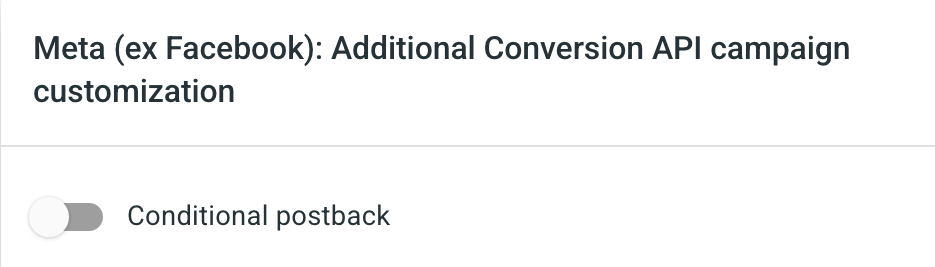
Refer to this article (“Conditional postback in the Additional Conversion API campaign customization” section) to set up the API Integration conditional postback.
3. Extra settings (optional)
There are some extra tabs that can be filled in as per your needs:

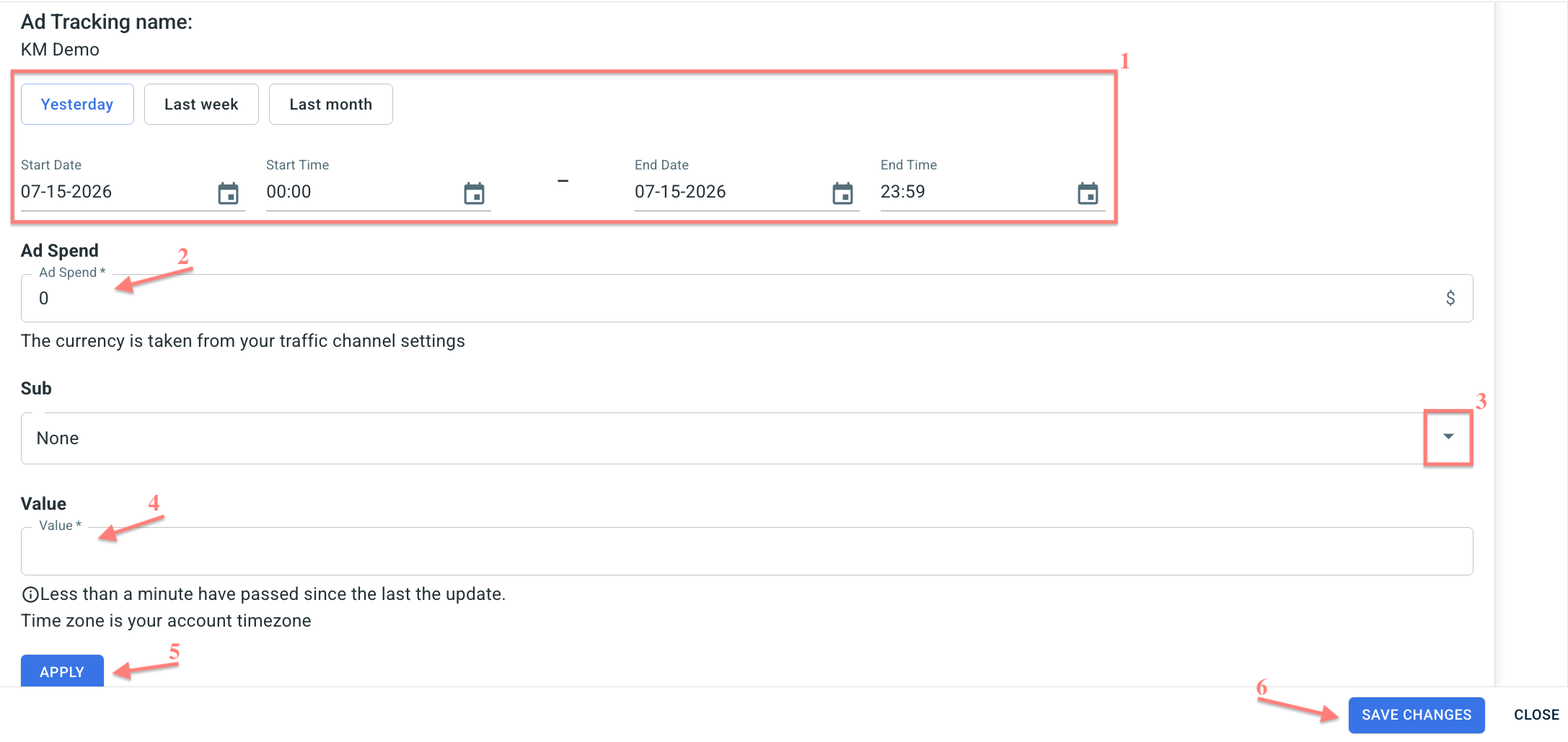
Fields explained
1. Choose the time frame.
2. Add the target ad spend for that period.
(optional) 3. Your traffic source subid. The value you receive from the source of traffic under this particular subid in RedTrack, for example, Ad ID.
(optional) 4. The exact subid value your traffic source sends to RedTrack (for example, AD ID can be 23456677865).
5. and 6. Click Apply, then Save changes.
☛ Subids data are added to redistribute the cost data also among them, allowing accurate granular reporting and KPIs.
The URL field in this section serves as the destination URL where the impressions info is going to be sent in case impressions are collected within this Ad Tracking. Add the Impression forwarding URL only if your traffic channel supports this option.

The Click forwarding URL allows you to send click data from your campaign to an external system. Its main purpose is to share click data with third-party tools, most commonly fraud detection platforms, by forwarding all clicks for validation to the external URL you provide. Click forwarding works independently of the campagn’s traffic channel.
To set it up, go to your Ad Tracking → Click forwarding URL → Add:

Enter the URL → select the postback method → save the changes to your Ad Tracking:
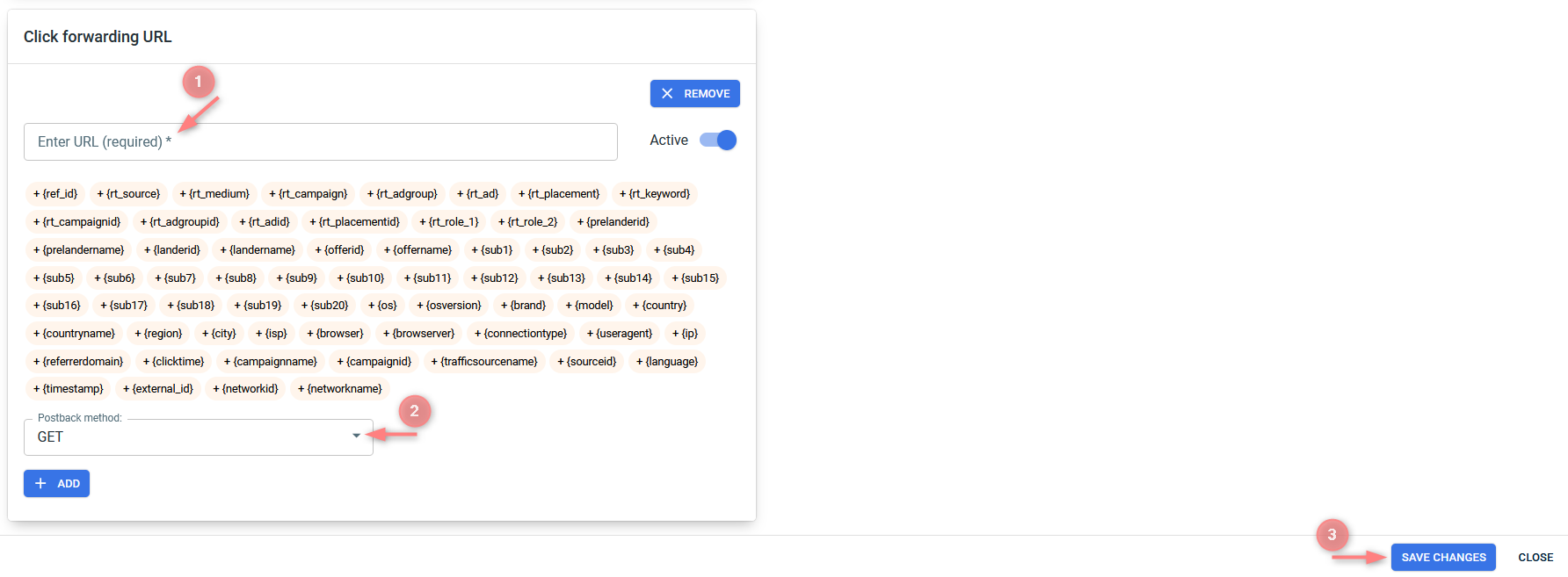
Fields explained:
This is where you paste the URL used to send click data. This URL is always provided by your fraud detection provider or any other solution you’re integrating with. If you don’t have it or are unsure what to enter here, please contact your fraud detection solution, they will share the correct template or endpoint for your setup.
You can also use the dynamic parameters (shown below the field) to pass additional data through the URL, such as campaign details, location, device information, and more.
You can choose between two methods:
- GET: sends click data as URL parameters. Use this method if the external platform accepts postbacks and reads parameters directly from the URL.
- POST: sends click data in JSON format. Use this method for custom integrations where the external system requires structured data.
Email to support@redtrack.io for assistance with the setup of the throttling feature.
4. Copy the tracking URL
Once you’re done with all the Ad Tracking elements, save it → go to Ad Tracking Parameters (UTMs) → choose the tracking method and copy the automatically generated values/URLs:
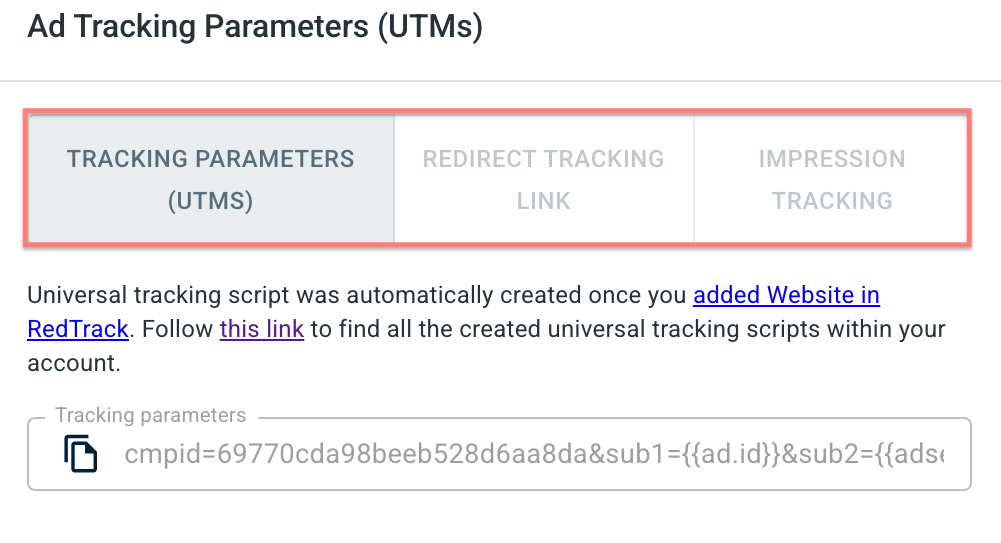
→ Redirect link for the traffic channels that support the redirect method.
→ Website URL + No-Redirect/Universal script + the tracking parameters for those who accept no-redirect only.
– Universal tracking script
– No redirect tracking
– Tracking impressions

