


Snapchat and RedTrack

Intro
Snapchat is an American multimedia instant messaging app and service.
– Send conversion data to Snapchat and attribute it to your custom conversion type.
– Sync cost data.
Parameters sent to Snapchat with the conversion (PII data)
Parameter | Description |
Event ID | Hashed name obtained from a sub value with the Event ID role. |
Event Type | Conversion type that is defined through matching conversion types between Redtrack and Snapchat (e.g., purchase). |
Timestamp | Time of the conversion in UTC |
ClickId | Snapchat click (e.g., eaiaiqobchmi3oztgougqmv1ultch1q8a2t). |
page Url | Page field from the conversion. |
Hashed Phone Number | Hashed phone obtained from a sub value with the Phone role. |
Hashed Email | Hashed email received from a sub value with the Email role. |
Hashed First Name | Hashed name obtained from a sub value with the First Name role. |
Hashed Last Name | Hashed surname obtained from a sub value with the Last Name role. |
Hashed City | Hashed name of the city, the city field from the conversion. |
Hashed Zip | Hashed zip code obtained from a sub value with the ZipCode role. |
Country | Name of the country, the country field from the conversion. |
Hashed IP Address | Hashed IP field from the conversion. |
User Agent | UA field from the conversion. |
Price | Conversion amount in USD. |
Device Model | Device model |
OS Version | Version of the device’s operating system |
Integration steps
1. Add a custom tracking domain
1. Add a CNAME record pointing to your RedTrack default domain in your domain registrar.
2. On the left menu, go to Tools → Domains → Create new domain.
3. Add the integrated domain to your RedTrack account and activate the Free SSL option.
2. Add the offer/store tracking URL you are promoting
This is the destination link you plan to direct traffic to: it can be an affiliate offer, a direct link to your website, or your shop.
1. Add the offer source
1.1 In RedTrack, go to Offer sources → New from template/New from scratch → find the affiliate network you work with/add your custom name → Save.
1.2 For better conversion attribution in the added Offer source template, go to Additional parameters → assign the following roles:
- Phone
- First Name
- Last Name
- Zip Code
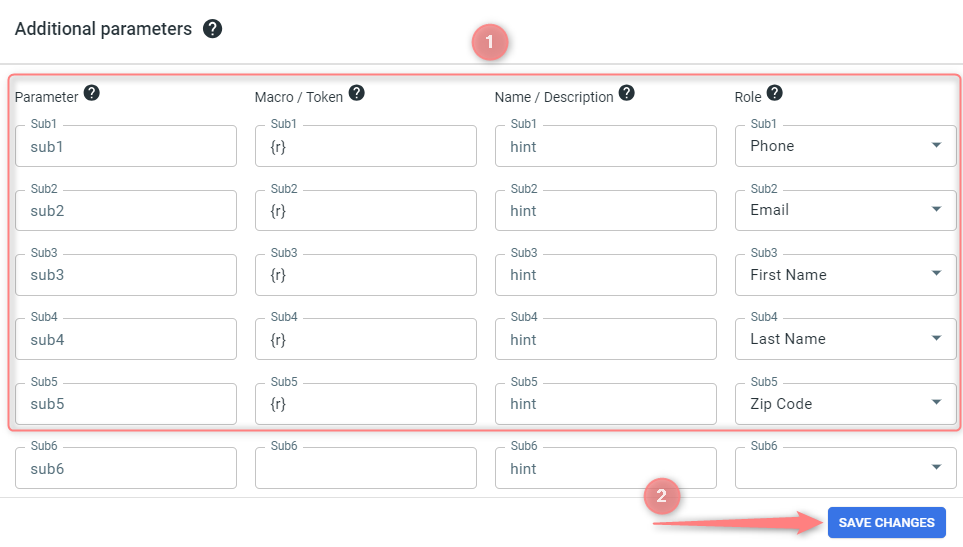
In your Offer source settings → Additional parameters section:
– If there is a specific parameter you are receiving with the assigned Event ID role, RedTrack will send that value as the event_id.
– If no Event ID is defined, RedTrack will automatically send the click ID as the event_id.
2. Add the offer link
In RedTrack, go to Offers → New → choose the offer source from the list, add the offer URL → save the changes.
For example: &affsub={clickid} where {clickid} is RedTrack parameter
Follow this guide for a detailed workflow on offer and offer source in RT.
1. Go to Stores → New → Add your store (it is the name of your shop).
2. On the same page, in the Additional parameters section, add the purchase data parameters – Name/Description is what you will see in reports – Roles define their use with CAPI → assign the following roles:
- Phone
- First Name
- Last Name
- Zip Code
In your Store settings → Additional parameters section:
– If there is a specific parameter you are receiving with the assigned Event ID role, RedTrack will send that value as the event_id.
– If no Event ID is defined, RedTrack will automatically send the click ID as the event_id.
3. Go to Store tracking URLs → New → Add your store URL (this is your e-com shop).
4. Follow the suggested steps to generate the scripts. You will need it later for your e-com platform.
3. Add Snapchat traffic channel to RedTrack and integrate these platforms
1. Add Snapchat as a Traffic channel in RedTrack.
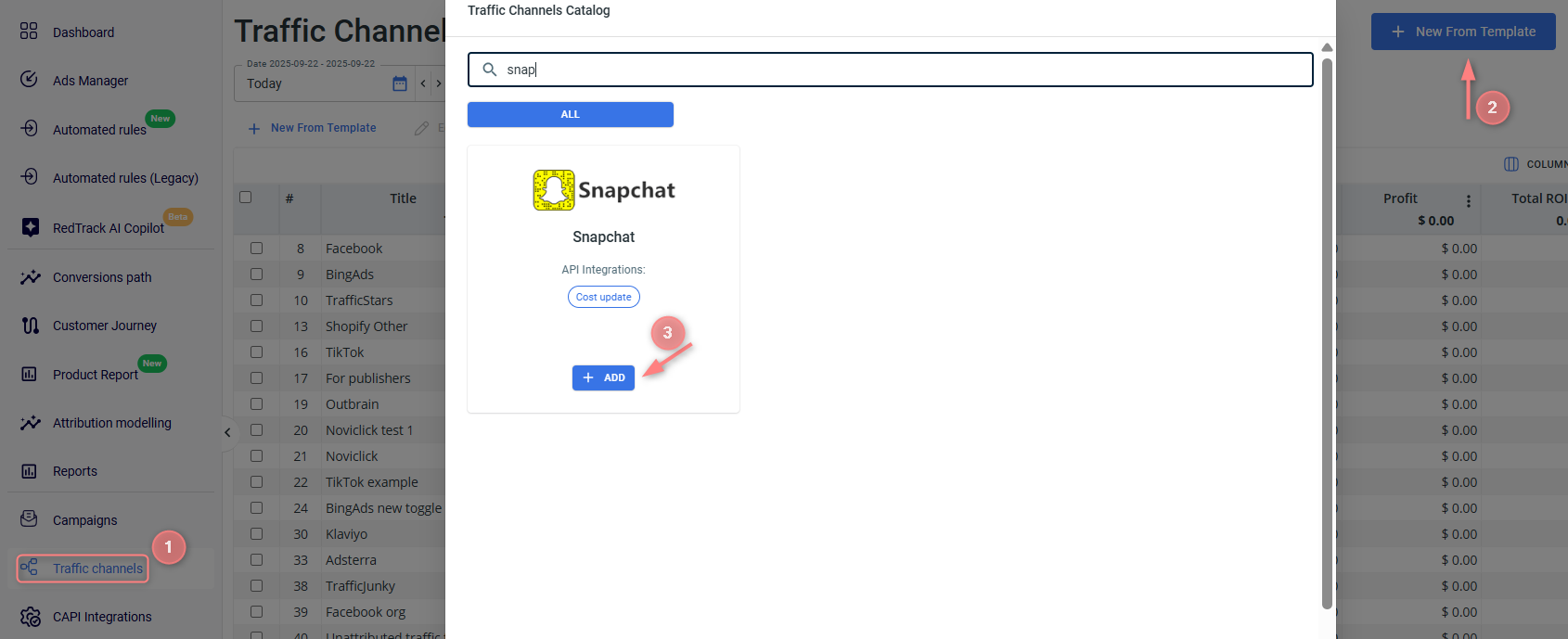
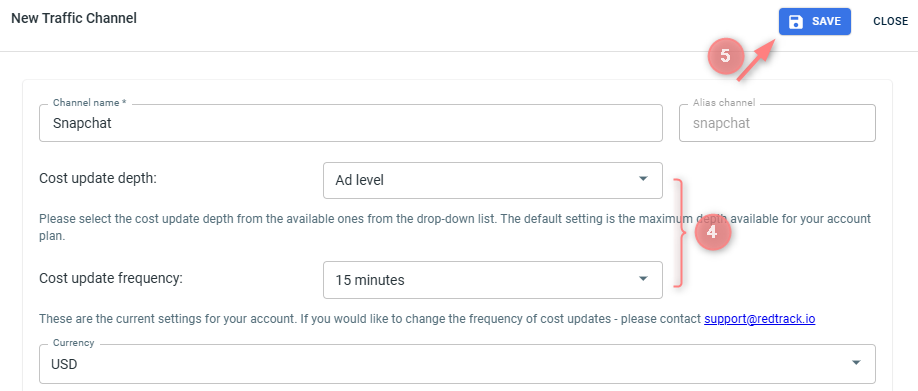
Traffic channels → New from template → find Snapchat and add it → assign Cost update depth and frequency (necessary to enable cost auto update feature) → Save the template:
Blocked (greyed) parameters should be used under the same sub-values with the same roles assigned as provided in the initial template.
The following are essential for the API cost integration:
{{ad.id}} should always be with Aid role
{{adset.id}} should always be with Gid role
{{campaign.id}} should always be with Cid role
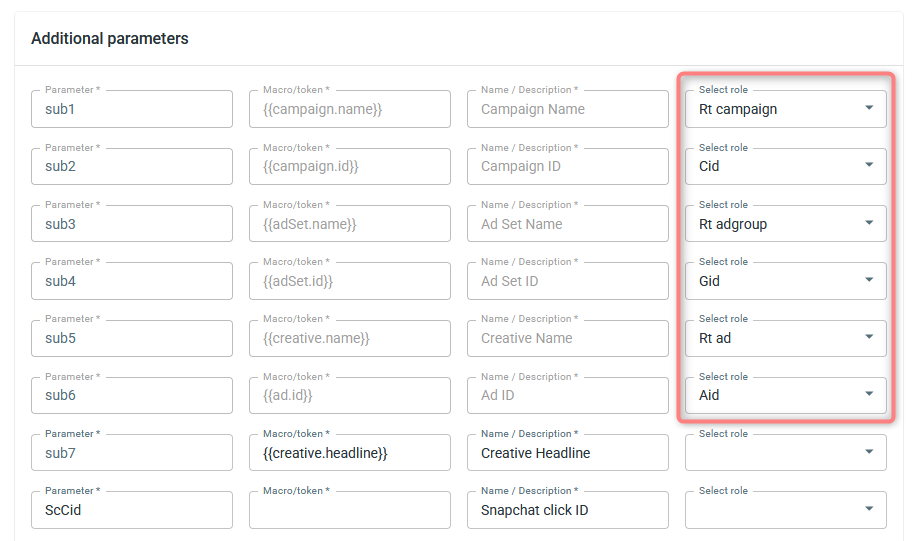
Note that the ScCid parameter (Snapchat Click ID) visible at the bottom of the template does not require any manual configuration. When a user clicks your Snapchat ad, Snapchat automatically appends ScCid=[value] to the destination URL. RedTrack’s script on your page captures this value and stores it server-side. The Macro Token and Select Role fields for ScCid can be left empty because RedTrack handles this automatically.
2. Integrate your Snapchat account with RedTrack to receive costs.
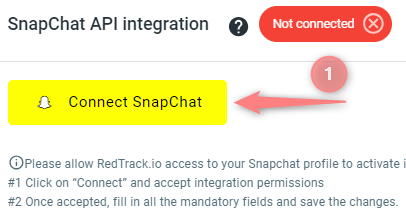
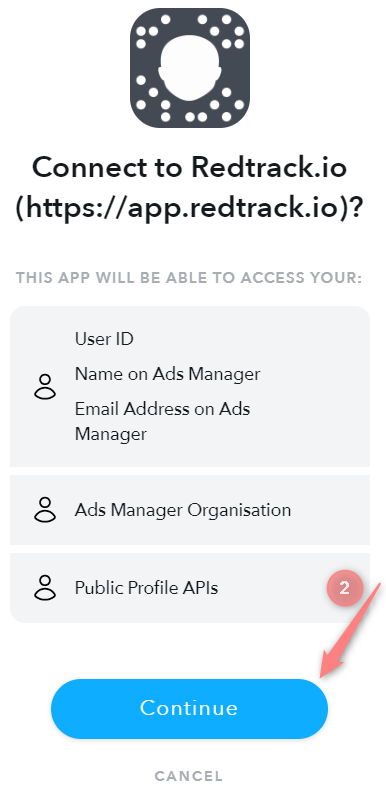
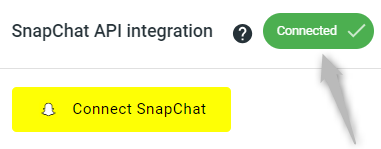
In the added Snapchat template, navigate to SnapChat API integration → click on Connect Snapchat → Continue:
4. Add to RedTrack conversion events you want to use
In your RT account, go to Tools → Conversion tracking → Conversion type → add the events you want to track → Save.
The names will remain the same and be sent to the traffic channel exactly as you added them in RedTrack.
5. Get Pixel ID and Conversion API Token from Snapchat
In your Snapchat account, copy the following:
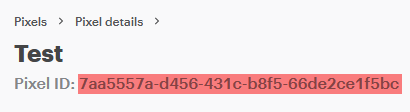
To get your Pixel ID, go to your Snapchat account → Ads Manager → Pixels → choose the needed one and copy its ID.
To get your Conversion API Token (access token), go to your Snapchat account → Business Dashboard → Business Details:

6. Add Snapchat Pixel ID and Conversion API Token to RedTrack
Now in your RedTrack account, you should:
- Add the copied Pixel ID and Conversion API Token to CAPI Integrations.
- Assign the added pixel details to either the Snapchat traffic channel or your offer/store.
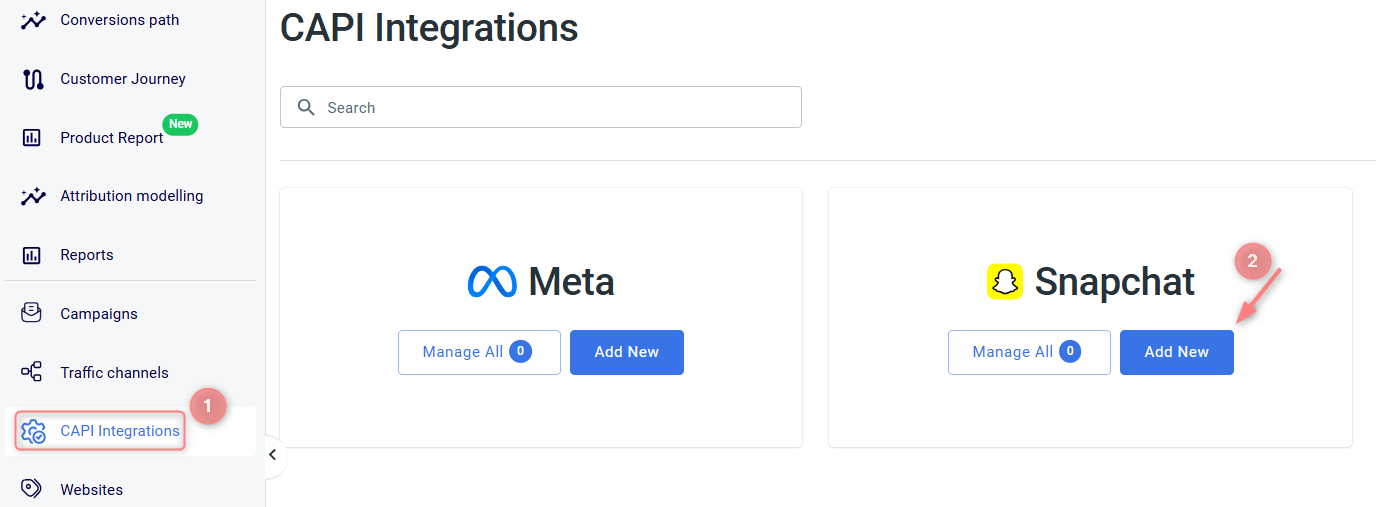
1. RedTrack → CAPI Integrations → Snapchat → Add New:
2. Fill in the mandatory fields → match RT conversion event types with the ones in Snapchat → Save:
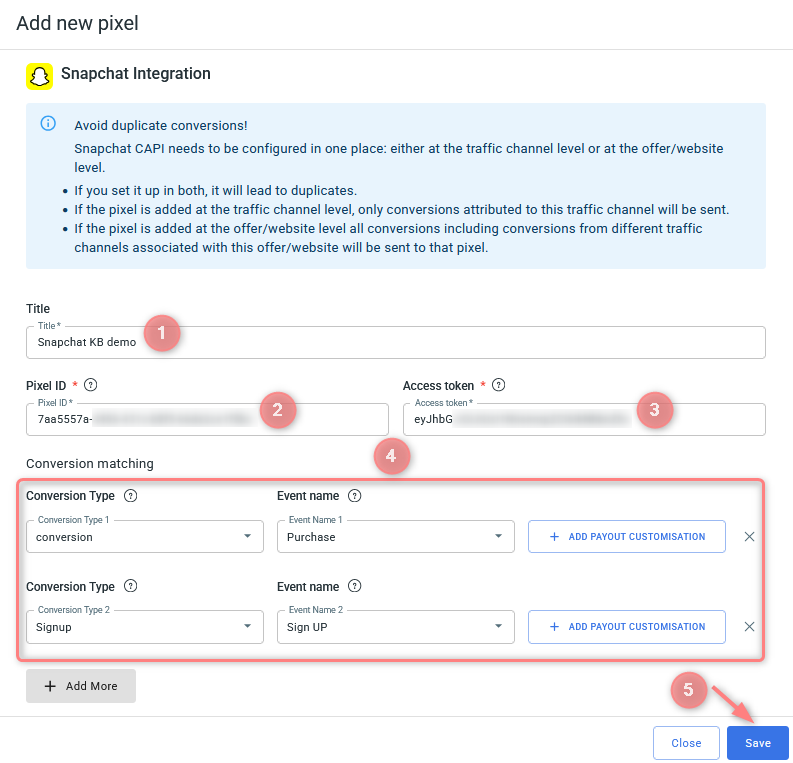
Fields explained:
Give your Snapchat pixel a name to distinguish it from the rest of the added ones in the list.
Here goes your Pixel ID copied from your Snapchat account.
Here goes your Conversion API Token copied from your Snapchat account.
In this section, you will map your RedTrack conversion events to the corresponding Snapchat events. This tells RedTrack which conversions to send to Snapchat and ensures your tracking data is correctly reflected in both platforms.
To set up conversion matching, act as follows:
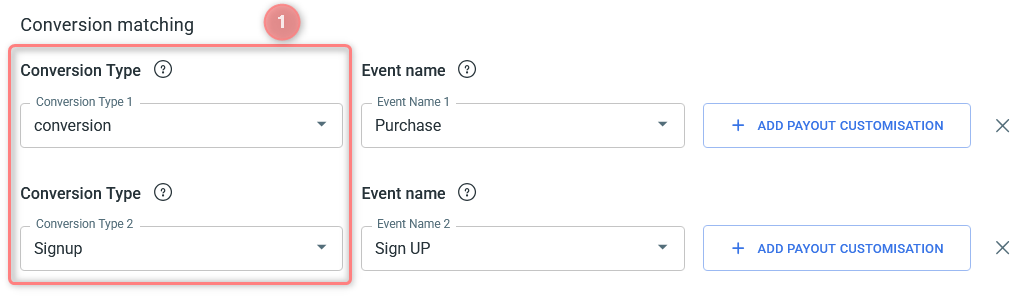
1. Under the Conversion Type column, select the RedTrack event you want to send to Snapchat. The list shows the conversion types you’ve added to RedTrack within step 4.
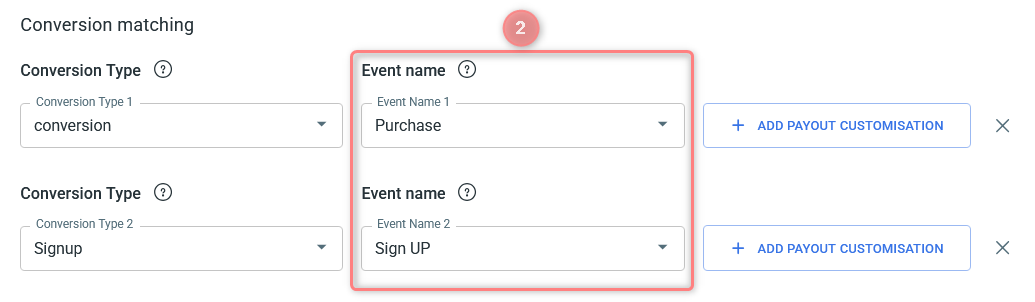
2. Under the Event name column, select the corresponding Snapchat event to map it to.
3. Optionally, you can set up Payout customisation for the matched events.
3.1 Payout customisation → Payout type & Value
Why use payout customisation
Payout customisation for the matched Conversion Type & Event Name controls the financial data associated with this conversion event. You can define a concrete payout type and value that RedTrack will associate with that conversion event when reporting to Snapchat. This is useful when you want to report a different value than the one originally recorded.
How to set up payout customisation
Press Add payout customisation → select the Payout type → define the payout value for the matched event:
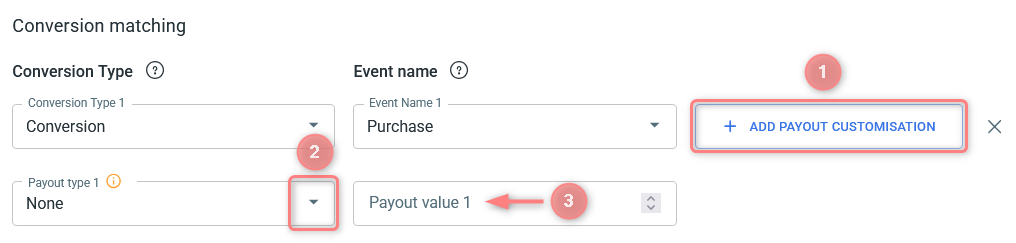
– None: RedTrack will send the full revenue amount associated with the conversion event.
– Numeric: RedTrack will send this fixed amount as the revenue.
– Percentage: RedTrack will calculate and send the specified percentage of the revenue.
Examples
What’s given:
You receive 3 conversions with different payouts:
- Conversion 1 → $20
- Conversion 2 → $10
- Conversion 3 → $30
Payout setup example 1:
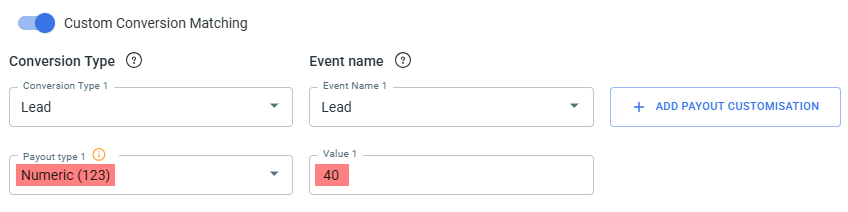
What it means:
You want every conversion sent to Snapchat with a fixed payout of 40, regardless of its actual payout. RedTrack ignores the original payout and replaces it with 40 for reporting.
Outcome for payout setup example 1:
- Conversion with $20 → sent as 40
- Conversion with $10 → sent as 40
- Conversion with $30 → sent as 40
Payout setup example 2:
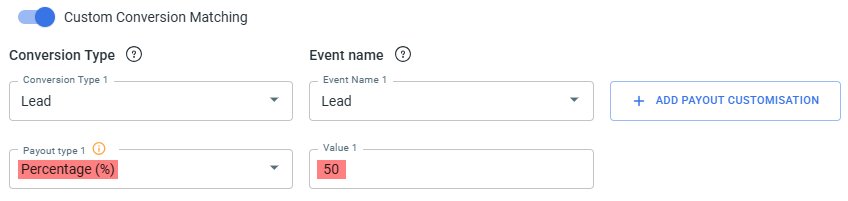
What it means:
You want to send 50% of each conversion’s actual payout to Snapchat. RedTrack calculates half of the real payout and uses that number for reporting.
Outcome for payout setup example 2:
- Conversion with $20 → sent as 10
- Conversion with $10 → sent as 5
- Conversion with $30 → sent as 15
3.2 Payout customisation → Postback when conversion payout values
Why set up a conditional postback for the matched events
This feature provides control over the conversion data shared with your Snapchat pixel by adding a financial filter for each matched conversion type. By defining specific payout or revenue thresholds, you ensure that only high-value or desired conversions are used by Snapchat’s ad optimization algorithms, while all conversions are fully tracked in RedTrack.
How to set up a conditional postback for the matched events
To activate this feature, press Payout customisation next to the matched events → select the Postback when conversion payout measurement and define the value for it:
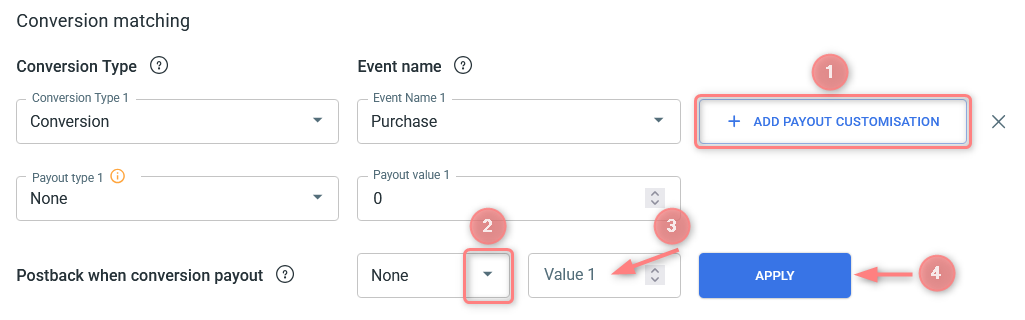
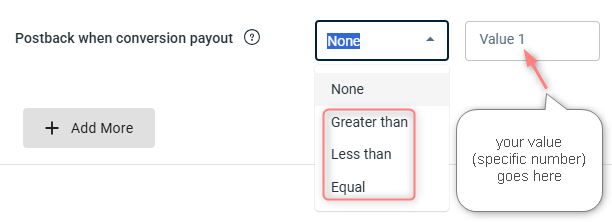
Select the logical relationship that must be true between the conversion’s actual payout and the specific value. The options govern how the system filters the conversion:
* Higher than: The conversion is sent only if its payout is strictly greater than the specific value.
* Less than: The conversion is sent only if its payout is strictly smaller than the specific value.
* Equals: The conversion is sent only if its payout matches the specific value exactly.
The system will check if the conversion meets the selected criteria:
– If it does, the conversion will be sent to the Snapchat pixel.
– If it does not meet the criteria, the conversion will not be sent to Snapchat, though it will still be registered in RedTrack.
Remember to click “Save” to ensure the changes are saved properly.
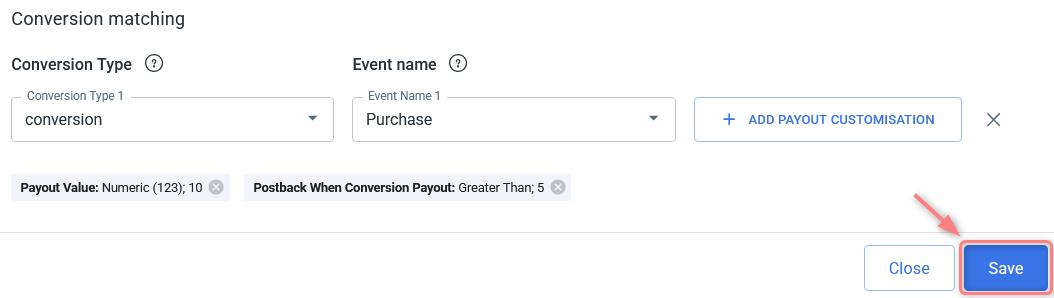
Example
What’s given:
You receive 3 conversions with different payouts:
- Conversion 1 → $20
- Conversion 2 → $10
- Conversion 3 → $30
Setup for Postback when conversion payout:
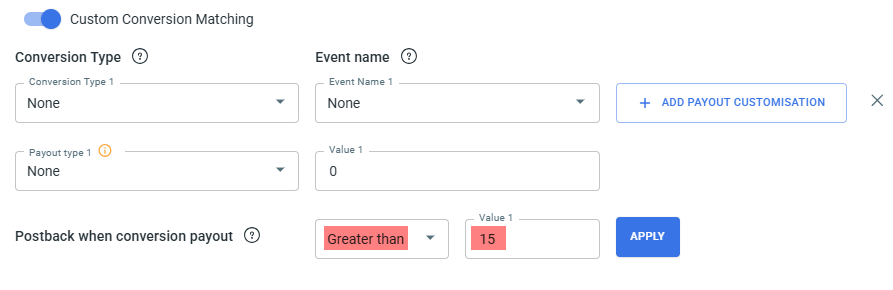
What it means:
Only conversions with a payout above 15 will be sent to Snapchat via CAPI.
Conversions with a payout of 15 or lower will stay in RedTrack but won’t be forwarded.
Outcome in this setup:
- $20 → sent
- $10 → not sent
- $30 → sent
So, only conversions 1 and 3 match the rule and are forwarded to Snapchat.
3. To assign this pixel: View details → select Traffic channel or Offer/Store → Add new → select destination → Save:


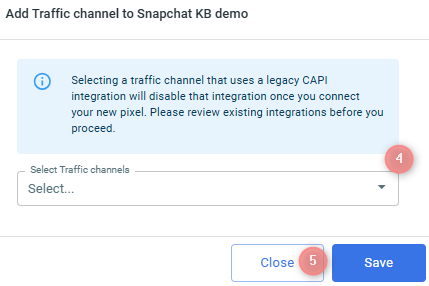
7. Create a campaign/ad tracking in RedTrack
To create a campaign/ad tracking in RT act depending on your account type:
Campaigns → Create new campaign → fill in the info in all the sections and tabs:
- General: Give it the name, and choose the traffic channel, tracking domain, and cost-tracking method.
- Funnels: Choose the type of funnel you are using and add the elements from the drop-downs.
- S2S postback: This field will be filled in automatically based on the data you have added to your traffic channel settings.
- Auto update costs: Do not forget to turn the toggle on if you are working with the API-integrated traffic channel
Campaigns → Create new campaign → use this guide to help you set up campaign for the organic traffic.
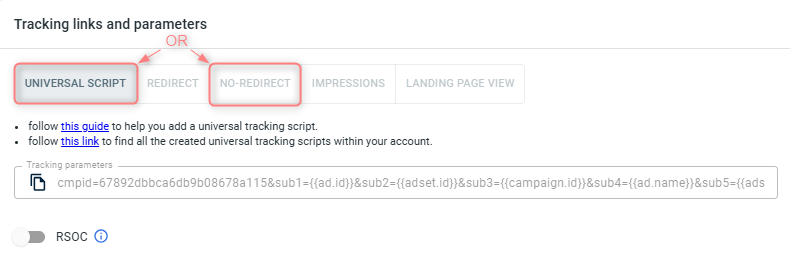
2. Once the Campaign is saved go to Tracking links and parameters → copy the corresponding tracking parameters and the script depending on tracking method you decided on:
– Use Universal Script when you’re working with the same landing page across multiple traffic channels.
– Use No-Redirect Script when you’re working with one landing page and one traffic channel.
IMPORTANT!
– If you choose the No-Redirect tab: once the campaign is saved, both the tracking parameters and the script are generated automatically. You only need to copy and apply them.
– If you choose the Universal Script tab: once the campaign is saved, only the tracking parameters are generated automatically. You’ll need to create the universal tracking script manually (follow this guide).
3. Apply Script & Parameters.
- Paste the script into your landing page code.
- Add the tracking parameters to your Snapchat campaign.
1. Ad Tracking → New Ad Tracking → Fill in the info in all the sections and tabs:
- General: Give it the name, and choose the traffic channel, and cost-tracking method.
- Funnels: Choose the type of funnel you are using and add the elements from the drop-downs.
- Ad Spend Sync: Do not forget to turn the toggle on if you are working with the API-integrated traffic channel
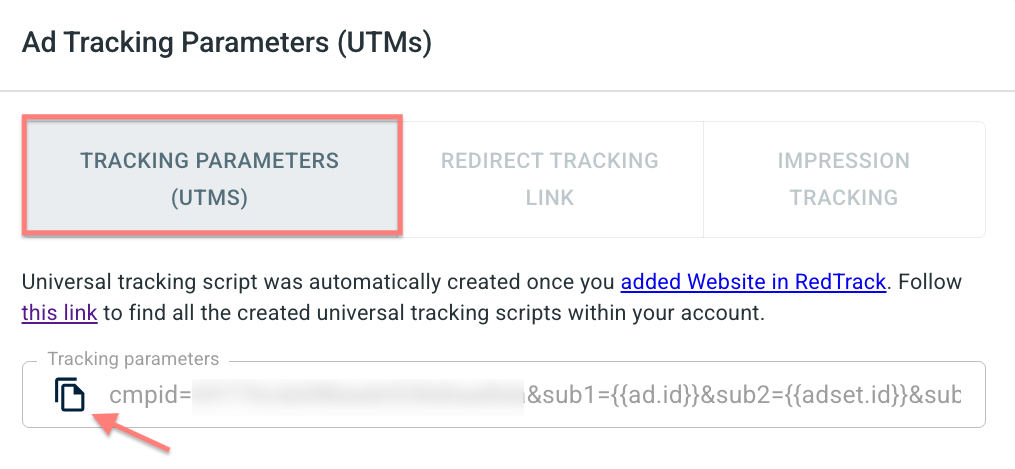
2. Once the Ad Tracking is saved go to Ad Tracking Parameters (UTMs) → copy the tracking parameters from the Tracking parameters (UTMs) tab:
3. Apply Script & Parameters.
- Paste the script into your landing page code.
- Add the tracking parameters to your Snapchat campaign.
8. Set up the automation in RedTrack
- Use this guide to help set up rules.
- Make sure you’ve enabled the auto-update cost feature in the traffic channel setup.
9. Create a campaign in Snapchat with RT’s tracking URL parameters
Set up the tracking in Snapchat:
1. Once you have set up your campaign and built your ad sets, you can create an ad on Snapchat side. For more details on this, please check this Snapchat article.
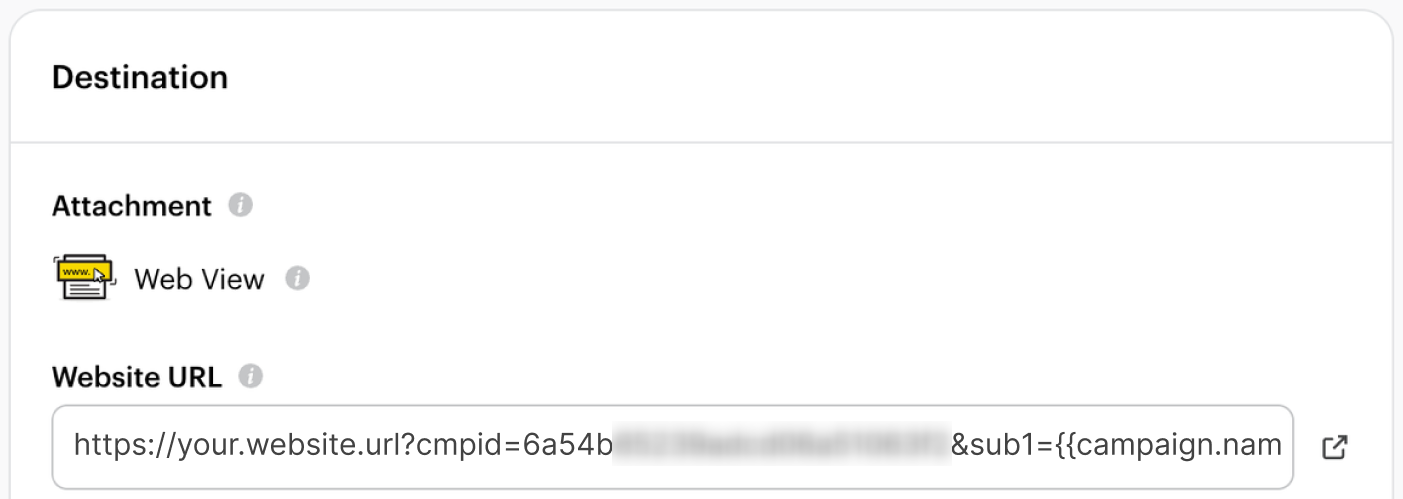
2. Go to the Destination section → in the Website URL field add your website URL + no-redirect tracking parameters or UTMs copied from step 7:
3. Proceed further with the traffic targeting and payment methods as per your needs. Once you’ve filled in the fields, click Publish, and the ad will go for approval. When your campaign gets published, it’ll be tracked with RedTrack.

