Klaviyo and RedTrack

Intro
Klaviyo is a growth marketing platform that helps you deliver more personalized experiences across owned marketing channels like email, SMS, in-app notifications, and web.
Integration
Setup in RedTrack
1. Add a custom tracking domain
1. Add a CNAME record pointing to your RedTrack default domain in your domain registrar.
2. On the left menu go to Tools → Domains → Create new domain.
3. The default domain is stated right on the top and looks like smth.rdtk.io.
4. Add the integrated domain to your RedTrack account and activate the Free SSL option.
2. Add the offer/store tracking URL you are promoting
This is the target destination link where you plan to run the traffic: it can be an affiliate offer, a direct link to your website, or the shop.
1. Add the offer source: New from template/New from scratch → find the affiliate network you work with/add your custom name → Save.
2. Add the offer link: Offers → New → choose the offer source from the list, add the offer URL → save the changes.
For example: &affsub={clickid} where {clickid} is RedTrack parameter
More info on offer source and offer in RT can be found here.
1. Go to Stores → New → Add your store (it is the name of your shop).
2. On the same page, in the Additional parameters section, add the purchase data parameters – Name/Description is what you will see in reports – Roles define their use with CAPI.
3. Go to Store tracking URLs → New → Add your store URL (this is your e-com shop).
4. Follow the suggested steps to generate the scripts. You will need it later for your e-com platform.
3. Set up the conversion events
In your RT account go to Tools → Conversion tracking → Conversion type → add the events you want to track → Save.
The names will remain the same and be sent to the traffic channel exactly as you added them in RedTrack.
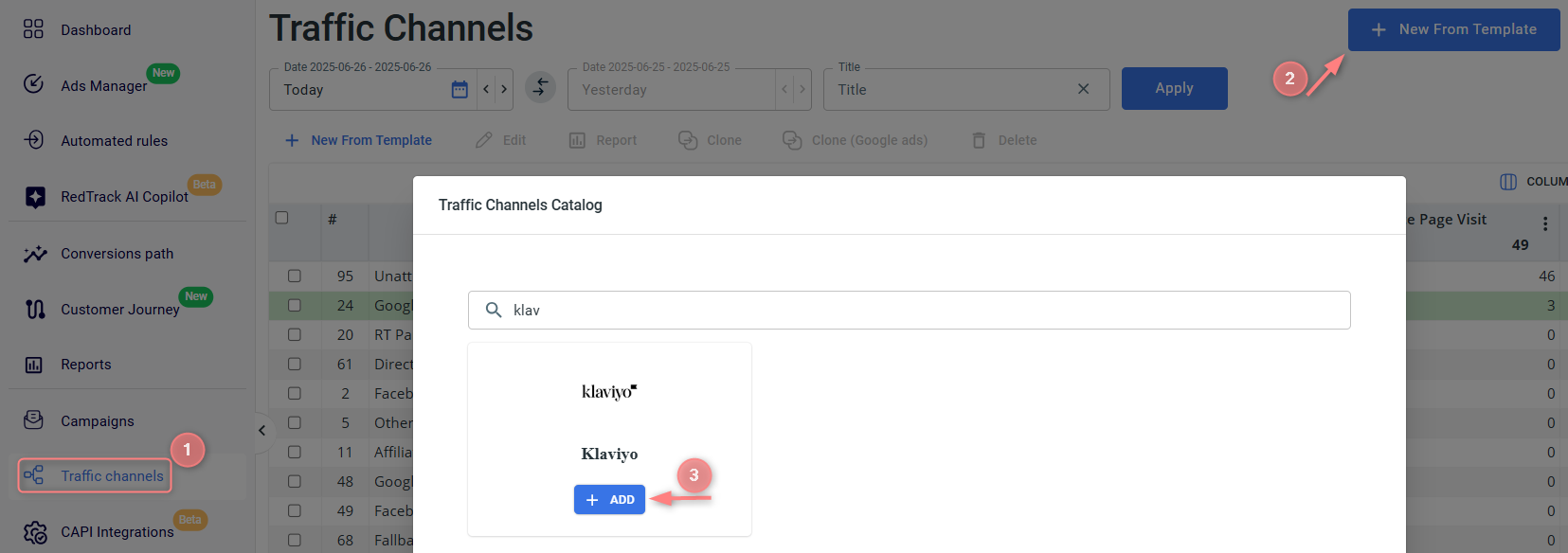
4. Add the Klaviyo template
Traffic channels → New From Template → Klaviyo → Add → Save:

5. Create a campaign/ad tracking in RedTrack
To create a campaign/ad tracking in RedTrack act depending on your account type:
1. Campaigns → Create new campaign → fill in the info in all the sections and tabs:
- General: Give it the name, and choose the traffic channel, tracking domain, and cost-tracking method.
- Funnels: Choose the type of funnel you are using and add the elements from the drop-downs.
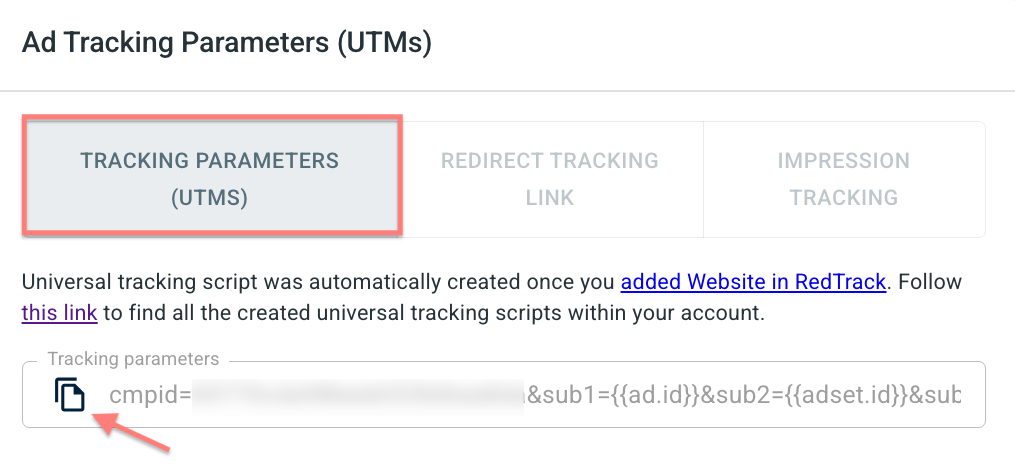
2. Once the Campaign is saved go to Tracking links and parameters → tab Tracking parameters (UTMs) → copy the tracking parameters from there to place them later in your Klaviyo account:

1. Ad Tracking → New Ad Tracking → fill in the info in all the sections and tabs:
- General: Give it the name, and choose the traffic channel, and cost-tracking method.
- Funnels: Choose the type of funnel you are using and add the elements from the drop-downs.
2. Once the Ad Tracking is saved go to Ad Tracking Parameters (UTMs) → copy the tracking parameters from there to place them later in your Klaviyo account:
Setup in Klaviyo
Add the UTM parameters from RedTrack to Klaviyo
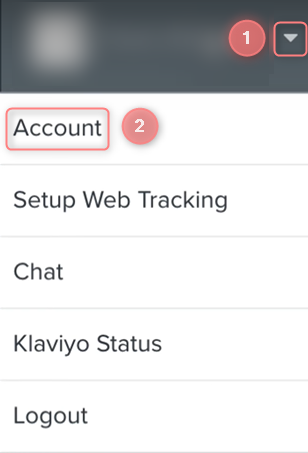
1. Click your account name in the top-right corner of your profile → select Account in the dropdown menu:
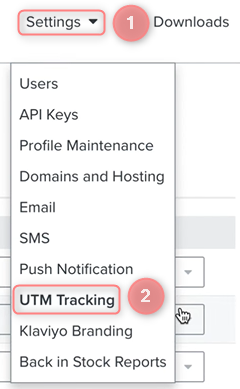
2. Go to the tab Settings → choose the UTM tracking option from the dropdown menu:
3. Click the button Add a custom UTM parameter:
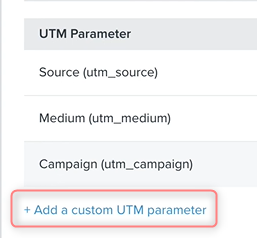
4. Add the tracking parameters copied from RT’s campaign/ad tracking (step 5) and paste them as demonstrated on the screen:
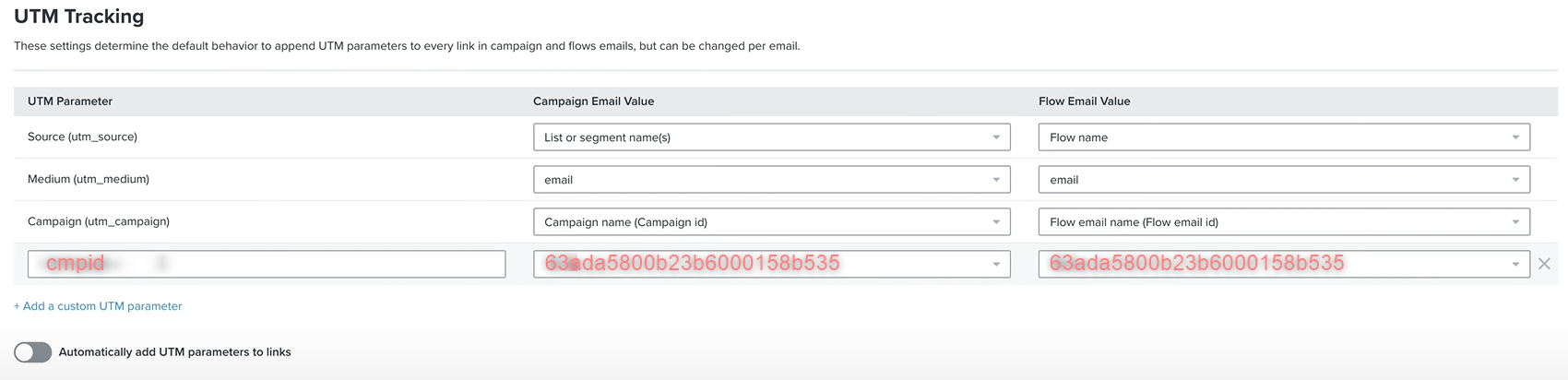
Your tracking parameters from the RT campaign/ad tracking are cmpid=63ada5800b23b6000158b535.
So you:
– put the “cmpid” part to the UTM Parameter field
– put 63ada5800b23b6000158b535 to the Campaign Email Value and Flow Email Value fields next to the “cmpid” part.

