
FatAds and RedTrack

FatAds is a performance advertising network focused on high-quality push and pop traffic. Known for its broad global reach and consistent traffic volumes, the platform offers precise targeting, flexible bidding options, and real-time optimisation tools. Favoured by affiliate marketers and performance-focused advertisers, FatAds is particularly effective for verticals such as utilities, finance, dating, iGaming, and mobile content.
Integration checklist
1. Add a custom tracking domain
1. Add a CNAME record pointing to your RedTrack default domain in your domain registrar.
2. On the left menu, go to Tools → Domains → Create new domain.
3. Add the integrated domain to your RedTrack account and activate the Free SSL option.
2. Add the offer/store tracking URL you are promoting
This is the target destination link where you plan to run the traffic: it can be an affiliate offer, a direct link to your website, or the shop.
1. Add the offer source: New from template/New from scratch → find the affiliate network you work with/add your custom name → Save.
2. Add the offer link: Offers → New → choose the offer source from the list, add the offer URL → save the changes.
For example: &affsub={clickid} where {clickid} is RedTrack parameter
More info on offer source and offer in RT can be found here.
1. Go to Stores → New → Add your store (it is the name of your shop).
2. On the same page, in the Additional parameters section, add the purchase data parameters – Name/Description is what you will see in reports – Roles define their use with CAPI.
3. Go to Store tracking URLs → New → Add your store URL (this is your e-com shop).
4. Follow the suggested steps to generate the scripts. You will need it later for your e-com platform.
Add the following parameters at the end of your store tracking URL: ?rtkcid={clickid}&clickid={clickid}&cmpid={campaignid}
Note:
If your URL does NOT already contain any parameters (i.e., no ? yet), just paste the parameters as shown above.
Example: https://yourstore.com?rtkcid={clickid}&clickid={clickid}&cmpid={campaignid}
If your URL already contains parameters (i.e., it has a ?), use & to add these new ones.
Example: https://yourstore.com?utm=value&rtkcid={clickid}&clickid={clickid}&cmpid={campaignid}
3. Set up the conversion events
In your RT account go to Tools → Conversion tracking → Conversion type → add the events you want to track → Save.
The names will remain the same and be sent to the traffic channel exactly as you added them in RedTrack.
4. Activate the FatAds template in RedTrack
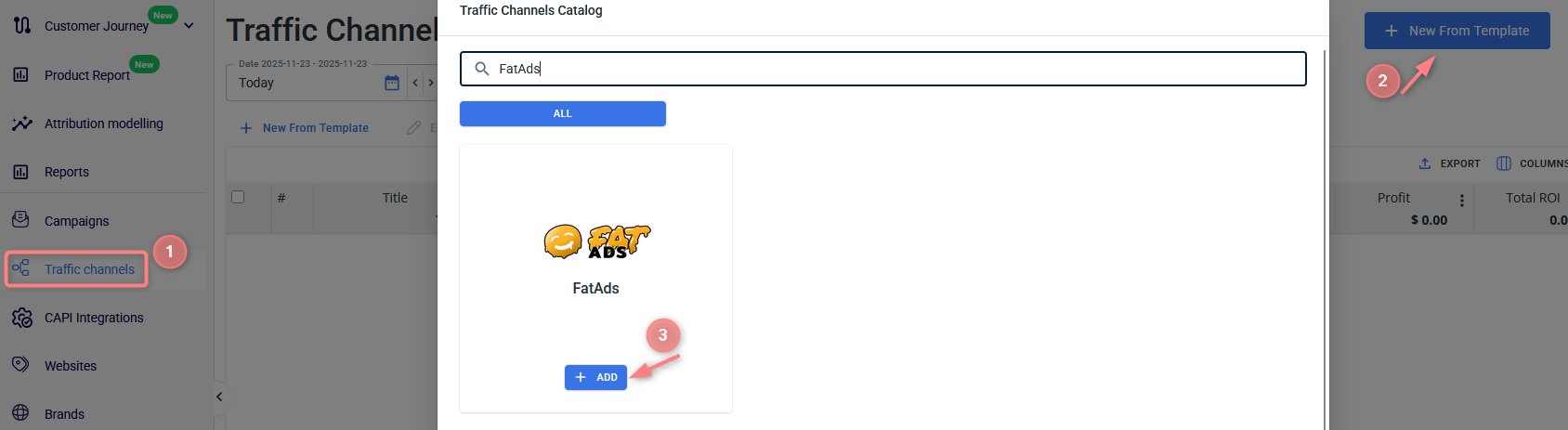
In your RedTrack account, go to Traffic channels → New from template → find FatAds → Add → Update the action in the Postback URL by replacing REPLACE with the actual event name you want to send back to FatAds → Save:
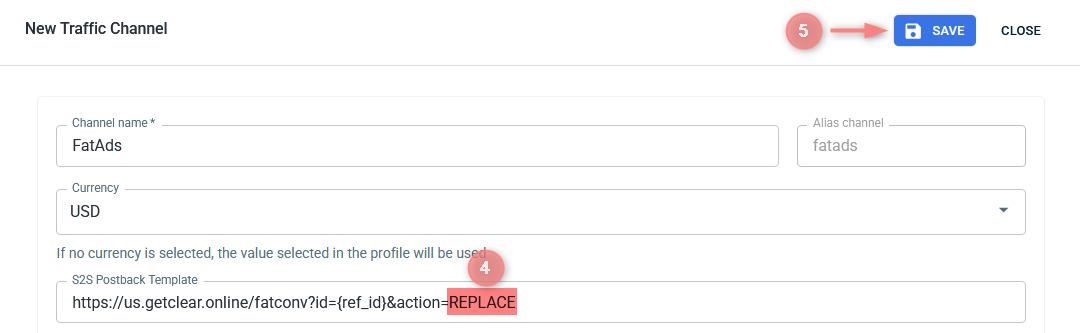
▸ If you want to send lead or install events, replace the action value with “conversion”.
Example: https://us.getclear.online/fatconv?id={ref_id}&action=conversion
▸ If you want to send purchase, deposit, or sale events, replace the action value with “conversion1”.
Example: https://us.getclear.online/fatconv?id={ref_id}&action=conversion1
Make sure to choose the correct action based on the event you want to send back to FatAds.
5. Create a campaign/ad tracking in RedTrack
1. Create a campaign/ad tracking in RedTrack with FatAds as your traffic channel.
In your RT account go to Campaigns → Create new campaign → fill in the info in all the sections and tabs:
- General: give it the name, and choose the traffic channel, tracking domain, and cost-tracking method.
- Funnels: choose the type of funnel you are using and add the elements from the drop-downs.
- S2S postback: this field will be filled in automatically based on the data you have added to your traffic channel settings.
In your RT account go to Ad Tracking → New Ad Tracking → fill in the info in all the sections and tabs:
- General: give it the name, and choose the traffic channel, and cost-tracking method.
- Funnels: choose the type of funnel you are using and add the elements from the drop-downs.
- Ad network webhook for conversions: this field will be filled in automatically based on the data you have added to your traffic channel settings.
2. Once the campaign/ad tracking is added, your tracking link is automatically created, copy the Click URL:
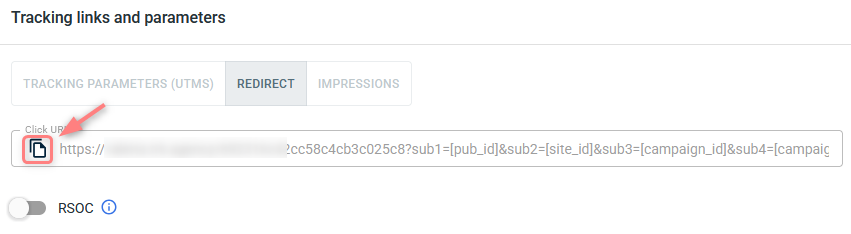
– Universal script
– No-redirect
– Impressions
3. Apply the postback for FatAds:
In the created campaign/ad tracking, navigate to the S2S Postback for FatAds/ Ad network webhook for conversions section → Add → check if the action value is added → Save changes:

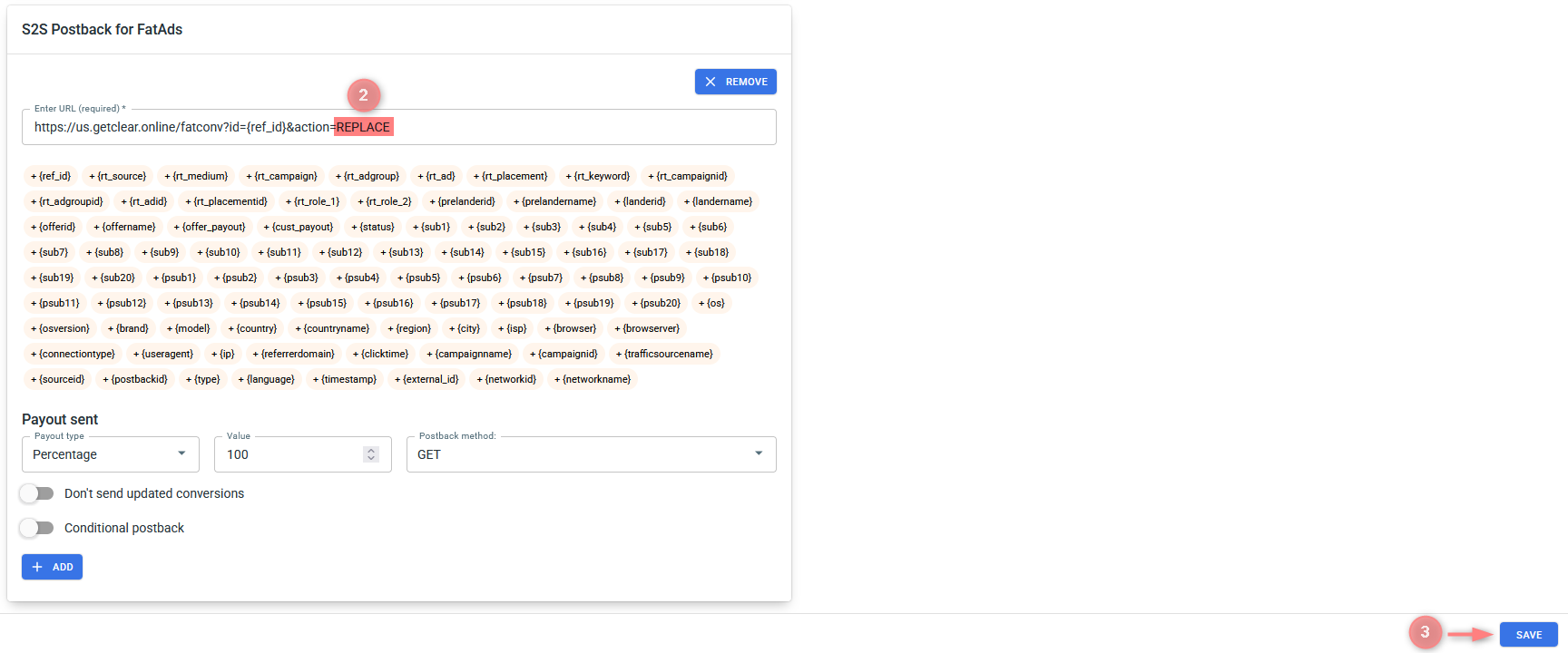
▸ If the postback is not yet updated, make sure to set the action parameter to the correct conversion type you want to send.
▸ If you changed the Postback URL in the Traffic channel (added/removed some parameters to it), remember to manually update the link in Campaign/Ad Tracking settings as well, as it won’t be generated correctly automatically.
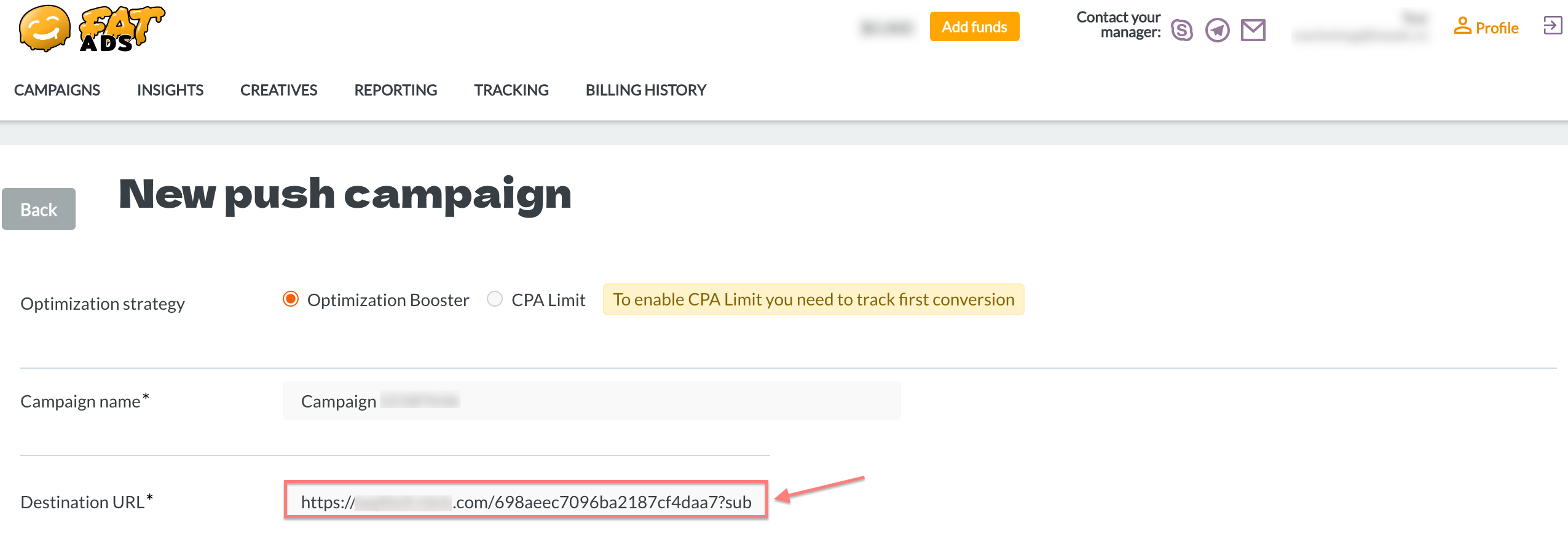
4. Create a campaign in FatAds and paste the RedTrack redirect link (copied within Step 2) into the “Destination URL” field: