Order List
Overview
The Order List provides a detailed view of all orders recorded from your store or website. It helps analyze how conversions occur by linking each order to customer data, traffic attribution, and events tracked before the purchase.
This report is commonly used for order-level analysis, attribution validation, and understanding which interactions contributed to completed purchases.
How to enable the Order List
To make the Order List report work correctly, the following tracking elements must be configured:
1. Activate the conversion types.
Go to Tools → Conversion Tracking → enable the Customer Journey feature for the conversion type used to track purchases.
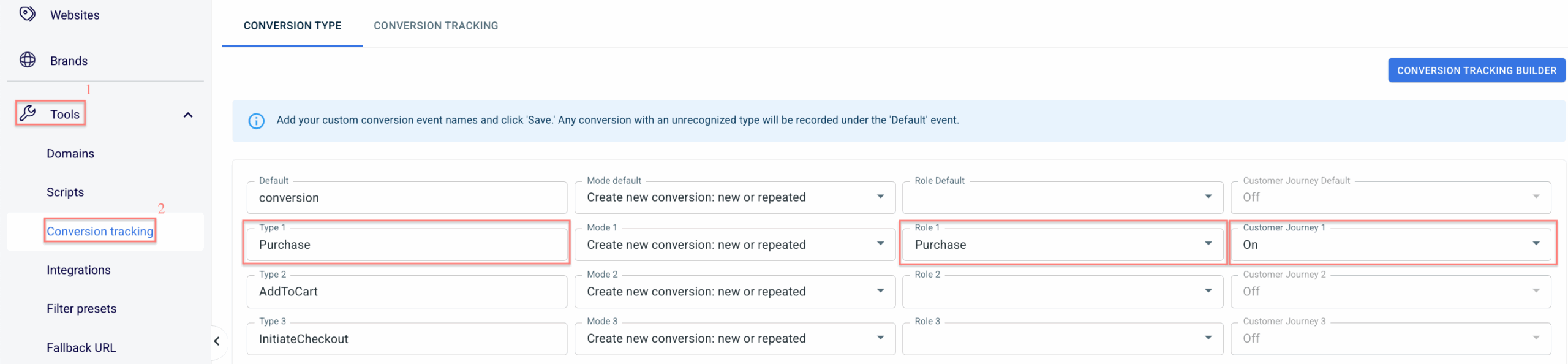
2. Activate customer parameters for email & phone.
Go to Stores → Additional Parameters → add email and phone as parameters → assign the correct roles → Save:
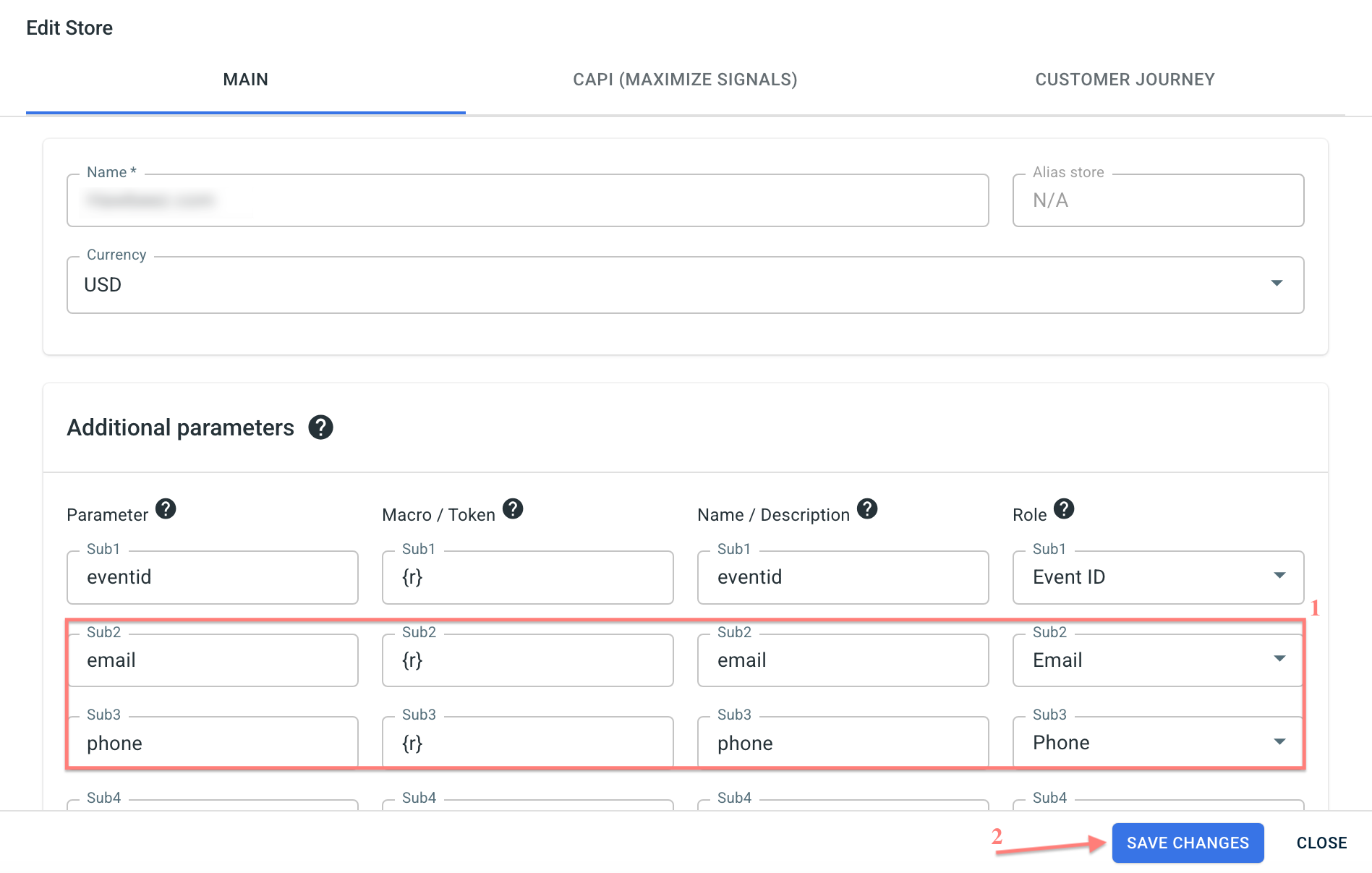
If this data is missing, RedTrack cannot link orders to customers, and the Order List report will not be generated correctly.
How to work with the Order List
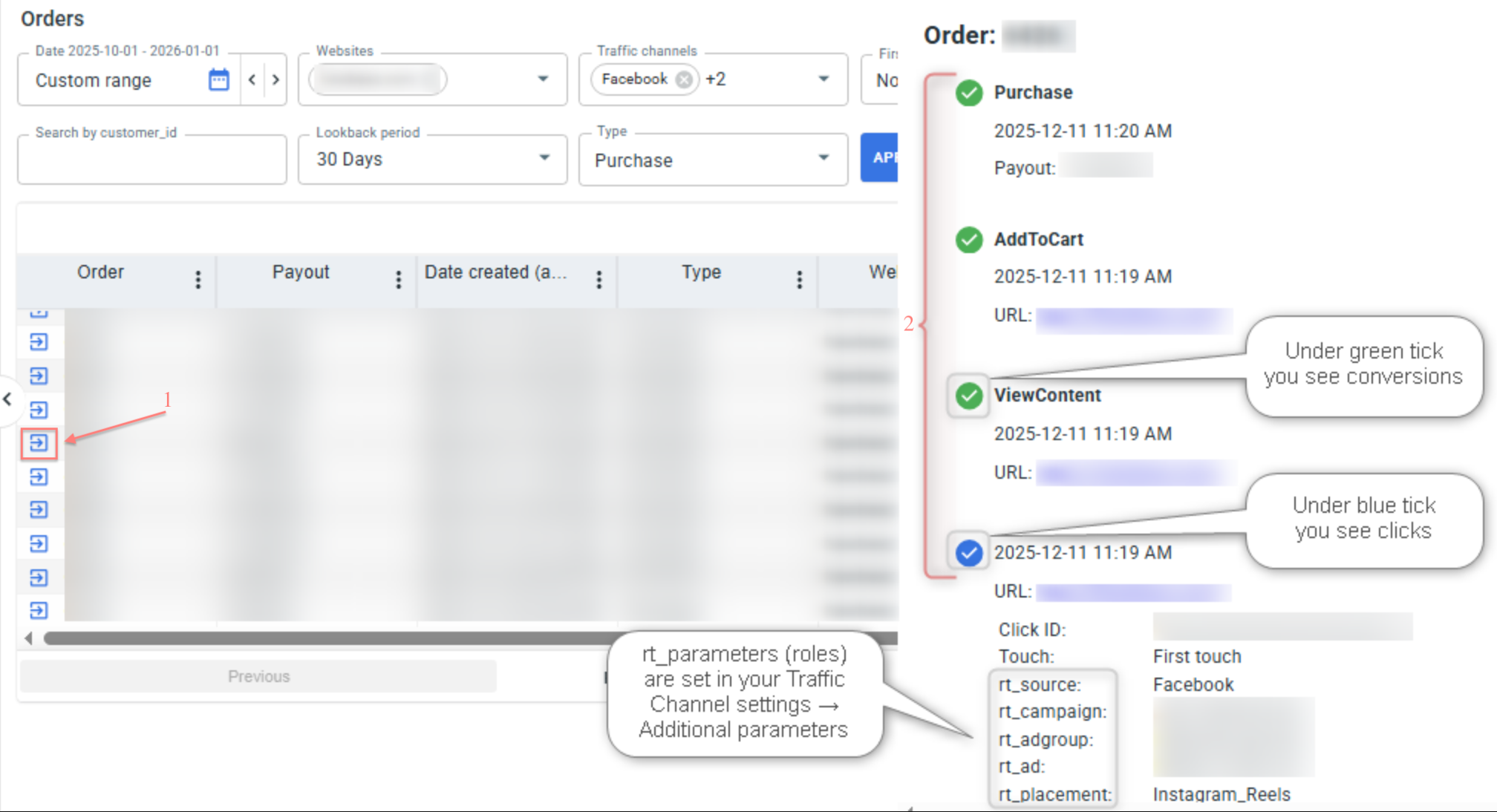
1. Go to Customer analytics → Order List → fill in the filters → Apply/Refresh:

Explained:
Choose one or multiple traffic channels to analyze which channels generate orders.
If in the Traffic channels field, you chose several channels, in the First/Last touch fields, you can narrow results further:
- First Touch – the channel where the customer began their journey.
- Last Touch – the channel where the final action before purchase happened.
These filters help evaluate how different channels contribute at various stages of conversion.
You can enter an order number to filter results to a single order.
Order numbers are pulled from Shopify and WooCommerce.
You can search by customer_id, which RedTrack assigns automatically.
This helps identify all actions and purchases associated with a specific customer.
Lookback period defines how much data around a specific order is shown. RedTrack offers a 30-day and 60-day lookback periods.
The Date Filter shows all orders made within the selected date range.
Lookback Period shows activity related only to the chosen order within the defined timeframe (30 or 60 days).
The Order List report in RedTrack is composed based on the chosen conversion type.
2. Click the icon next to the order number to explore an individual order in more detail.