
Customer List
Overview
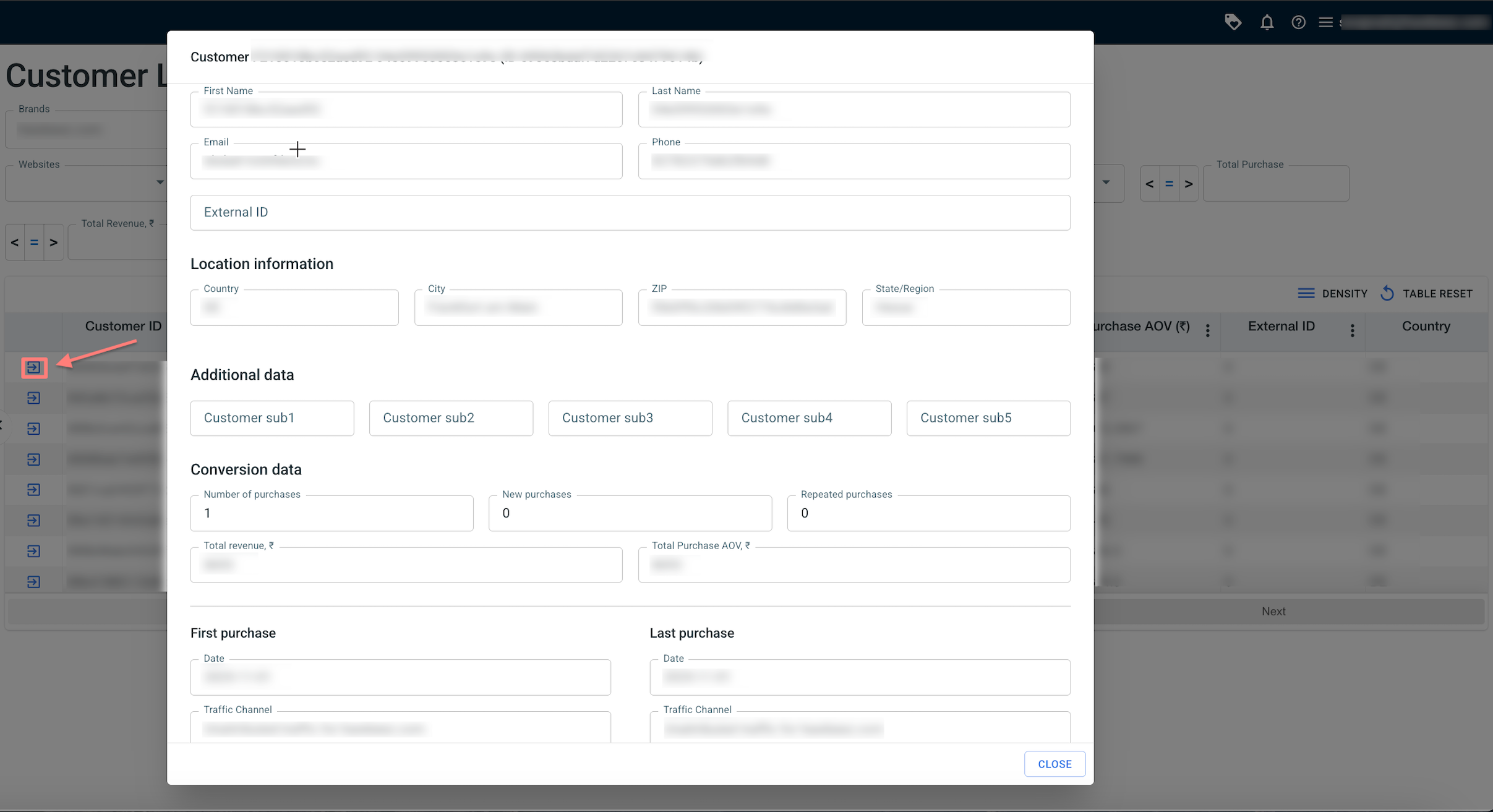
The Customer List provides a comprehensive view of all customers interacting with the store/ website. It allows analysis of customer behavior by presenting individual customer profiles along with their activity and purchase history. The Customer List consolidates essential data, including customer interactions, conversion history, purchase behavior, and additional attributes. It also provides quick access to key metrics, including first interaction, last purchase, total revenue, and product details.
How to enable the Customer List
To ensure accurate customer identification and reporting, the required settings must be configured:
1. Activate the conversion types.
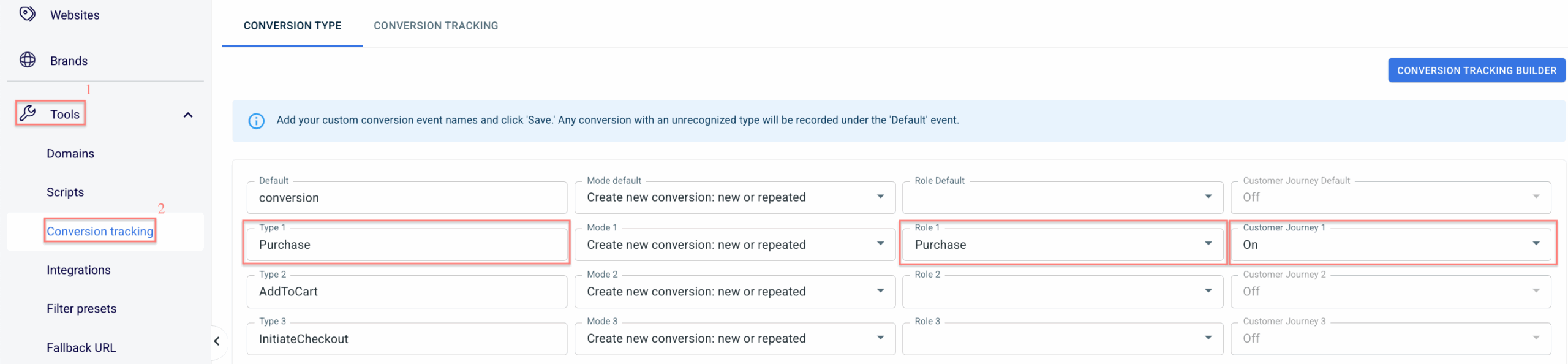
Go to Tools → Conversion Tracking → enable the Customer Journey feature for the conversion type used to track purchases → set the “Purchase” role for that conversion type→ Save:
2. Assign roles in Store settings.
Go to Stores → Additional Parameters → assign the roles as per your needs → Save:
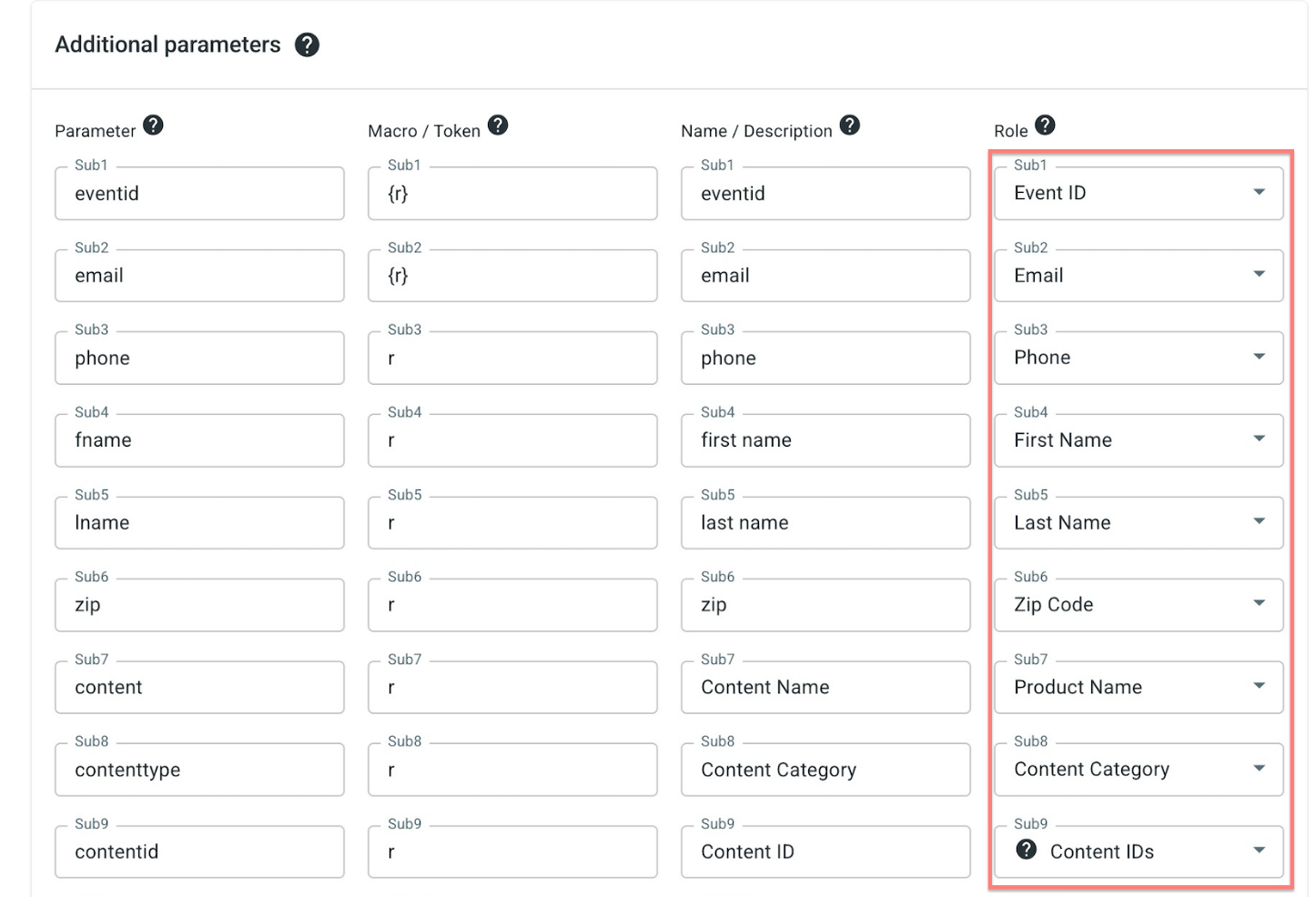
customer_external_id.To collect customers by external ID,
customer_external_id should be added to a free sub in Additional Parameters, with only the first column filled in. The External_id role should not be assigned, as it is reserved for a different ID: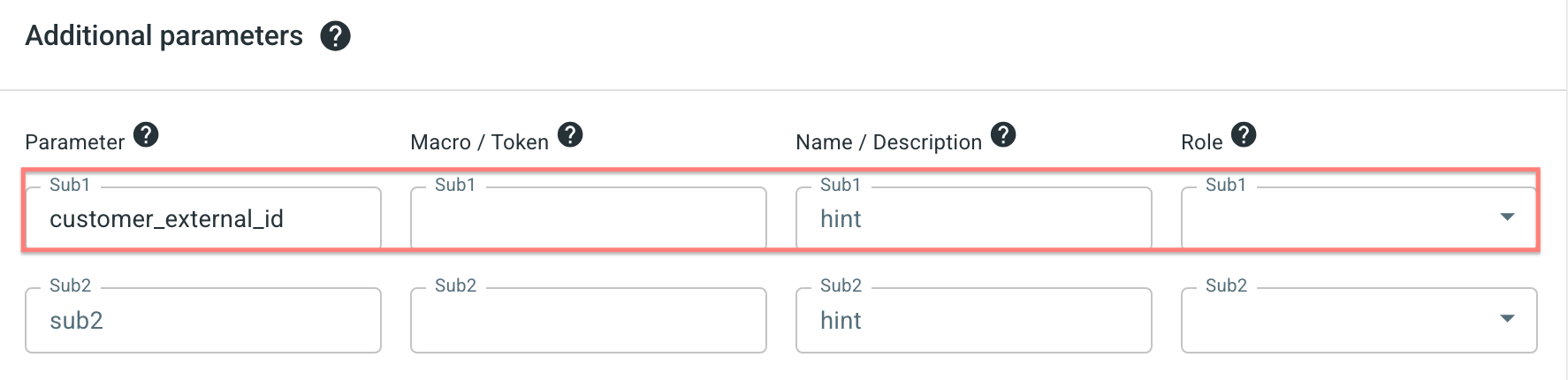
With this setup, customers are identified by ID only, without email or phone.
3. Adjust customer data settings in the Store form.
Use the Store Form settings to configure how customer data is collected, stored, and attributed across RedTrack.
These settings directly affect the accuracy of customer identification, reporting, and Customer List functionality.
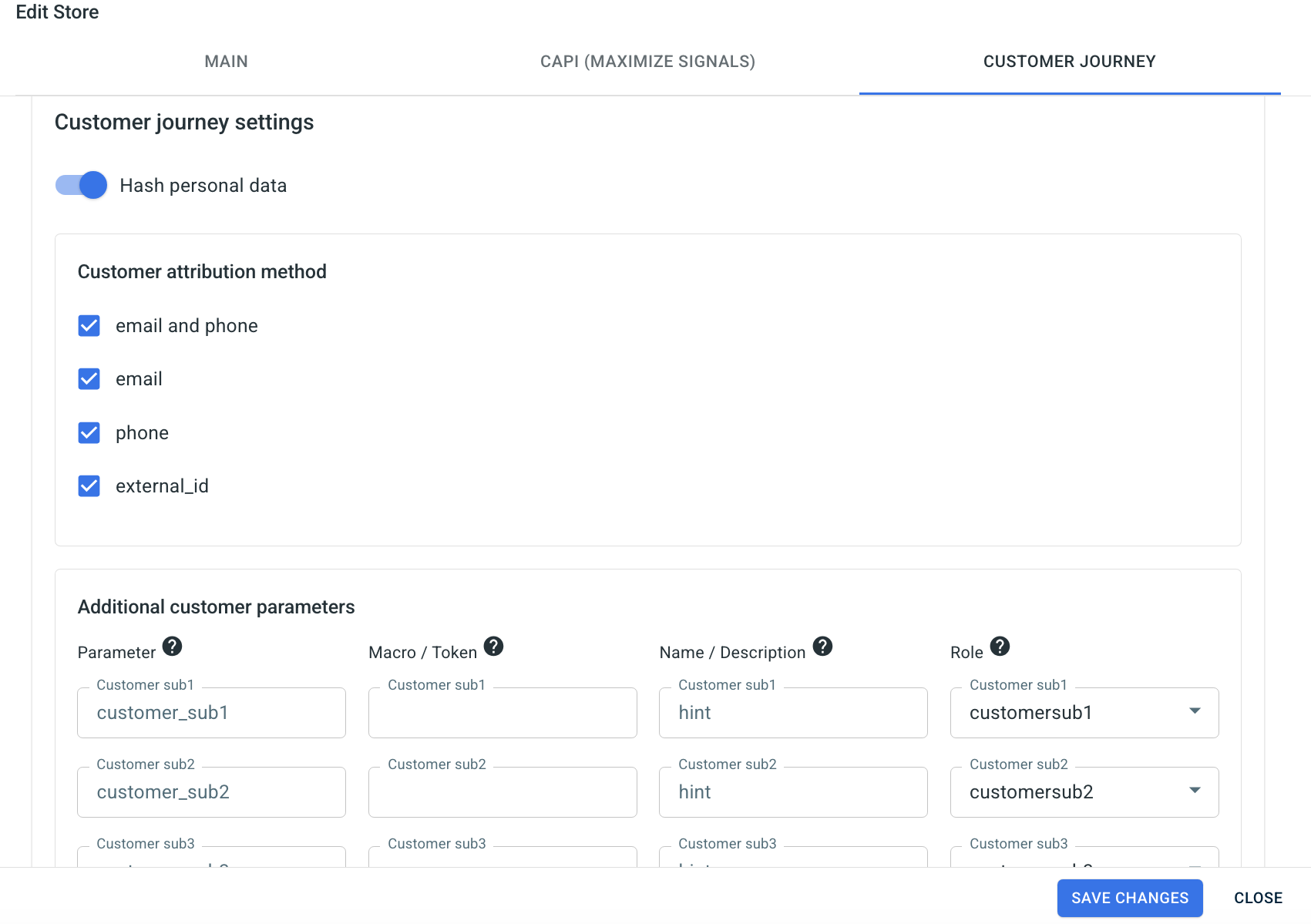
Hash personal data controls how personal information (email, phone number, name) is stored and displayed.
- Enabled (default): Personal data is stored in a hashed format to support privacy and compliance.
- Disabled: Personal data is stored and shown in its original form.
The customer attribution method determines how conversions are matched to customer records using identifiers such as Email & Phone, Email, Phone, or External_ID. Users can shorten the attribution chain by selecting a single identifier (e.g., Email only).
Attribution Logic:
When a conversion occurs, RedTrack checks for a matching customer in the following order:
1. Email & Phone
2. Email
3. Phone
4. External_ID
If no match is found → a new customer is created
If a match exists → the conversion is assigned to that customer.
Allows sending up to 5 custom attributes per customer record.
These additional fields can be used for filtering and deeper customer analysis.
How to work with the Customer List
1. Go to Customer analytics → Customer List → select the target Store → Apply.
The full list of customers associated with that store will be displayed.

2. Apply filters to refine the Customer List.
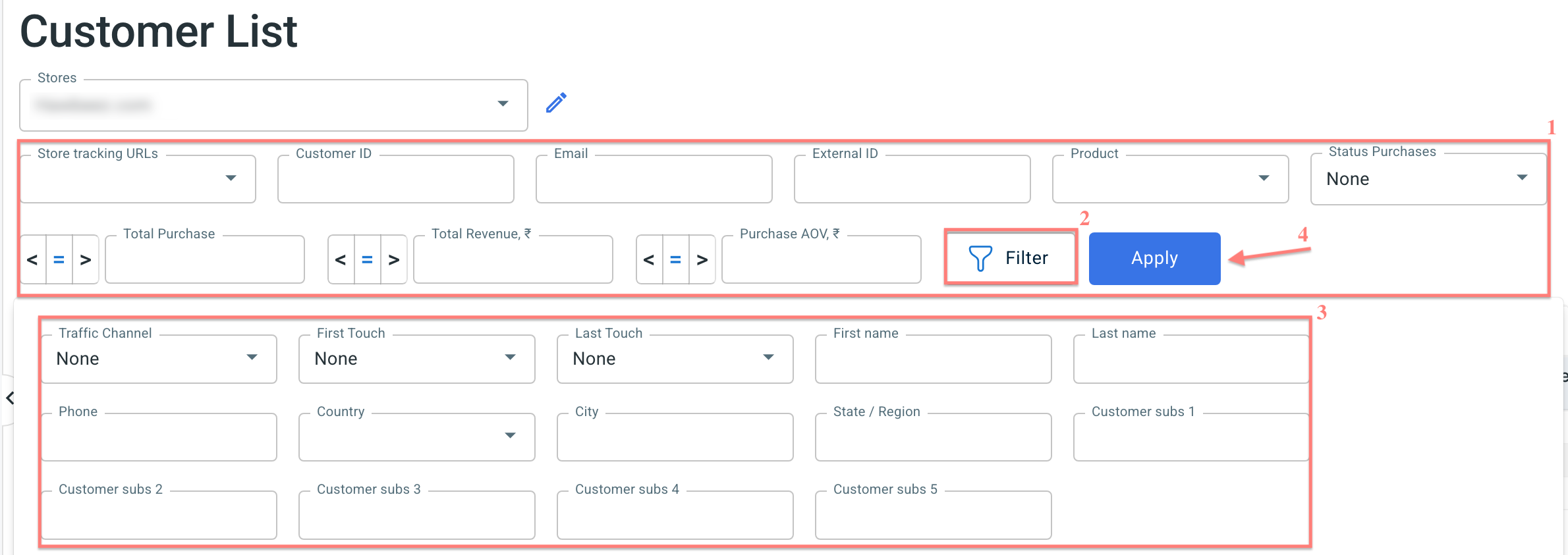
3. Open a customer profile.
Click on any customer in the list to view detailed information.