MGID and RedTrack
MGID, Inc. is a global pioneer in native advertising that provides tailored solutions for advertisers, affiliate marketers, online stores, webmasters, web marketers, brand managers, performance-driven media buyers, and publishers on one integrated platform.
RedTrack has an API integration with MGID, which gives you the following benefits:
- Pause: campaign, placement, creative
- Create automated rules
Integration
1. Add a custom tracking domain
1. Add a CNAME record pointing to your RedTrack default domain in your domain registrar.
2. On the left menu go to Tools → Domains → Create new domain.
3. Add the integrated domain to your RedTrack account and activate the Free SSL option.
2. Add the offer/store tracking URL you are promoting
This is the target destination link where you plan to run the traffic: it can be an affiliate offer, a direct link to your website, or the shop.
1. Add the offer source: New from template/New from scratch → find the affiliate network you work with/add your custom name → Save.
2. Add the offer link: Offers → New → choose the offer source from the list, add the offer URL → save the changes.
For example: &affsub={clickid} where {clickid} is RedTrack parameter
More info on offer source and offer in RT can be found here.
1. Go to Stores → New → Add your store (it is the name of your shop).
2. On the same page, in the Additional parameters section, add the purchase data parameters – Name/Description is what you will see in reports – Roles define their use with CAPI.
3. Go to Store tracking URLs → New → Add your store URL (this is your e-com shop).
4. Follow the suggested steps to generate the scripts. You will need it later for your e-com platform.
Add the following parameters at the end of your tracking URL: ?rtkcid={clickid}&clickid={clickid}&cmpid={campaignid}
Note:
If your URL does NOT already contain any parameters (i.e., no ? yet), just paste the parameters as shown above.
Example: https://yourstore.com?rtkcid={clickid}&clickid={clickid}&cmpid={campaignid}
If your URL already contains parameters (i.e., it has a ?), use & to add these new ones.
Example: https://yourstore.com?utm=value&rtkcid={clickid}&clickid={clickid}&cmpid={campaignid}
3. Set up the conversion events
In your RT account go to Tools → Conversion tracking → Conversion type → add the events you want to track → Save.
The names will remain the same and be sent to the traffic channel exactly as you added them in RedTrack.
4. Get your MGID client ID and access token
Log in to your MGID account to get your client ID and access token:
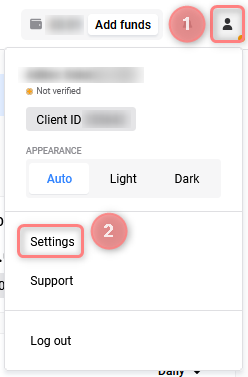
1. In the top-right corner click on your Profile icon → Profile → Settings:
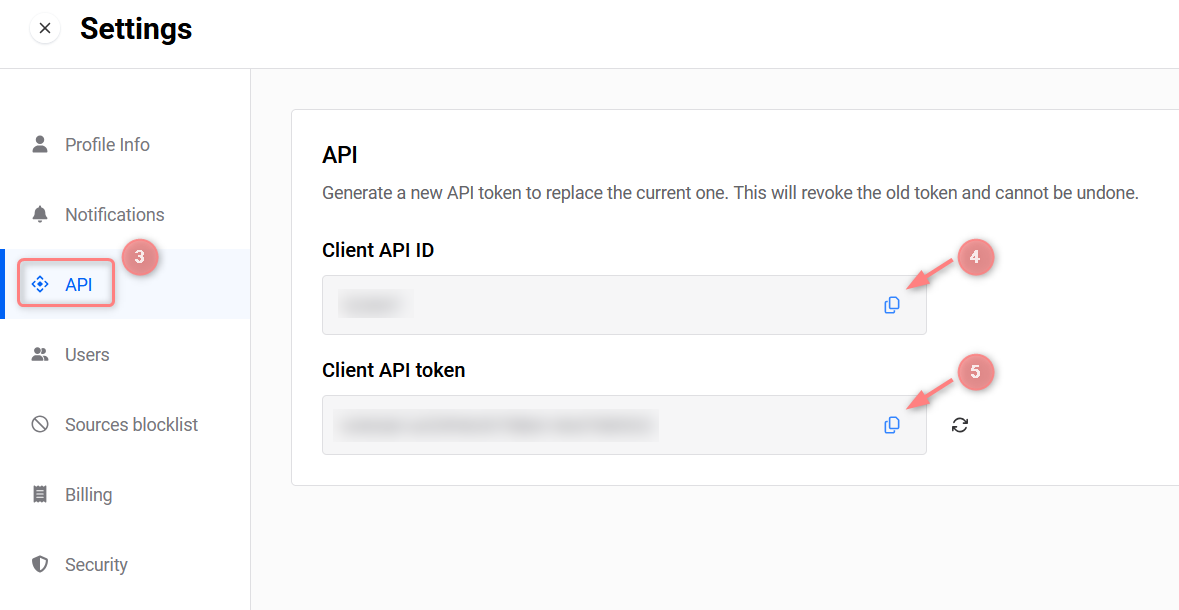
2. Click on API → Copy and save the values from the Client API ID and Client API Token fields. These will be your Client ID and Access Token, which you’ll add to RedTrack later.
5. Add the MGID template to RedTrack
1. Add MGID template to RedTrack.
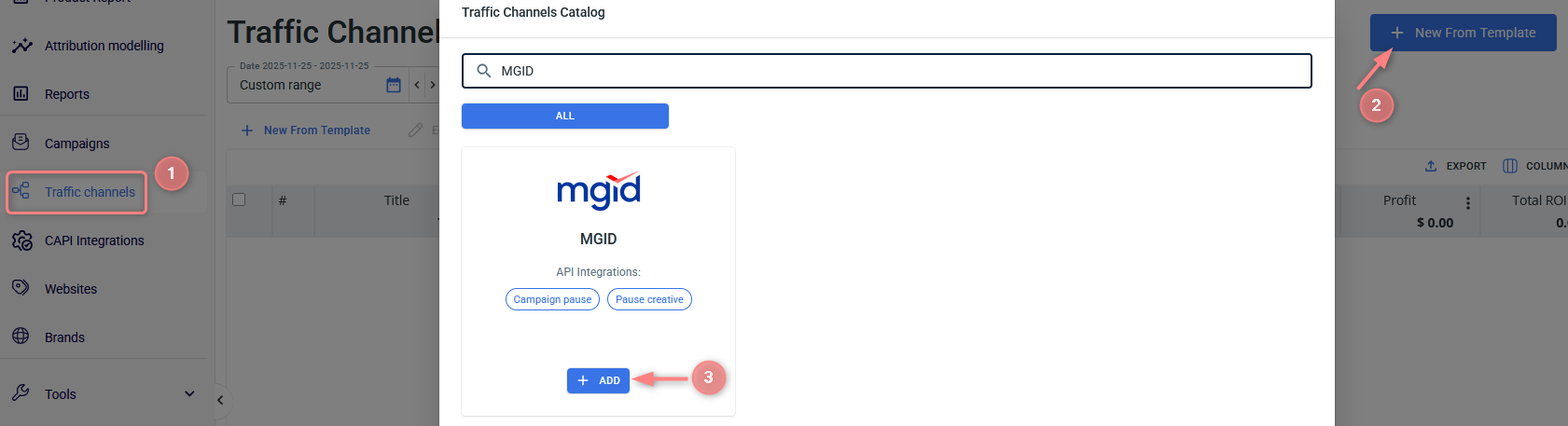
In your RedTrack account go to Traffic channels → New from template → find MGID → Add → Save:
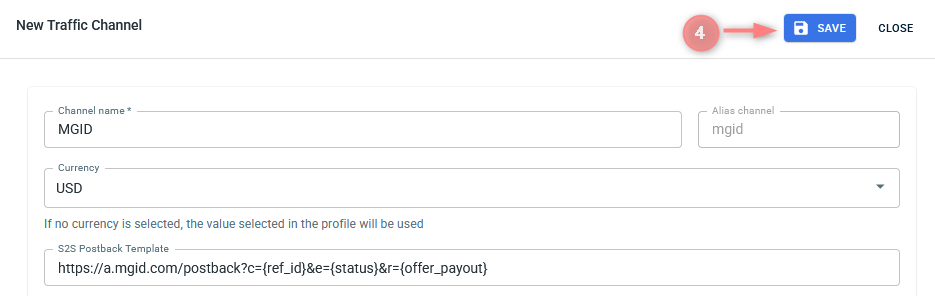

Some of the parameters in the Additional parameters section are greyed, which means you cannot change them as they are required for the extended API integration.
2. Integrate MGID with RedTrack.
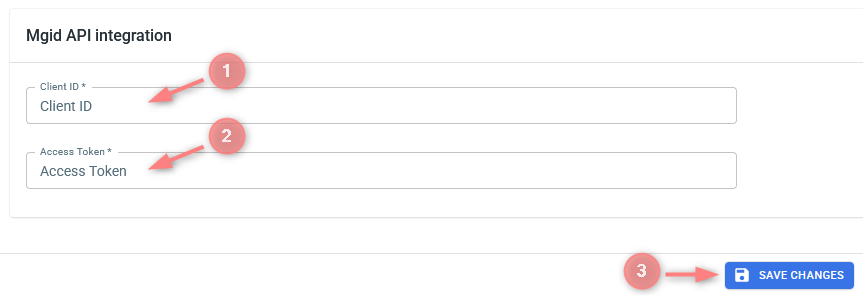
In the added MGID template go to MGID API integration → fill in the Client ID and Access Token details with the values copied before → Save the changes:
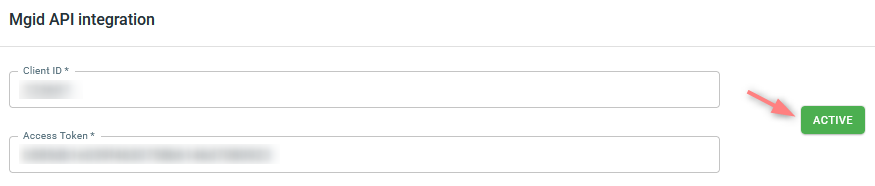
Active button means the integration is on:
6. Create a campaign/ad tracking in RedTrack
1. Create a campaign/ad tracking in RedTrack with MGID as your traffic channel.
In your RT account go to Campaigns → Create new campaign → fill in the info in all the sections and tabs:
- General: give it the name, and choose the traffic channel, tracking domain, and cost-tracking method.
- Funnels: choose the type of funnel you are using and add the elements from the drop-downs.
- S2S postback: this field will be filled in automatically based on the data you have added to your traffic channel settings.
In your RT account go to Ad Tracking → New Ad Tracking → fill in the info in all the sections and tabs:
- General: give it the name, and choose the traffic channel, and cost-tracking method.
- Funnels: choose the type of funnel you are using and add the elements from the drop-downs.
- Ad network webhook for conversions: this field will be filled in automatically based on the data you have added to your traffic channel settings.
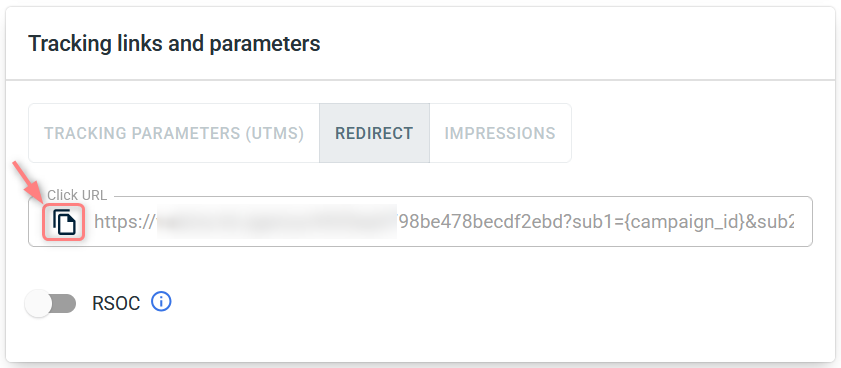
2. Once the campaign/ad tracking is saved, your tracking link is automatically created, copy Click URL:
– Universal script
– No-redirect
– Impressions
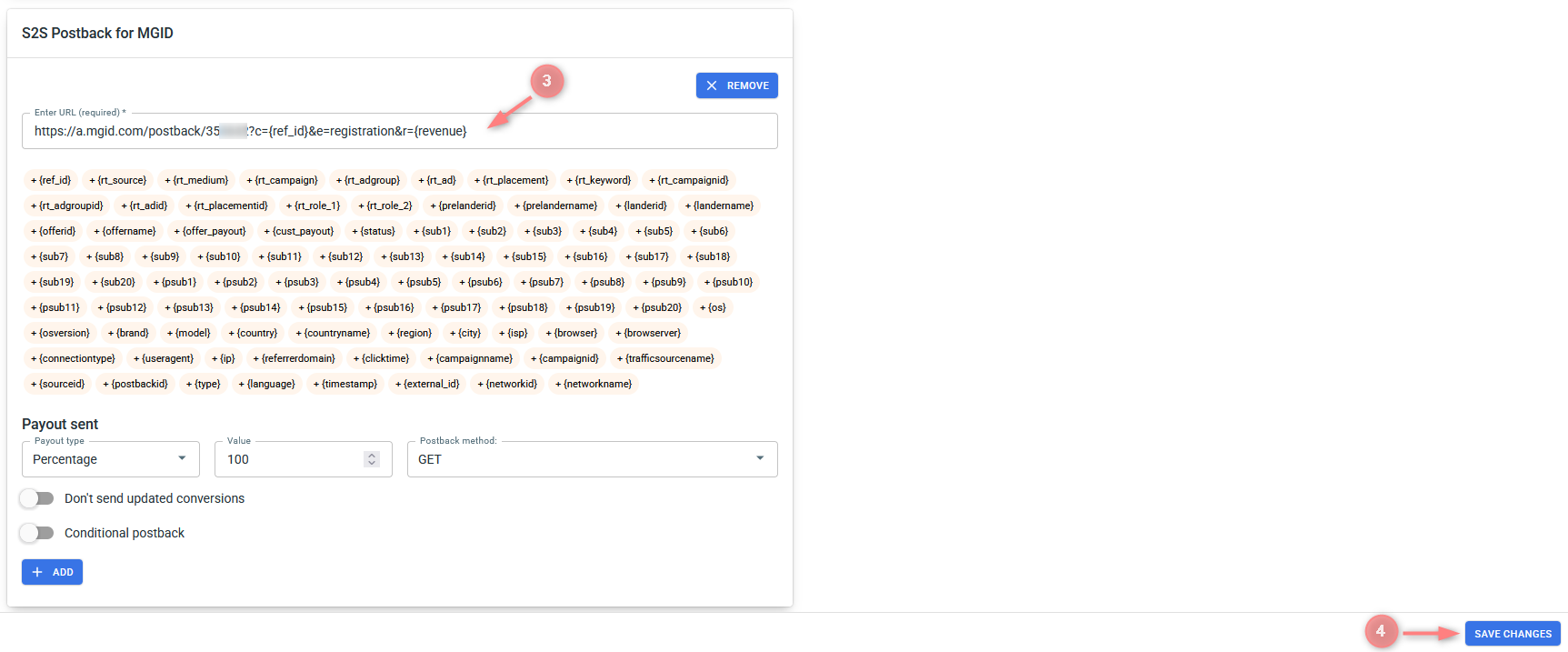
3. Apply the postback for MGID/ad network webhook for conversions:
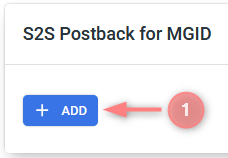
In the created campaign/ad tracking navigate to S2S Postback for MGID/ Ad network webhook for conversions section → Add → Save changes:
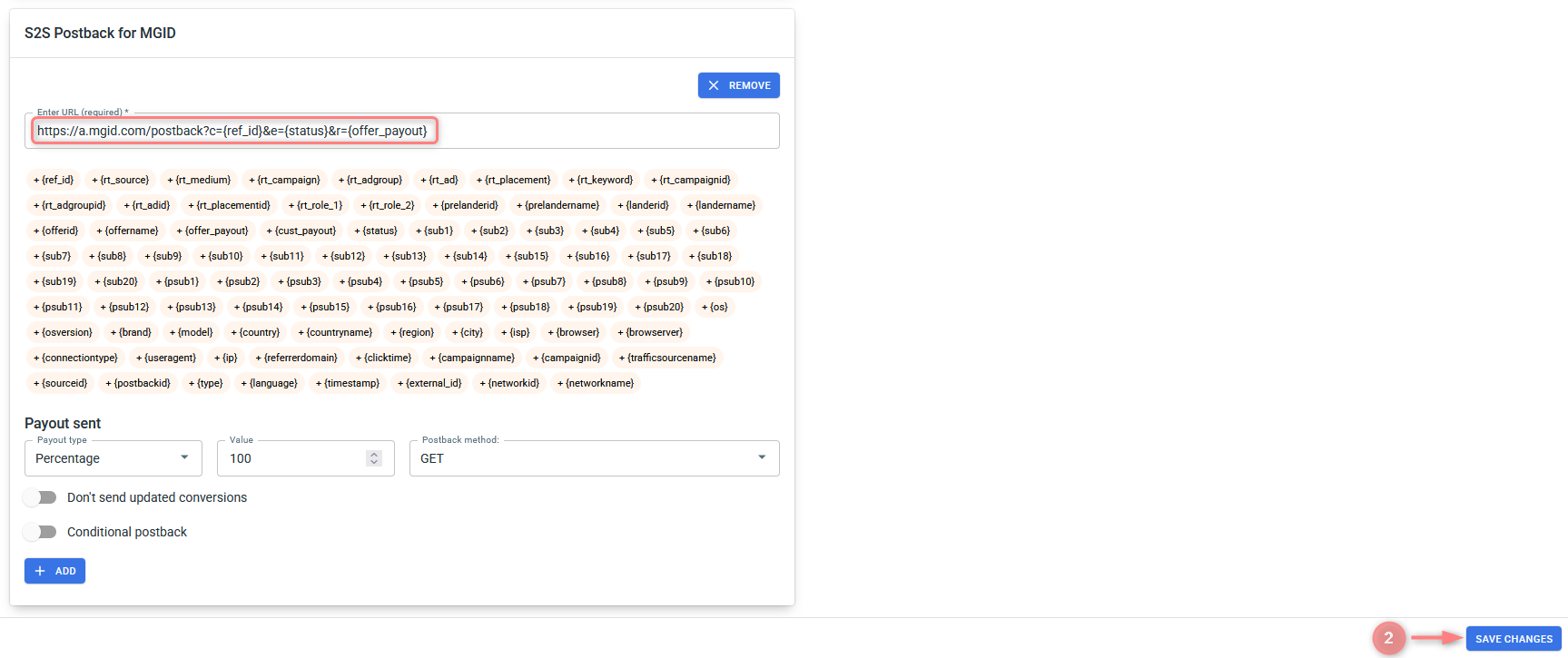
▸Make sure it contains the correct MGID event name/goal under the “e” parameter.
▸If you changed the Postback URL in the Traffic channel (added/removed some parameters to it), remember to manually update the link in Campaign/Ad Tracking settings as well, as it won’t be generated correctly automatically.
▸ Some Traffic channels require you to edit the Postback with specific parameters for each Campaign/Ad Tracking. If the field remains blank or something like “REPLACE” is stated, that means you need to define the Postback conditions manually.
4. Create a campaign in MGID and use the RedTrack Redirect Click URL mentioned in Step 2 to promote your offer.
4.1 In your MGID account, go to the Campaigns tab → click Create → use this MGID guide to help create the campaign:

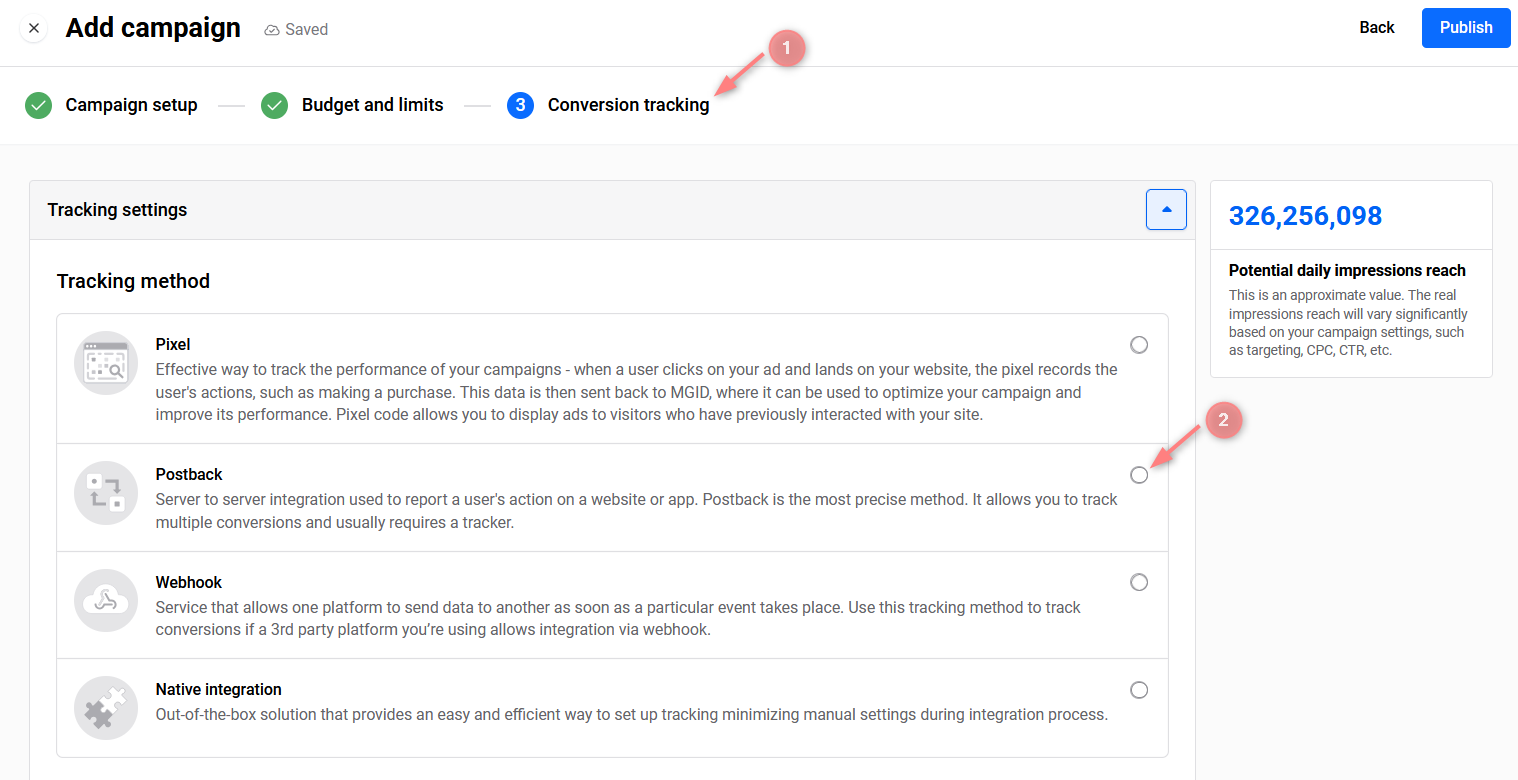
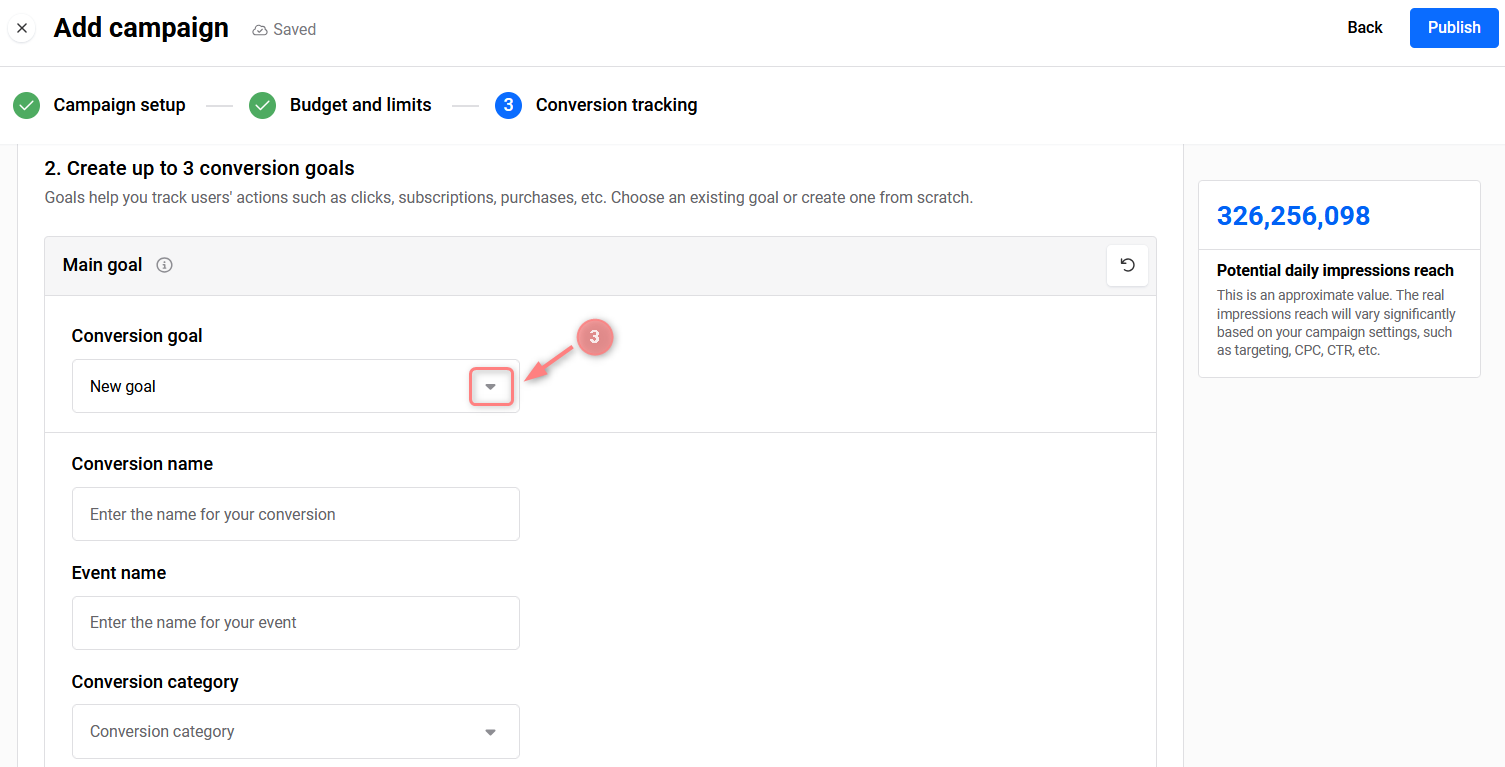
4.2 Navigate to the Conversion Tracking step → select Postback as the tracking method → set up your goal:
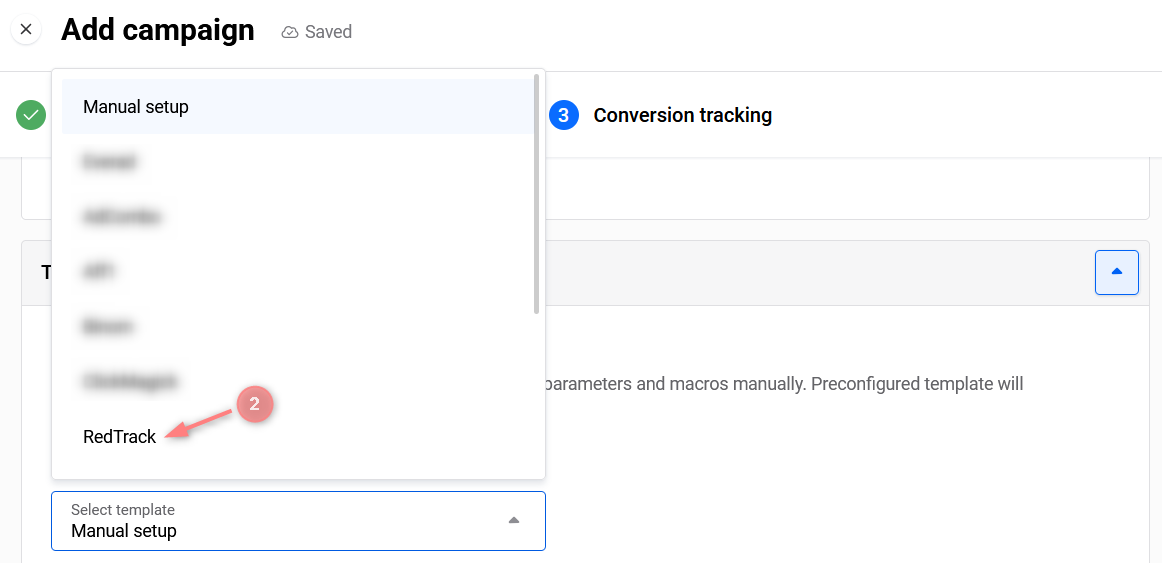
4.3 Go to the Tracking link settings section → open the Select template field → select RedTrack:
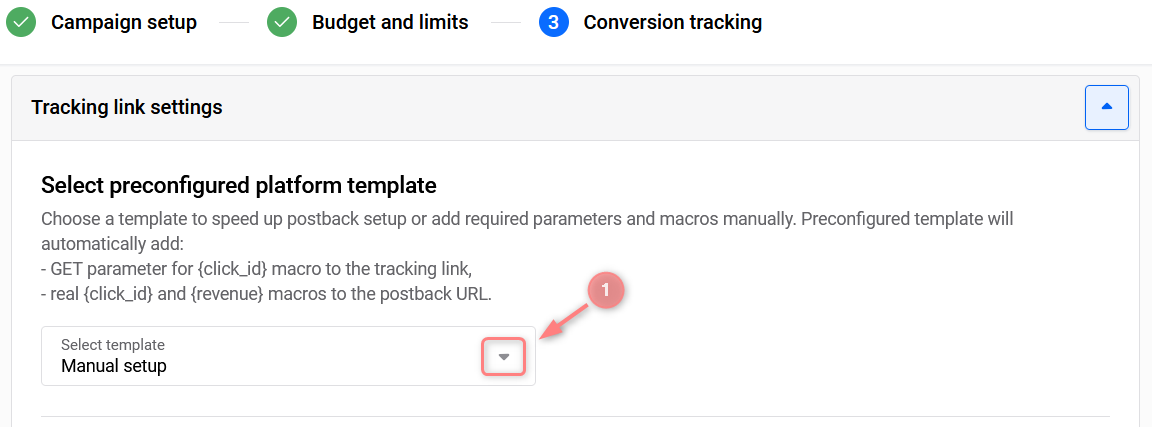
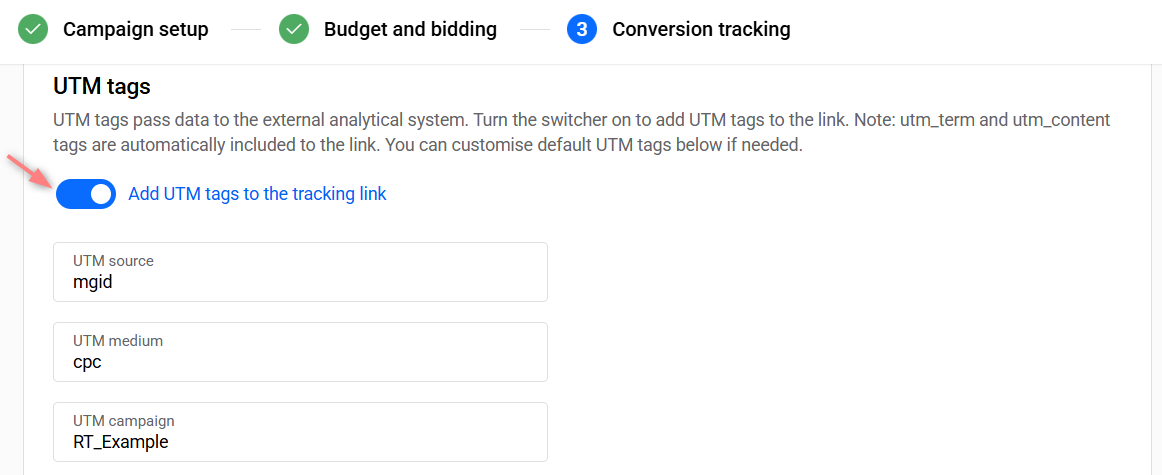
We recommend using campaign names without spaces or special characters (for example, RT_Example or RT-Example) to avoid broken tracking links.
4.4 Update the MGID postback on the RedTrack side.
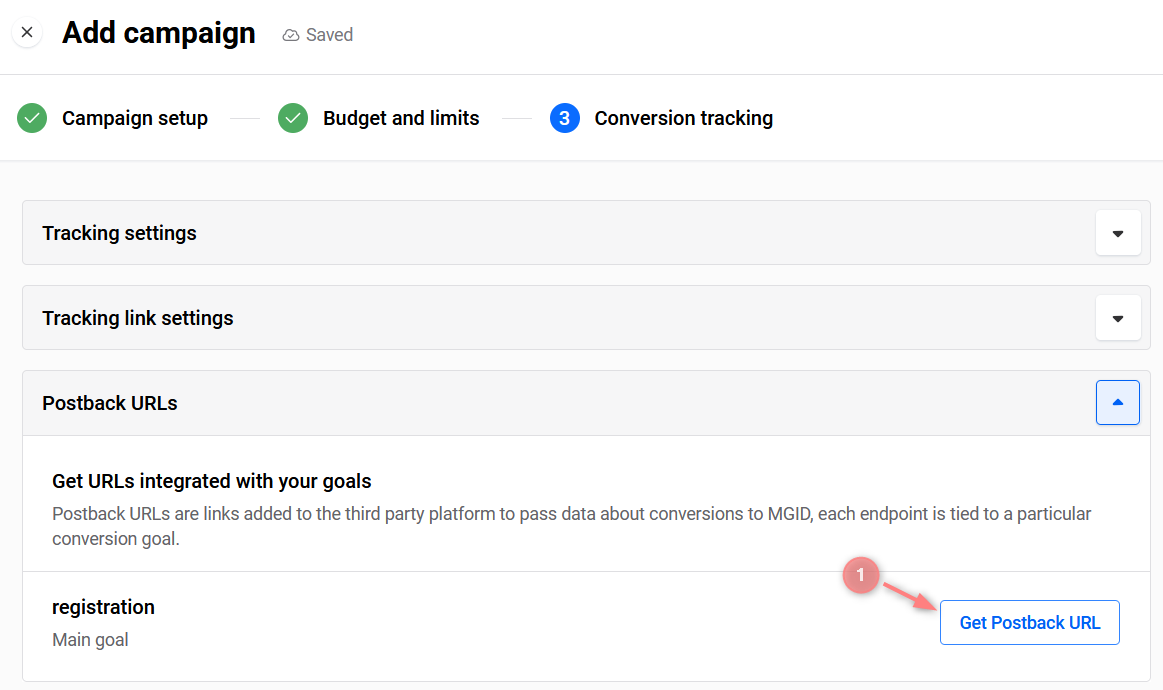
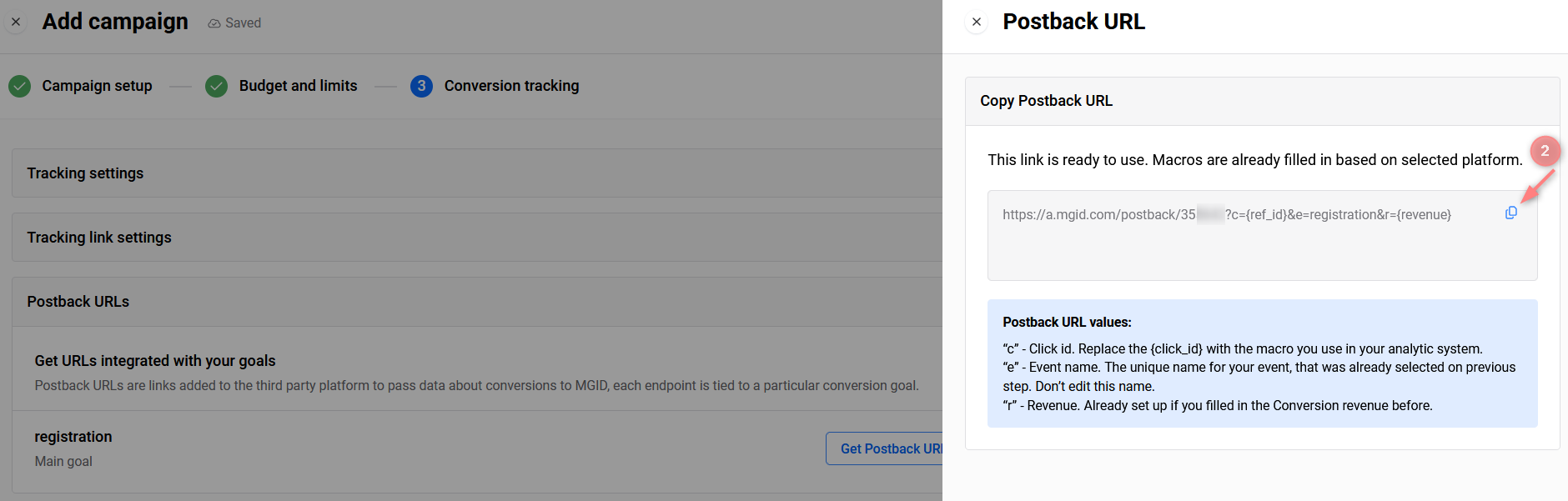
In MGID scroll down to the Postback URLs section → click Get Postback URL → copy the postback URL template → Paste it into the S2S Postback/Ad network webhook for conversions field on the RedTrack side → Save changes:
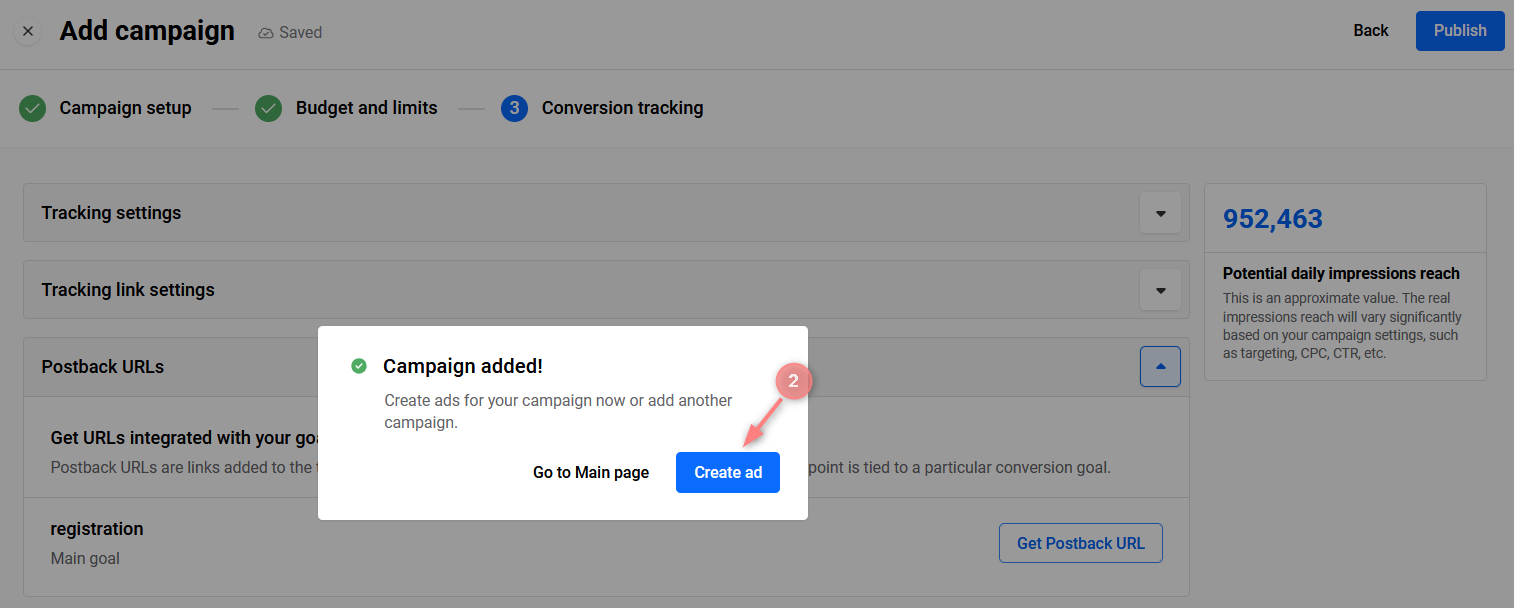
4.5 Click Publish to apply the changes to the campaign. Once the settings are saved on the MGID side, you will automatically be prompted to create ads for your new campaign → click Create ad:

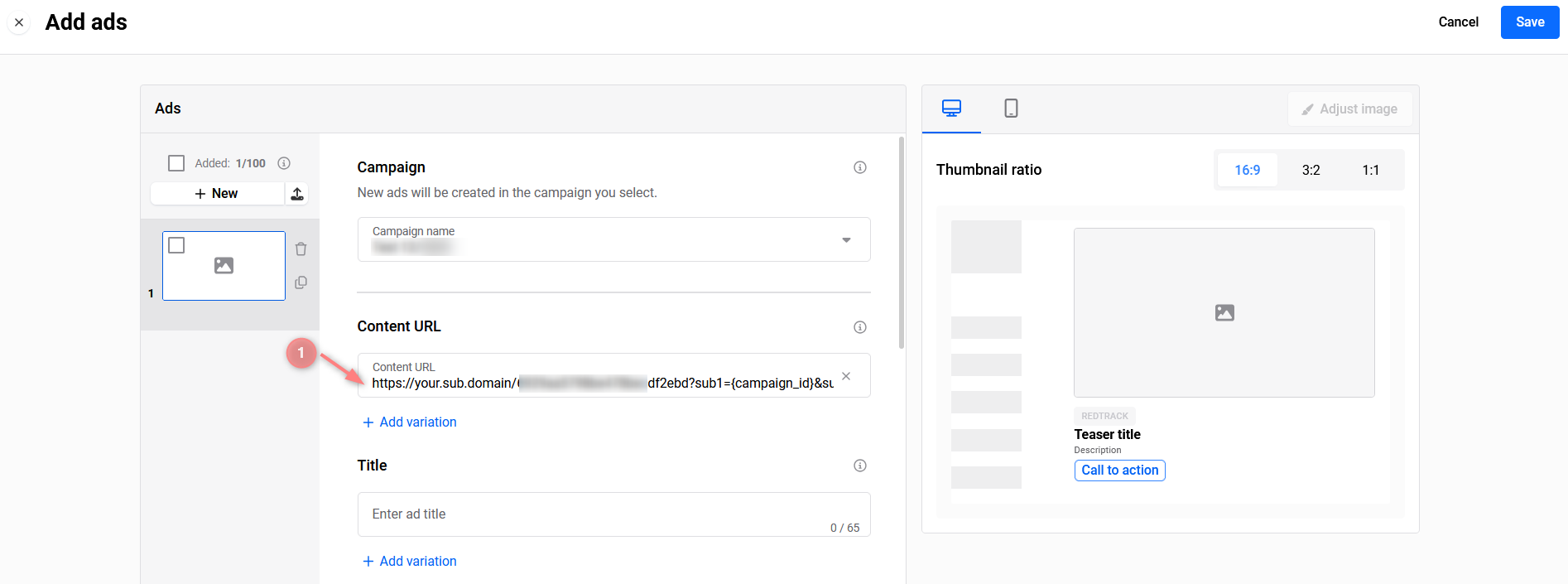
4.6 Copy the Click URL from the RedTrack campaign/ad tracking (mentioned in Step 2) and paste it into the Content URL field of the MGID ad → Fill in the rest of the fields as per this MGID guide → Save:
5. Set up the automation.
- Use this guide to help set up rules.
- Use this guide for setting up the auto update cost feature.

