


Adding Store and Store tracking URL
What is store and store tracking URL?
Store is an element in RedTrack, which is your product name (shop, website). It is the essential element for setting up a campaign.
Store tracking URL is the link to the exact product/shop you are promoting.
How to add a store and a store tracking URL
1. Before you start
Before you start adding Store and Store tracking URL make sure you already have the following elements added:
2. Store
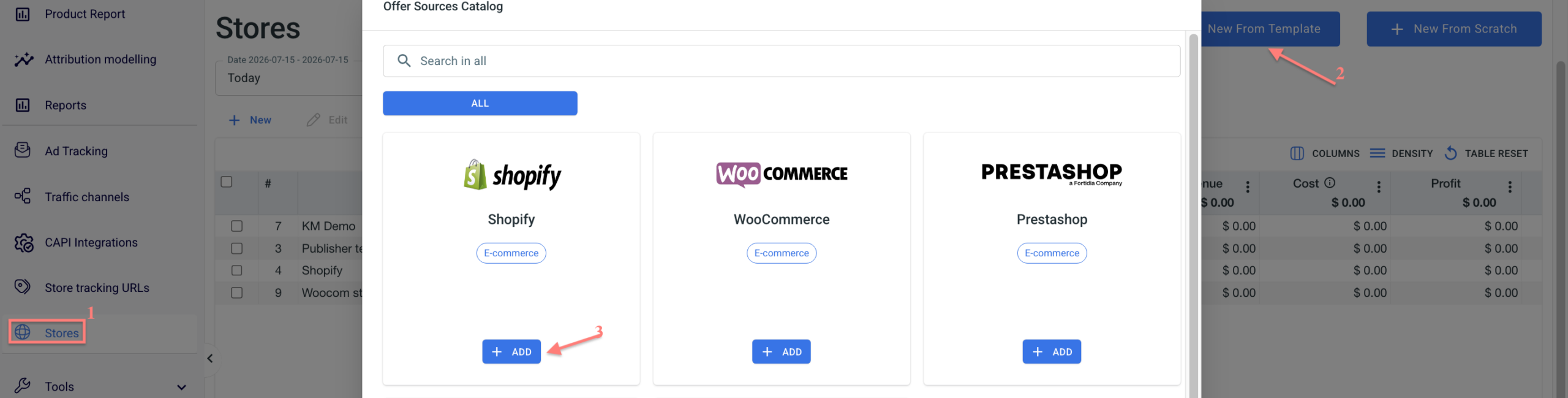
1. Stores → New From Template → choose the needed Store from the Catalog → press ADD:
2. Adjust the settings the way you need → Save:
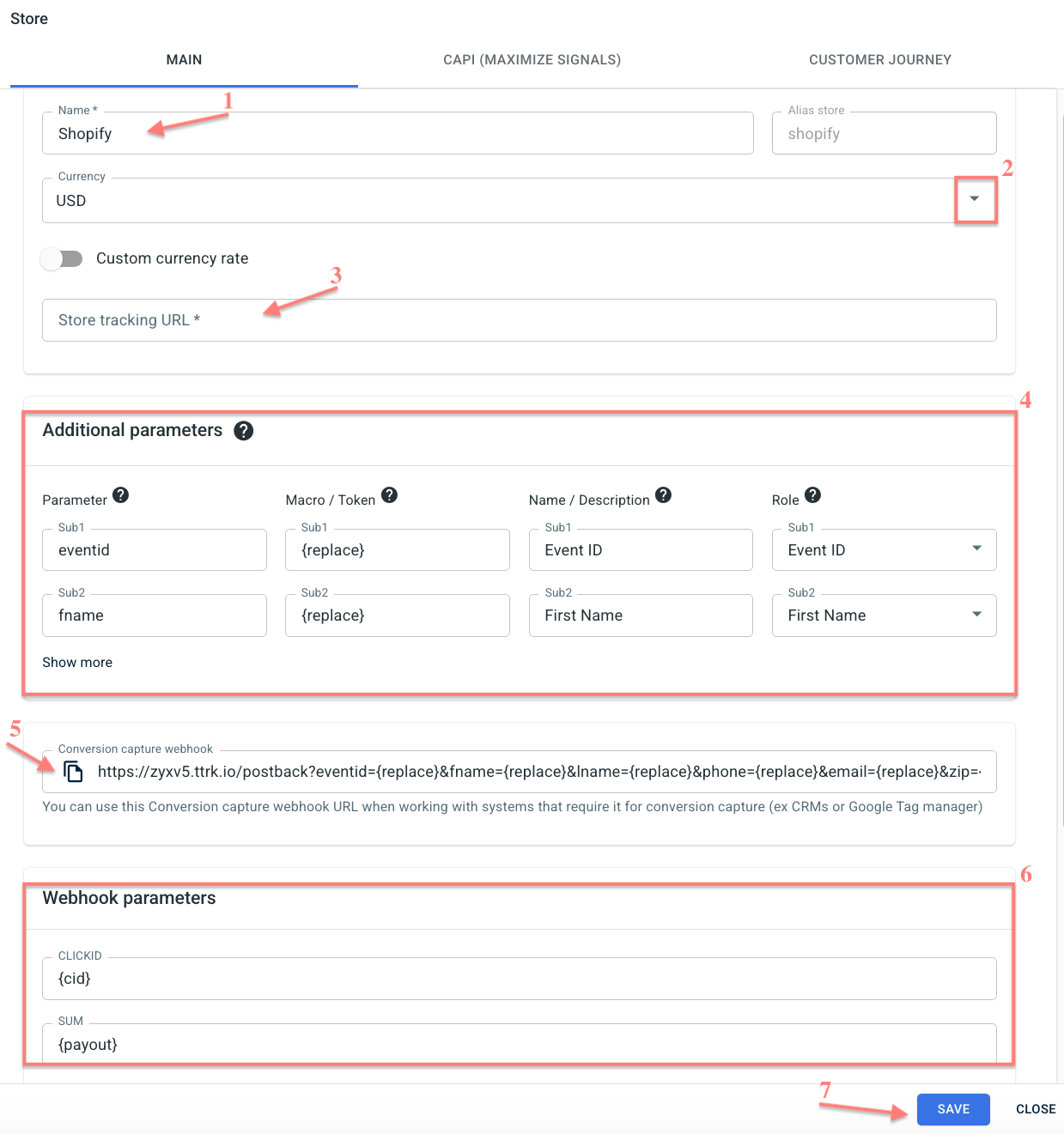
1. Name: change the name of the store if needed.
2. Currency: select the currency your store operates in. If you receive payouts and costs in a different currency than your account currency, enable Custom currency rate to convert them automatically based on the European Central Bank rate. Check the multi-currency support guide for more details.
3. Store tracking URL: this is the destination link for your store.
4. Additional parameters: use sub-parameters to pass extra data from your traffic channel to the network.
5. Conversion capture webhook: you can use this Conversion capture webhook URL when working with systems that require it for conversion capture (e.g., CRMs, Google Tag Manager).
6. Webhook parameters: the parameters your CRM supports, which should be added to the fields CLICKID and SUM. Once you add the parameters to these fields, they will be added to your Conversion capture webhook automatically.
7. Save to apply the changes.
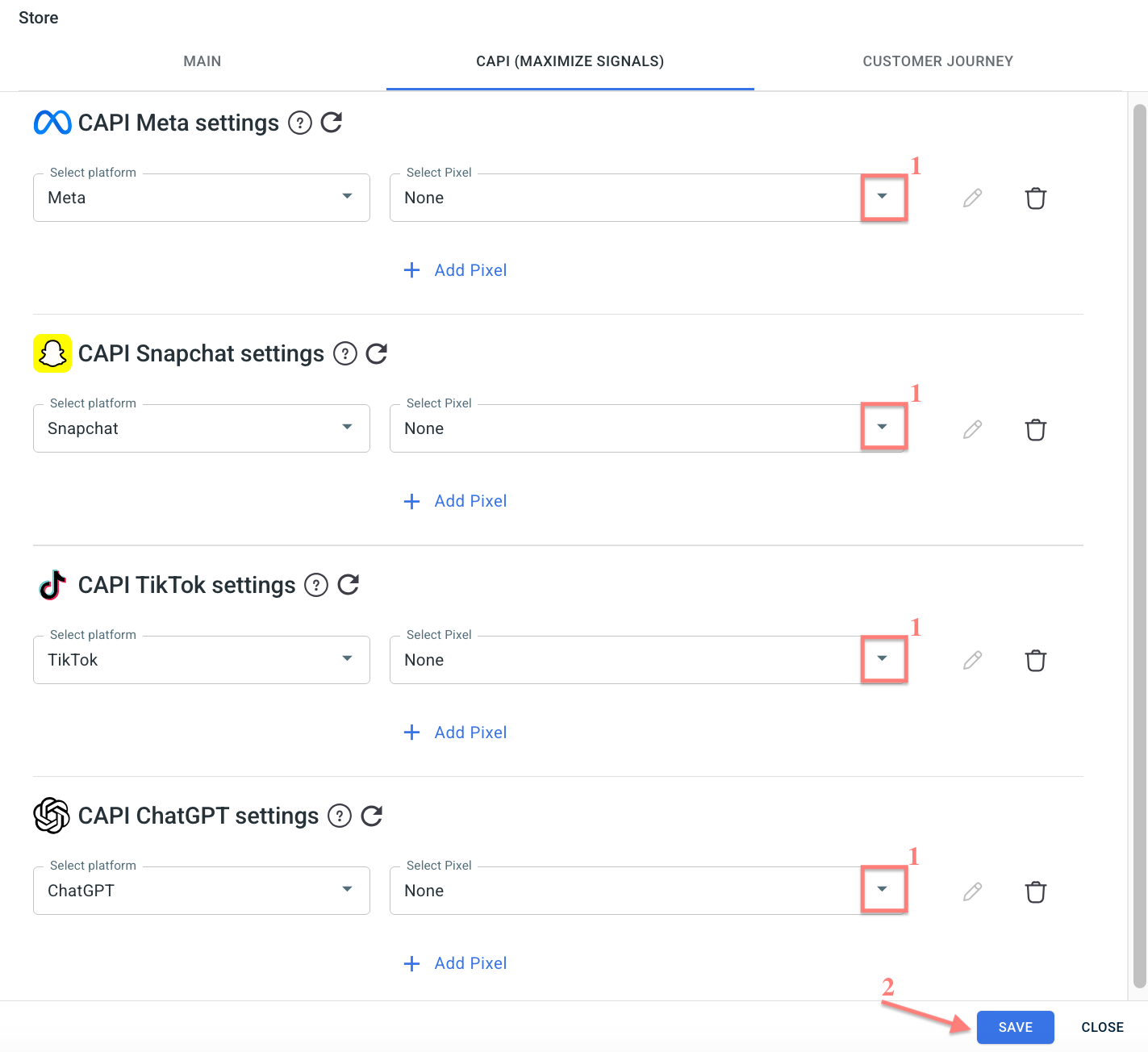
This tab allows you to configure Conversion API (CAPI) integrations for Meta, Snapchat, TikTok, and ChatGPT. It enables RedTrack to send conversion events directly to the selected advertising platforms. For each platform, you can connect one or multiple pixels.
To assign a pixel, select the platform → Select Pixel → click Save:
Use these settings to configure how customer data is collected, stored, and attributed across RedTrack. It directly affects the accuracy of customer identification and reporting.
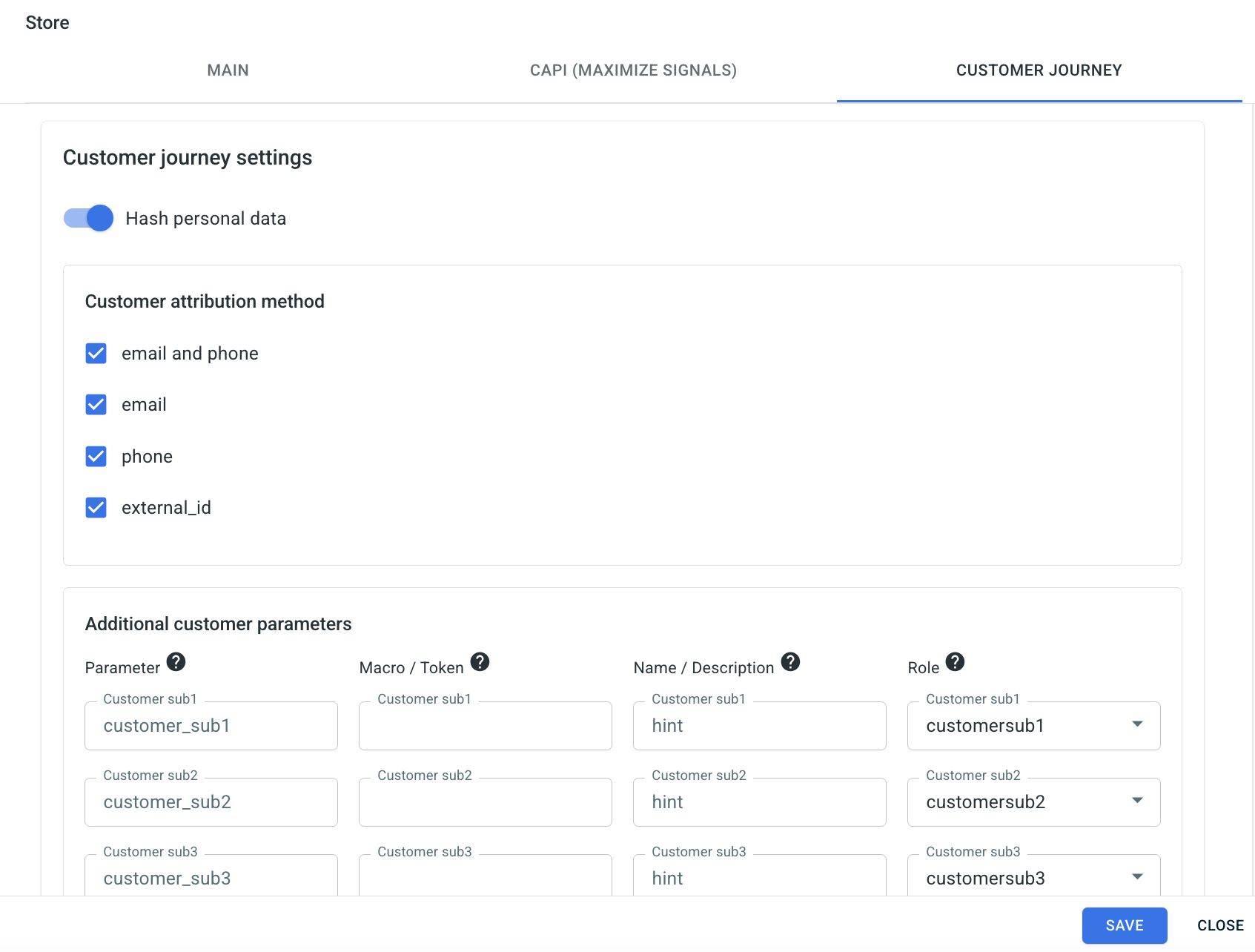
Hash personal data controls how personal information (email, phone number, name) is stored and displayed.
- Enabled (default): Personal data is stored in a hashed format to support privacy and compliance.
- Disabled: Personal data is stored and shown in its original form.
The customer attribution method determines how conversions are matched to customer records using identifiers such as Email & Phone, Email, Phone, or External_ID. Users can shorten the attribution chain by selecting a single identifier (e.g., Email only).
Attribution Logic:
When a conversion occurs, RedTrack checks for a matching customer in the following order:
1. Email & Phone
2. Email
3. Phone
4. External_ID
If no match is found → a new customer is created
If a match exists → the conversion is assigned to that customer.
Allows sending up to 5 custom attributes per customer record.
These additional fields can be used for filtering and deeper customer analysis.
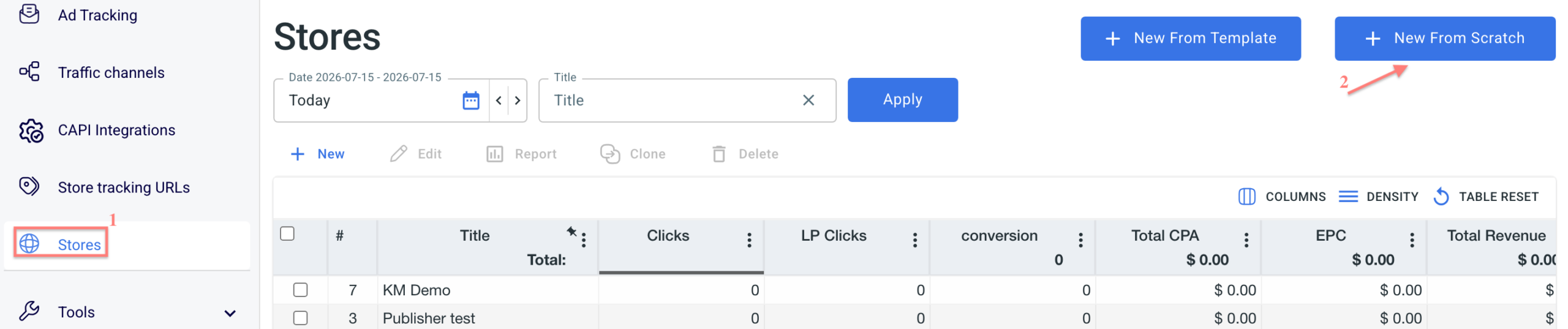
1. Stores → New From Scratch:
2. Fill in the mandatory fields in the form → Save:
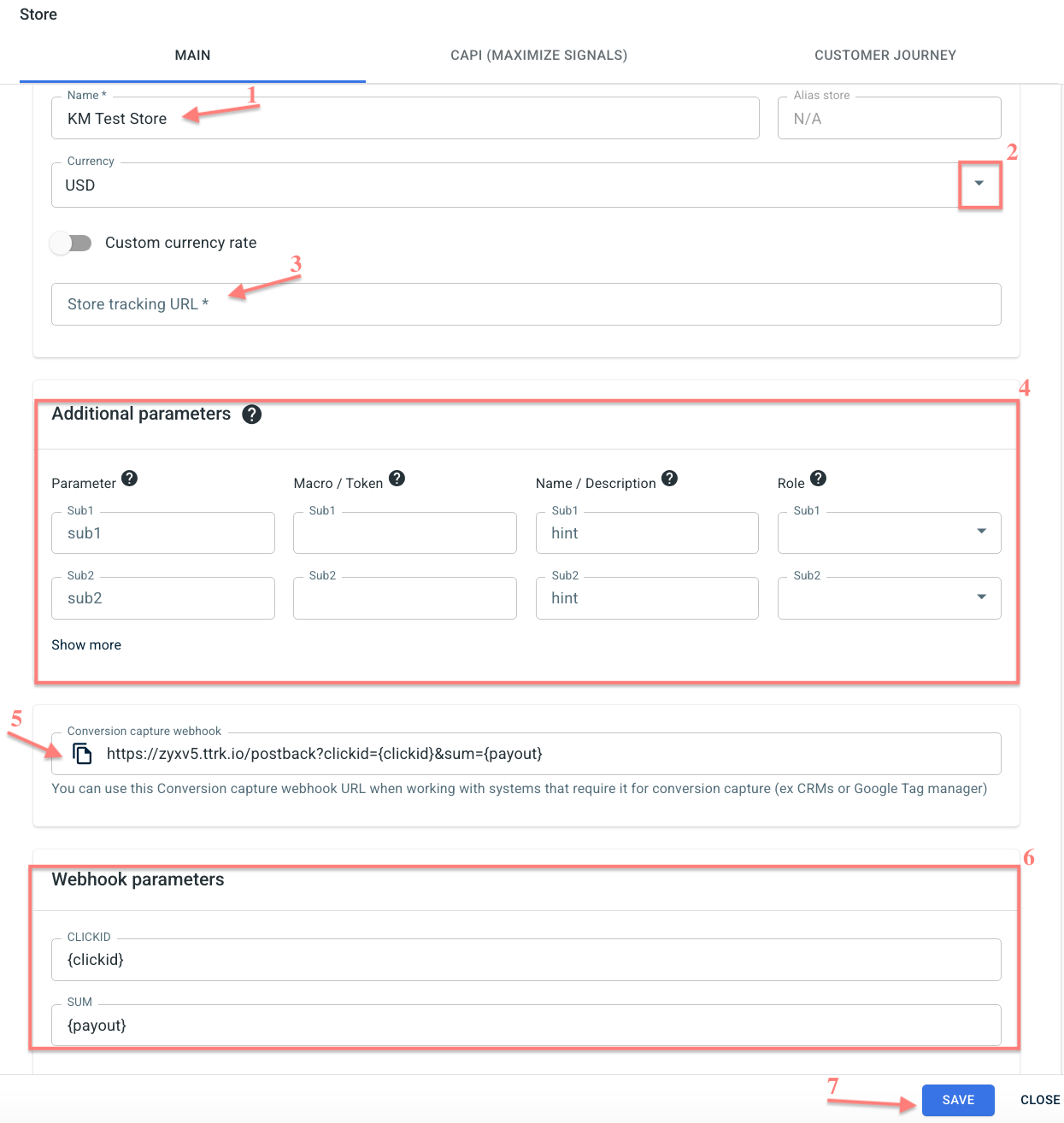
1. Name: type in the name of your store.
2. Currency: select the currency your store operates in. If you receive payouts and costs in a different currency than your account currency, enable Custom currency rate to convert them automatically based on the European Central Bank rate. Check the multi-currency support guide for more details.
3. Store tracking URL: this is the destination link for your store.
4. Additional parameters: use sub-parameters to pass extra data from your traffic channel to the network.
5. Conversion capture webhook: you can use this Conversion capture webhook URL when working with systems that require it for conversion capture (e.g., CRMs, Google Tag Manager).
6. Webhook parameters: the parameters your CRM supports, which should be added to the fields CLICKID and SUM. Once you add the parameters to these fields, they will be added to your Conversion capture webhook automatically.
7. Save to apply the changes.
This tab allows you to configure Conversion API (CAPI) integrations for Meta, Snapchat, TikTok, and ChatGPT. It enables RedTrack to send conversion events directly to the selected advertising platforms. For each platform, you can connect one or multiple pixels.
To assign a pixel, select the platform → Select Pixel → click Save:
Use these settings to configure how customer data is collected, stored, and attributed across RedTrack. It directly affects the accuracy of customer identification and reporting.
Hash personal data controls how personal information (email, phone number, name) is stored and displayed.
- Enabled (default): Personal data is stored in a hashed format to support privacy and compliance.
- Disabled: Personal data is stored and shown in its original form.
The customer attribution method determines how conversions are matched to customer records using identifiers such as Email & Phone, Email, Phone, or External_ID. Users can shorten the attribution chain by selecting a single identifier (e.g., Email only).
Attribution Logic:
When a conversion occurs, RedTrack checks for a matching customer in the following order:
1. Email & Phone
2. Email
3. Phone
4. External_ID
If no match is found → a new customer is created
If a match exists → the conversion is assigned to that customer.
Allows sending up to 5 custom attributes per customer record.
These additional fields can be used for filtering and deeper customer analysis.
3. Store tracking URL
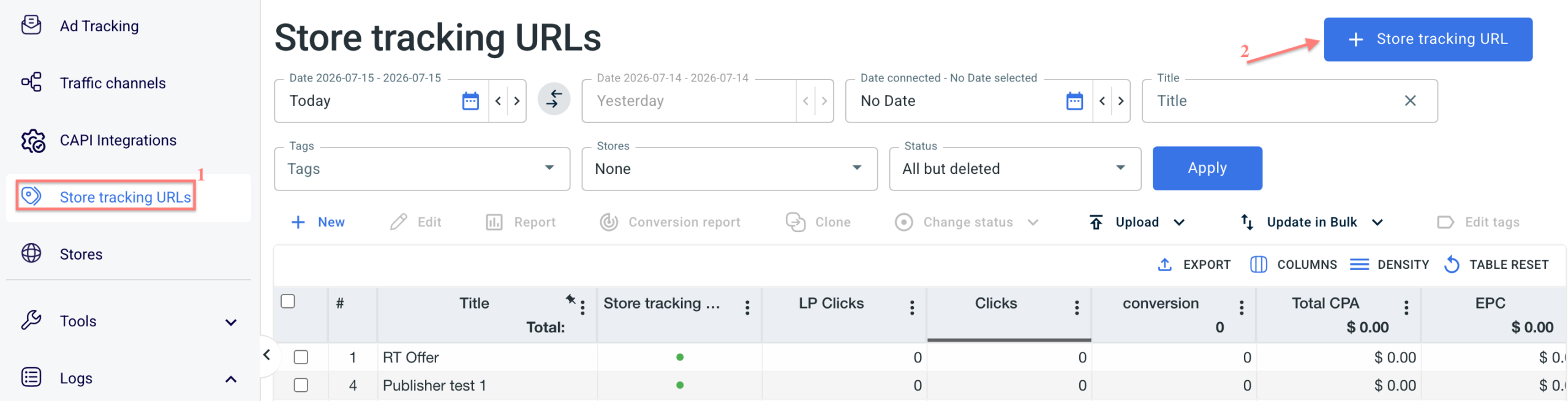
1. Store tracking URLs → click Store tracking URL:
2. Fill in the info in the Main and Scripts tabs as per the hints below:
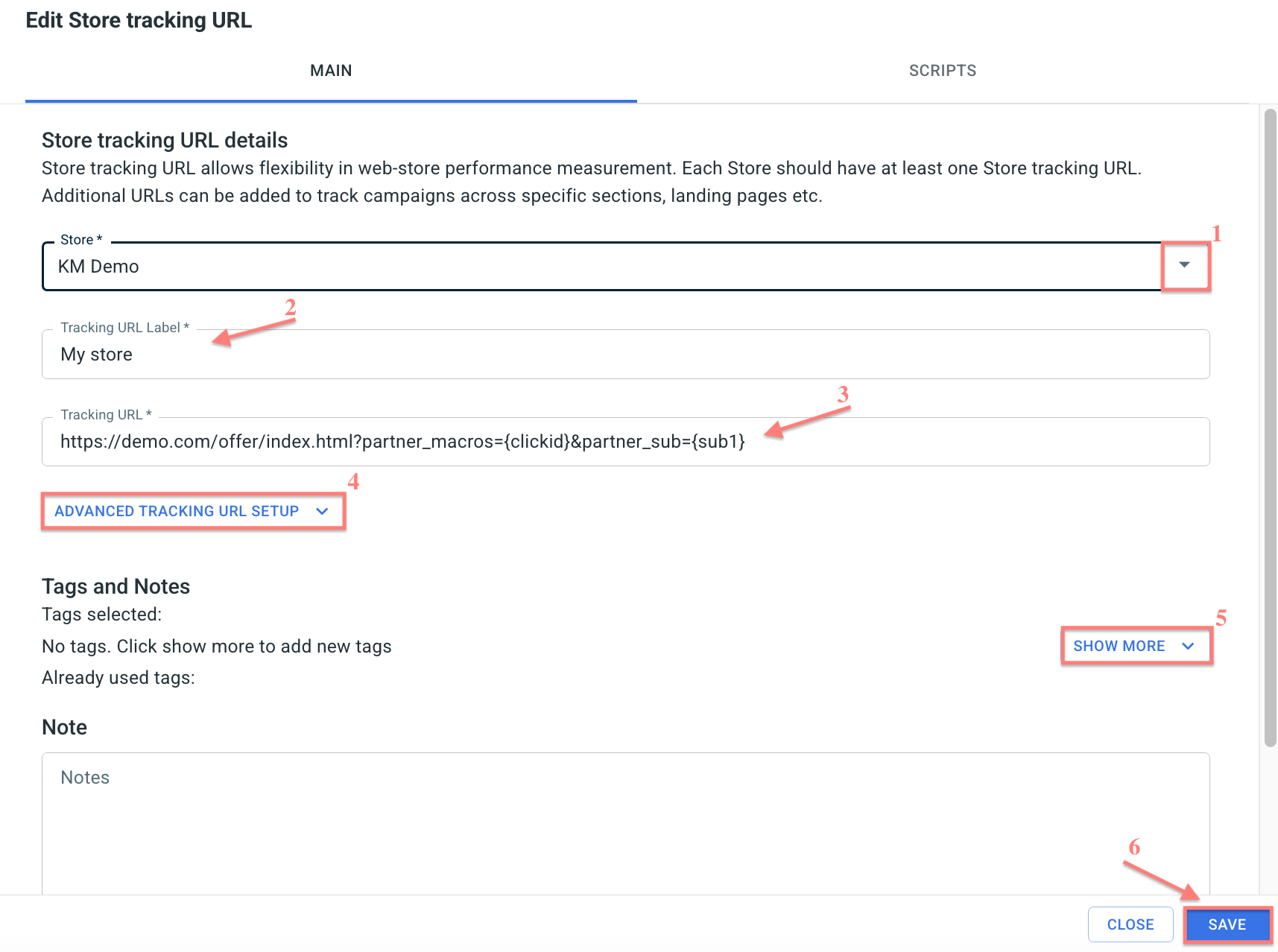
1. Store: choose from the drop-down the store you added earlier.
2. Tracking URL Label: type in the name of your website/landing page here.
3. Tracking URL: this is the link to the product, specific section, landing page, etc..
4. Advanced Tracking URL setup: in this section, you can find additional parameters for your URL (if needed).
5. Show more: click this button if you want to add tags to your website. The guide on Tags has more details about this feature.
6. Save to apply the changes and move on to the next tab.
– a default traffic channel for the unattributed traffic is created.
– a default campaign with this channel is created.
– you are redirected to the Scripts tab to proceed with the script generation.
Values for the universal tracking script
- Script name: give your script a name;
- Script tracking domain: choose the custom tracking domain you have added to your RedTrack account;
- Default tracking campaign: by default, this field is filled in with the unattributed traffic campaign;
- Attribution setting: defines the conversion attribution model;
- Attribution window: is relevant for first click / last paid click attribution models;
- Script cookie domain: a domain for the cookie. Use the website domain.
– can be found in Tools → Scripts.
– cannot be deleted, and only certain fields in such scripts can be edited. It is important for you to have it ready to be used all the time.
E-com integrations
If you use Shopify or WooCommerce, you can also find all the needed tracking scripts. Follow the steps in Shopify and WooCommerce guides for details.

