

Partnership portal: managing payouts
Setting the payout model
Once you have created a Campaign for your partners/publishers, you can manage how to send the payout information.
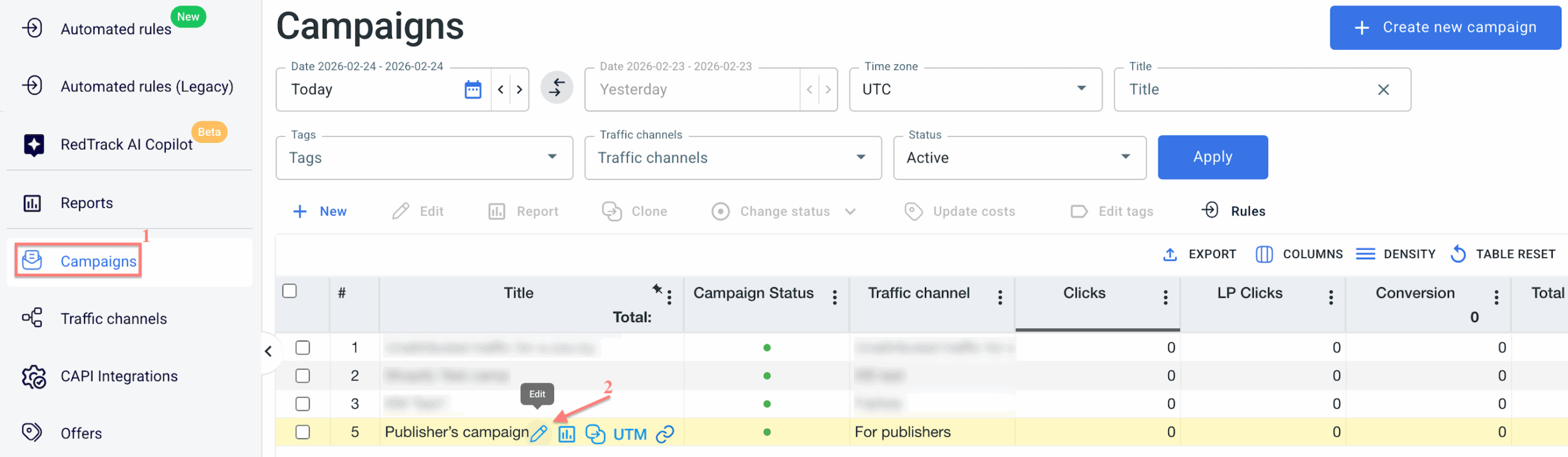
1. Go to Campaign → click Edit next to the created campaign:
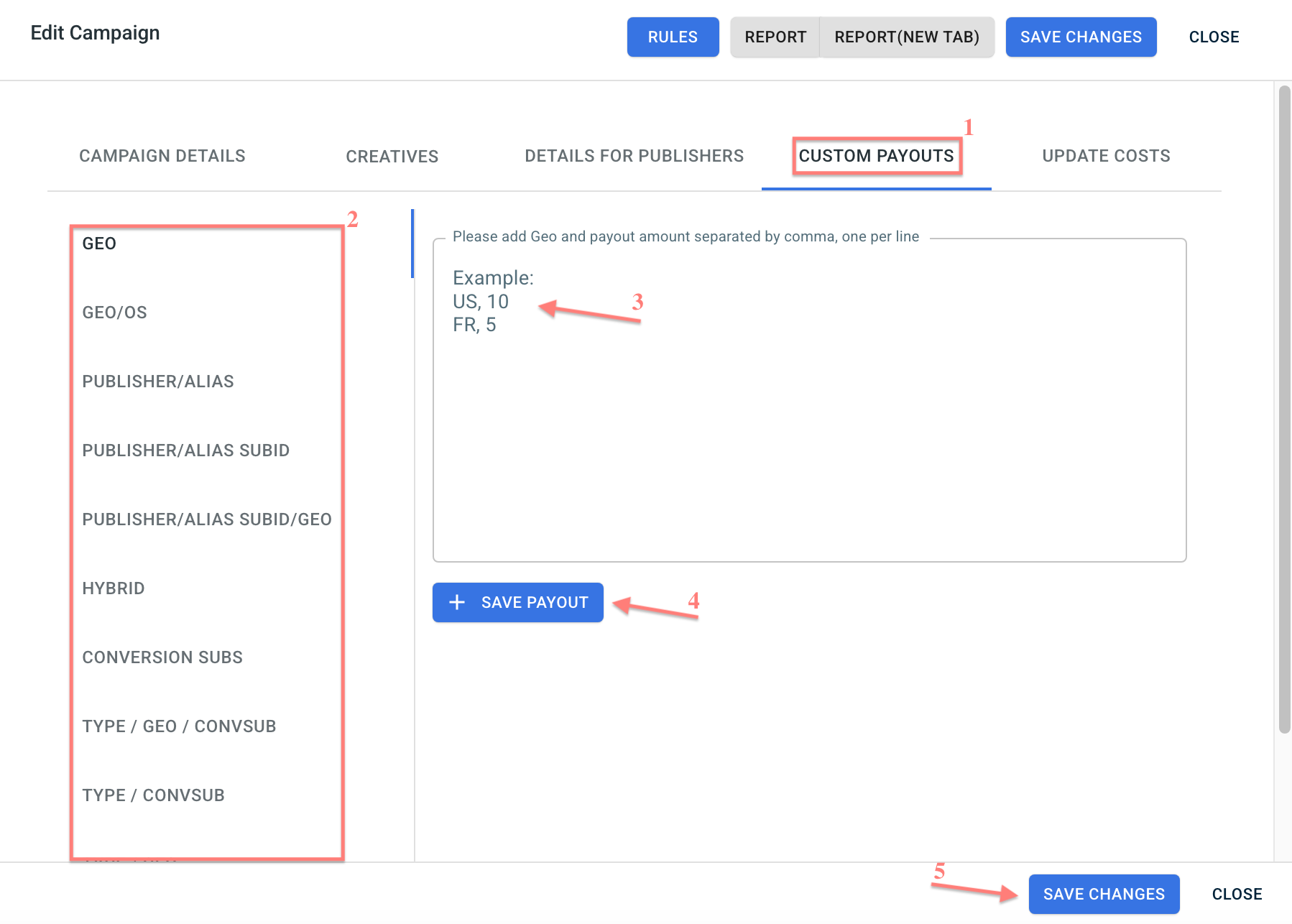
2. Go to the Custom payouts tab → choose the appropriate option → add your payouts → click Save payouts → click Save changes:
Custom Payout Options Explained
1. GEO– set different payout based on GEO (country) value.
For example: US, 10.
2. GEO/OS – set different payout based on operating system (without version) and GEO.
For example: IOS, US, 10.
3. PUBLISHER/ALIAS – set different payouts for different partners/publishers.
For example: nick, 10.
4. PUBLISHER/ALIAS SUBID – set payout based on publisher name, the target sub id, and the value of this sub id.
For example: nick, sub1, 12347, 10.
5. PUBLISHER/ALIAS SUBID/ GEO – set payout based on publisher/ alias, Sub ID, Sub ID value, and GEO.
For example: nick, sub1, 12347, US, 10.
6. HYBRID – define conversion type to force change them to CPA (this could be helpful if you work with RevShare but want a CPA model for some conversion type).
For example: Signup, 5.
7. CONVERSION SUBS – set payout based on conversion sub name and sub ID value.
For example: sub1, product1, 10.
8. TYPE/GEO/CONVSUB – set payout based on conversion type, GEO, sub ID, and sub value.
For example: Lead, US, sub1, product1, 15.
9. TYPE/CONVSUB – set payout based on conversion type, sub ID, and sub value.
For example: Lead, sub1, product1, 15.
10. TYPE/GEO – set payout based on conversion type and GEO.
For example: Purchase, UK, 10.
11. TYPE – set different payouts for different conversion types.
For example: Lead, 15.
– if the cost model is CPA, enter a fixed payout amount.
– if the cost model is RevShare, enter a percentage value.
The only exception is the Hybrid tab, where the logic is reversed:
– If the cost model is CPA, enter a percentage.
– If the cost model is RevShare, enter a fixed payout amount.
Managing Publisher Payouts
RedTrack functionality allows you to show how much you have already paid to your partners/publishers:
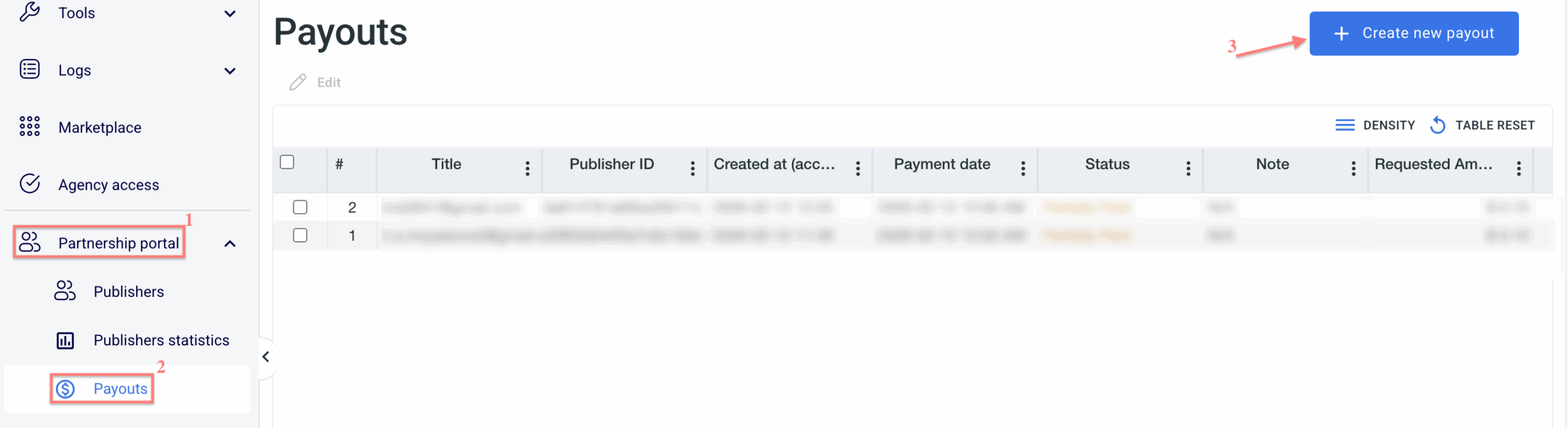
1. Go to Partnership panel → Payouts → click Create new payout:
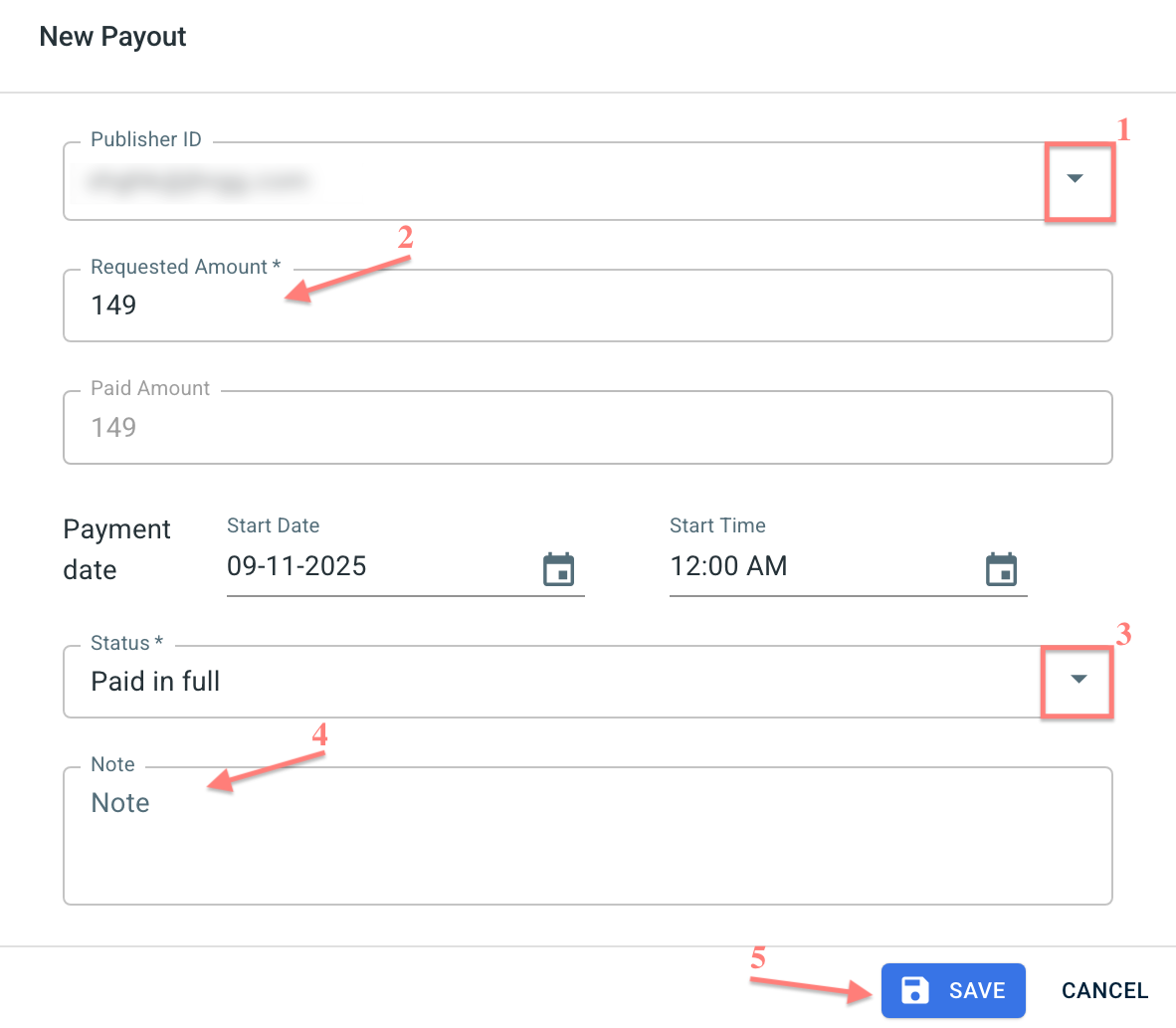
2. Choose the target Publisher ID → set the Requested Amount → set Status → add Note if needed → Save:
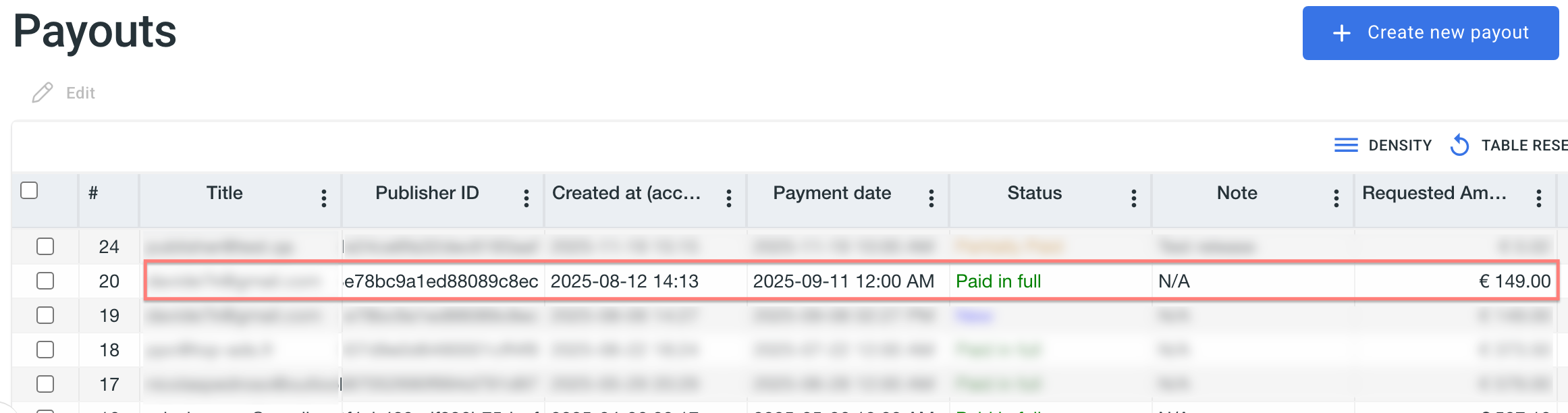
3. Once saved, you will see the payout information next to the added partner/publisher:
4. To edit the saved information, click Edit next to the target partner/ publisher:

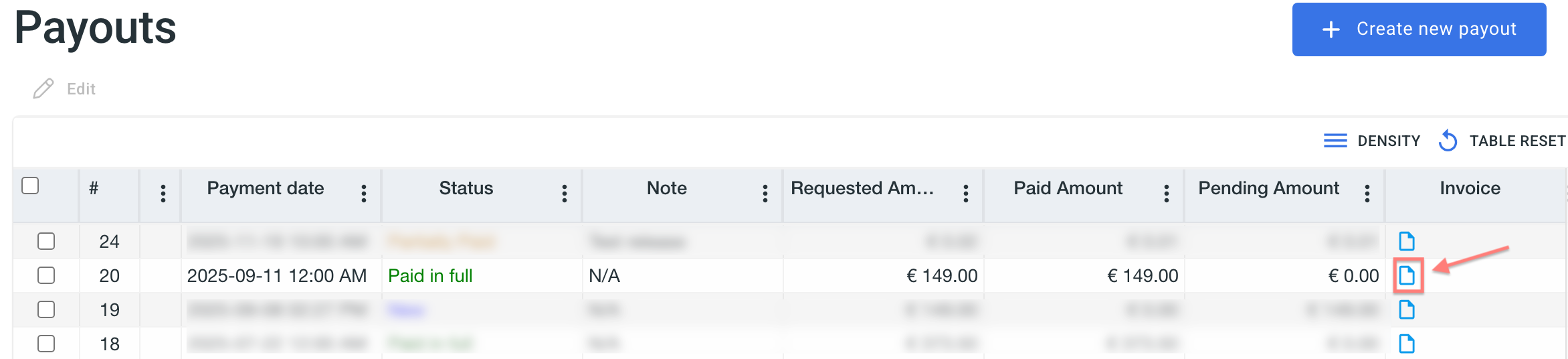
5. To generate an invoice, navigate to the target publisher → find the Invoice column → click the Download Invoice icon:
Once recorded, this amount is automatically reflected in the Publisher Panel and deducted from the publisher’s balance.
Example:
If you add $100 in the payout section for a publisher, their balance in the Publisher Panel will decrease by $100.
This indicates that the payment has been processed externally (e.g., via credit card, PayPal, or another payment method).

