

Yeesshh and RedTrack

Yeesshh is a pop-traffic provider working with both mobile and desktop devices.
RedTrack has an API integration with Yeesshh, which gives you the following benefits:
- Pause: campaign, placement, creative
- Create automated rules
Integration
Important before you start
Before you proceed with the integration, make sure to have the already added:
- Custom tracking domain
- Offer source and Offer (if you’re an Affiliate)/ Store and Store tracking URL (if you’re an Advertiser)
- Conversion types you’re planning to work with
Integration steps
1. Add Yeesshh template to RedTrack.
Traffic channels → New from template → find Yeesshh → Add → Save the template:
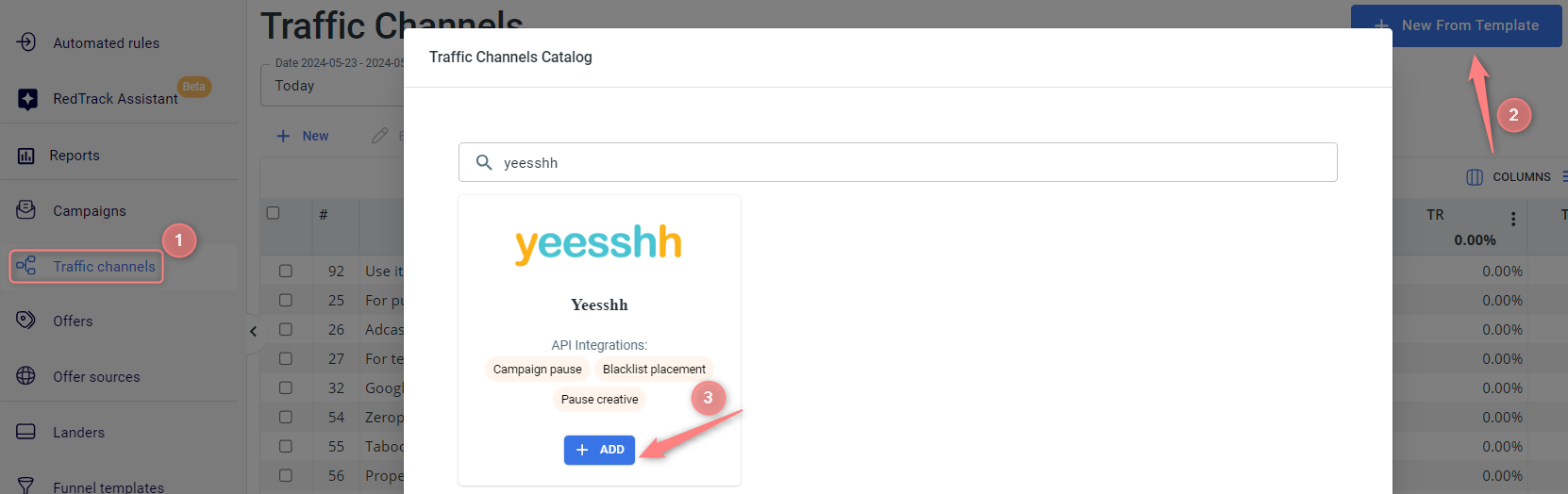

2. Integrate Yeesshh with RedTrack.
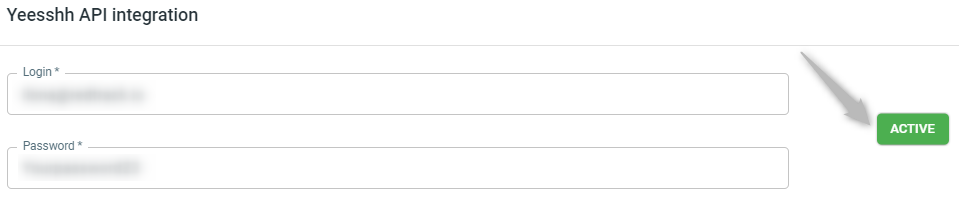
In the added Yeesshh traffic channel settings scroll down to Yeesshh API integration → fill in the Login and Password fields (should be taken from your Yeesshh account) → Save changes to the template:
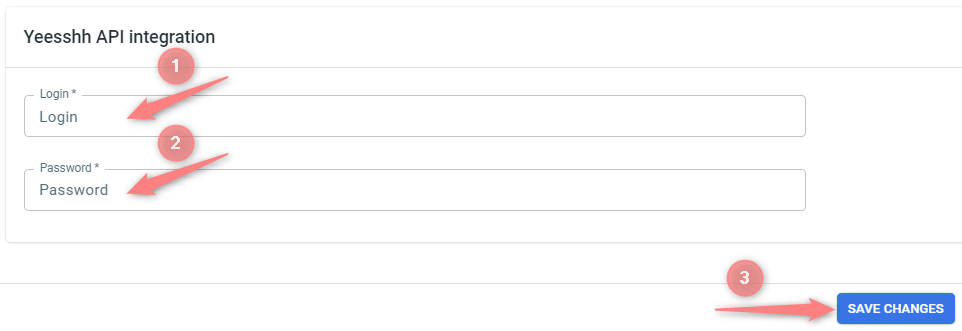
3. Set up a campaign/ad tracking in RedTrack with the Yeesshh traffic channel.
To create a campaign/ad tracking in RT act depending on your account type:
3.1. Campaigns → Create new campaign → fill in the info in all the sections and tabs:
- General: Give it the name, and choose the traffic channel, tracking domain, and cost-tracking method.
- Funnels: Choose the type of funnel you are using and add the elements from the drop-downs.
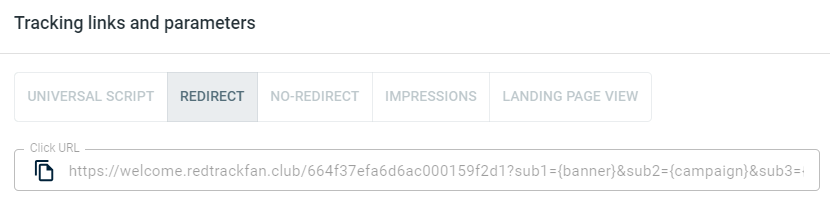
3.2. Once the Campaign is saved go to Tracking links and parameters → copy the automatically generated click URL (your tracking link):
3.1. Ad Tracking → New Ad Tracking → fill in the info in all the sections and tabs:
- General: Give it the name, and choose the traffic channel, and cost-tracking method.
- Funnels: Choose the type of funnel you are using and add the elements from the drop-downs.
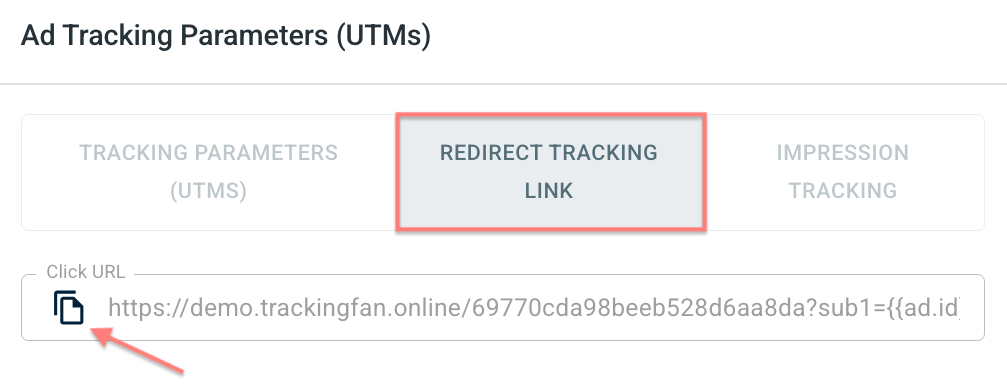
3.2. Once the Ad Tracking is saved go to Ad Tracking Parameters (UTMs) → copy Click URL from the Redirect tracking link tab:
– Universal script
– No-redirect
– Impressions
4. Set up the tracking on the Yeesshh side.
Launch a campaign in Yeesshh → add the RedTrack Campaign Click URL (copied in step 3) to your campaign.
5. Set up the postback URL in RedTrack.
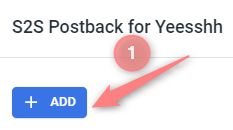
Go to Campaign/Ad Tracking settings (created within step 3) → scroll down to S2S Postback for Yeesshh/ Ad network webhook for conversions → Add → check if all the needed values for the parameters are in place → Save changes:
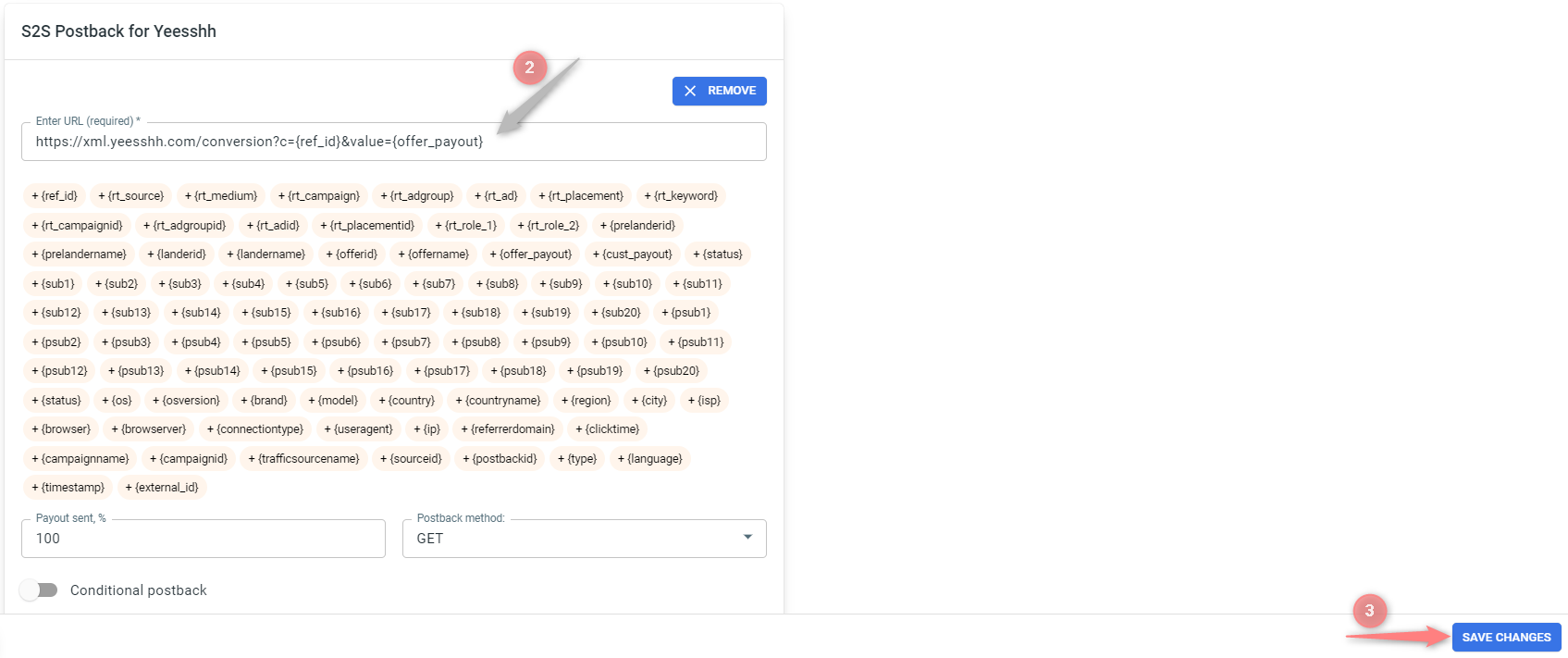
▸ If you changed the Postback URL in the Traffic channel (added/removed some parameters to it), remember to manually update the link in Campaign/Ad Tracking settings as well, as it won’t be generated correctly automatically.
▸ Some Traffic channels require you to edit the Postback with specific parameters for each Campaign/Ad Tracking (e.g., the goal for Exoclick or ap_key for Go2Mobi). If the field remains blank or something like “REPLACE” is stated, that means you need to define the Postback conditions manually.
6. Set up the automation.
- Use this guide to help set up rules.
- Use this guide for setting up the auto update cost feature.

