


RedTrack MCP Server
Introduction
Ask your tracker a question → get an answer. That is the whole idea behind the RedTrack MCP Server. Connect an AI assistant like Claude or ChatGPT to your account and run the platform in plain language. Pull a report, spin up a campaign, kill the losers, all without clicking through dashboards or writing a line of API code.
- Non-technical? You will live in the first sections and never touch code.
- Technical? The connection details, config, and limits are all here too — no separate developer doc to hunt down.
How it works
STEP 1
You ask
Type a request in plain English — no query builder, no code.
STEP 2
It picks the tools
Your assistant maps the request to the right RedTrack actions.
STEP 3
RedTrack runs it
The actions run on your account, with the same permissions you have.
STEP 4
You get an answer
A plain-language result you can read, share, or act on right away.
What you can do with RedTrack and AI
Think of the reports you build every Monday and the changes you make by hand all week. Most of that becomes a sentence. A few to try on day one:
- “Show my top campaigns by profit this week — flag anything losing money.”
- “Pause every campaign that spent over $500 with zero conversions.”
- “Which countries have the best ROI on my nutra offer?”
- “Compare Meta and TikTok over the last 30 days.”
- “How did my Shopify source perform last month?”
The server exposes more than 40 actions across every major part of RedTrack. Here is the range, with a real question for each area:
Ask about… | A question you can type | Type |
|---|---|---|
Reporting | “Show my top campaigns by profit this week.” | Read |
Campaigns | “Pause every campaign that spent over $500 with zero conversions.” | Read + Write |
Traffic sources | “Create a TikTok source from the preset and clone my Meta setup.” | Read + Write |
Offers | “Which offers are running on my highest-traffic campaign?” | Read + Write |
Affiliate networks | “Add a ClickBank network from the preset.” | Read + Write |
Landing pages | “List every prelander that hasn’t had a conversion in 30 days.” | Read + Write |
Tracking domains | “Regenerate the SSL on my tracking domain.” | Read + Write |
Streams & optimization | “Show optimizer winners for stream X and reset the losers.” | Read + Write |
Clicks & conversions | “Pull the raw log for this click ID so I can debug attribution.” | Read |
Cost sync | “Why aren’t my Meta costs updating?” | Read |
What is MCP, and how is it different from the API?
MCP (Model Context Protocol) is an open standard that connects AI assistants to outside tools and data. Anthropic introduced it, and it now works across Claude, ChatGPT, Cursor, Codex, and more. Think of it as a universal adapter between your assistant and RedTrack. New to it? The protocol’s own getting-started guide is the clearest starting point.
RedTrack has always had a REST API for developers. The MCP Server does not replace it, it runs on top of the same API and serves a different job.
Aspect | Direct REST API | MCP Server |
|---|---|---|
Who it’s for | Developers | Anyone with an AI assistant — no code |
How you use it | Write and maintain code that calls endpoints | Ask in plain language; the assistant calls the right tools |
Multi-step tasks | You orchestrate every call | The assistant chains steps (find losers, then pause them) |
Setup | API key plus custom integration code | API key plus one URL in your AI client |
Best for | Custom apps, dashboards, pipelines | Analysis, quick changes, exploration |
The API is for building software. MCP is for getting things done with an assistant. Both run on the same data and respect the same account permissions.
Requirements
Three things, and you are ready to connect:
You need | Details |
|---|---|
A RedTrack account with API access | API/MCP access must be enabled on the plan. Check this in your Profile settings → Subscription. |
An MCP-capable AI client | Claude Desktop or Claude Code, ChatGPT, Cursor, Codex, Antigravity — anything that speaks MCP over HTTP or SSE. |
Your RedTrack API key | Generated in RedTrack → Settings → API. Treat it like a password. 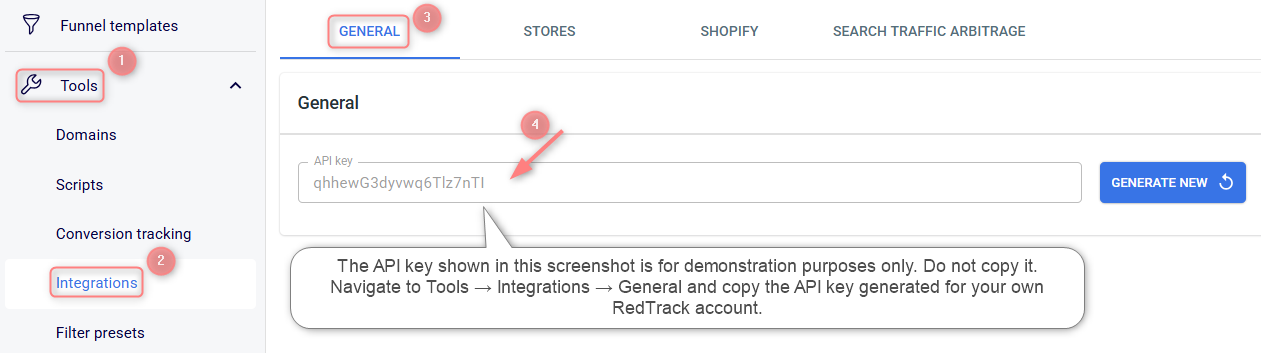 |
Connect your assistant
There are two ways to set it up:
- The easy way pastes one URL into your assistant, no files.
- The technical way uses a config file with your key kept in an environment variable. Both take about five minutes.
OPTION 1 · EASIEST — NO CODE
Paste a URL into your assistant
Best if you just want it working. Uses the API key from Requirements above.
- Put your key on the end of the server URL:
https://mcp.redtrack.io/mcp?api_key=<your-api-key> - In your AI client (Claude Desktop, ChatGPT, Cursor, and others), open the connector or MCP settings and add a custom connection.
- Paste the URL → save → start a new chat.
! Keep it private: paste the key into your client’s own settings, never into a shared chat or a file you commit.
! Test it: ask “Show my top 5 campaigns by revenue this week.” A ranked list back means you’re in.
OPTION 2 · CLAUDE CODE — CONFIG FILE
Add it with a config file, key in an environment variable
Best if you keep tools in config files. Your key stays in an environment variable, so it never lands in the file or in version control.
1. Put your key in an environment variable so it persists. Add this to your shell profile (~/.zshrc or ~/.bashrc), then restart your shell:
export REDTRACK_API_KEY="your-api-key"2. Add the server to your project’s .mcp.json. Claude Code expands ${REDTRACK_API_KEY} at runtime, so the real key never enters the file:
{
  "mcpServers": {
    "redtrack": {
      "type": "http",
      "url": "https://mcp.redtrack.io/mcp?api_key=${REDTRACK_API_KEY}"
    }
  }
}
3. Save, then run /mcp in Claude Code to confirm the connection and list the tools.
Prefer the command line? claude mcp add --transport http redtrack "https://mcp.redtrack.io/mcp?api_key=$REDTRACK_API_KEY" adds it from your shell. Other config-file clients (Cursor, Codex, and similar) support the same environment-variable idea; check their MCP docs for the exact file.
What it can and can’t touch
The assistant only reaches the account tied to your API key, and it respects that account’s permissions. Read operations run freely. Create, update, and delete operations change your account — so your assistant confirms before anything destructive.
Delete actions for sources, landings, networks, domains, and streams remove data for good. Read the confirmation before you approve it.
A few limits worth knowing. Analytics reporting is rate-limited to 20 requests per minute, which is fine for interactive use, but pace heavy automation. Keep report queries to roughly 90 days per call for speed. And the server manages the RedTrack side only, it doesn’t drive the ad platforms’ own ad managers.
Connect it once, then replace this Monday’s report pull with a single question. That’s the fastest way to see what it does.

