

TwinRed and RedTrack
TwinRed is a self-service, OpenRTB ad network offering real-time bidding for premium ad inventory across formats such as interstitials, video pre-roll, popunders, push notifications, and native ads. It primarily serves the adult, dating, and casino verticals, with additional inventory available across other niches. TwinRed is used by advertisers to bid on ad placements in real time with granular targeting and whitelist/blacklist controls, and by publishers to monetize their traffic through access to a global network of advertisers.
Integration checklist
1. Add a custom tracking domain
1. Add a CNAME record pointing to your RedTrack default domain in your domain registrar.
2. On the left menu, go to Tools → Domains → Create new domain.
3. Add the integrated domain to your RedTrack account and activate the Free SSL option.
2. Add the offer/store tracking URL you are promoting
This is the target destination link where you plan to run the traffic: it can be an affiliate offer, a direct link to your website, or the shop.
1. Add the offer source: New from template/New from scratch → find the affiliate network you work with/add your custom name → Save.
2. Add the offer link: Offers → New → choose the offer source from the list, add the offer URL → save the changes.
For example: &affsub={clickid} where {clickid} is RedTrack parameter
More info on offer source and offer in RT can be found here.
1. Go to Stores → New → Add your store (it is the name of your shop).
2. On the same page, in the Additional parameters section, add the purchase data parameters – Name/Description is what you will see in reports – Roles define their use with CAPI.
3. Go to Store tracking URLs → New → Add your store URL (this is your e-com shop).
4. Follow the suggested steps to generate the scripts. You will need it later for your e-com platform.
Add the following parameters at the end of your store tracking URL: ?rtkcid={clickid}&clickid={clickid}&cmpid={campaignid}
Note:
If your URL does NOT already contain any parameters (i.e., no ? yet), just paste the parameters as shown above.
Example: https://yourstore.com?rtkcid={clickid}&clickid={clickid}&cmpid={campaignid}
If your URL already contains parameters (i.e., it has a ?), use & to add these new ones.
Example: https://yourstore.com?utm=value&rtkcid={clickid}&clickid={clickid}&cmpid={campaignid}
3. Set up the conversion events
In your RT account go to Tools → Conversion tracking → add the events you want to track → Save.
The names will remain the same and be sent to the traffic channel exactly as you added them in RedTrack.
4. Get the TwinRed Tracker ID
Log in to your TwinRed Advertiser account to get Tracker ID.
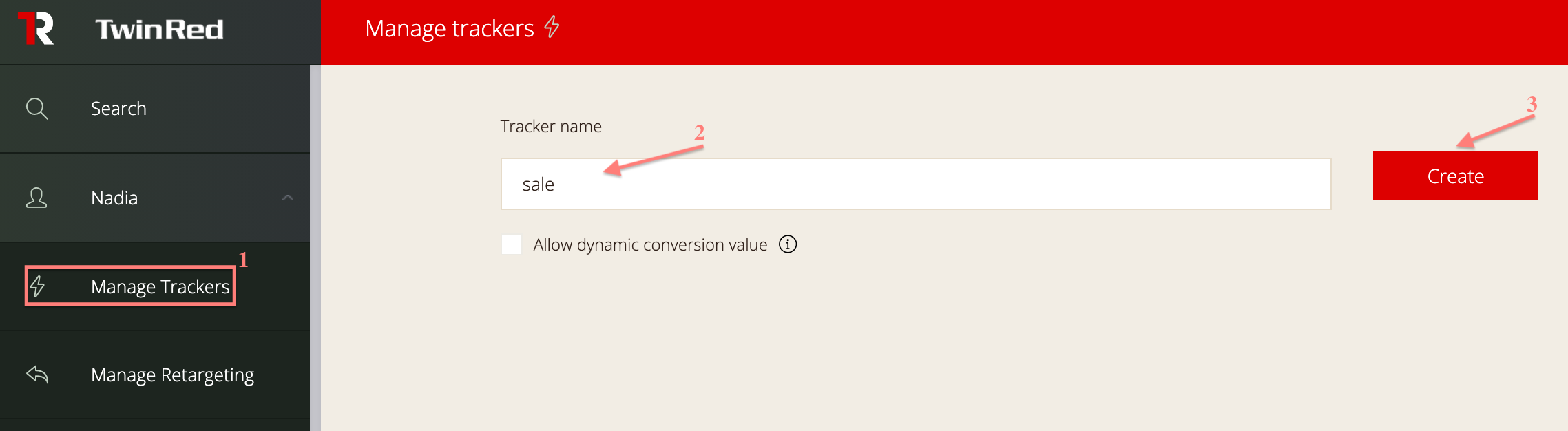
1. Go to Manage Trackers → create the conversion event you want to track:
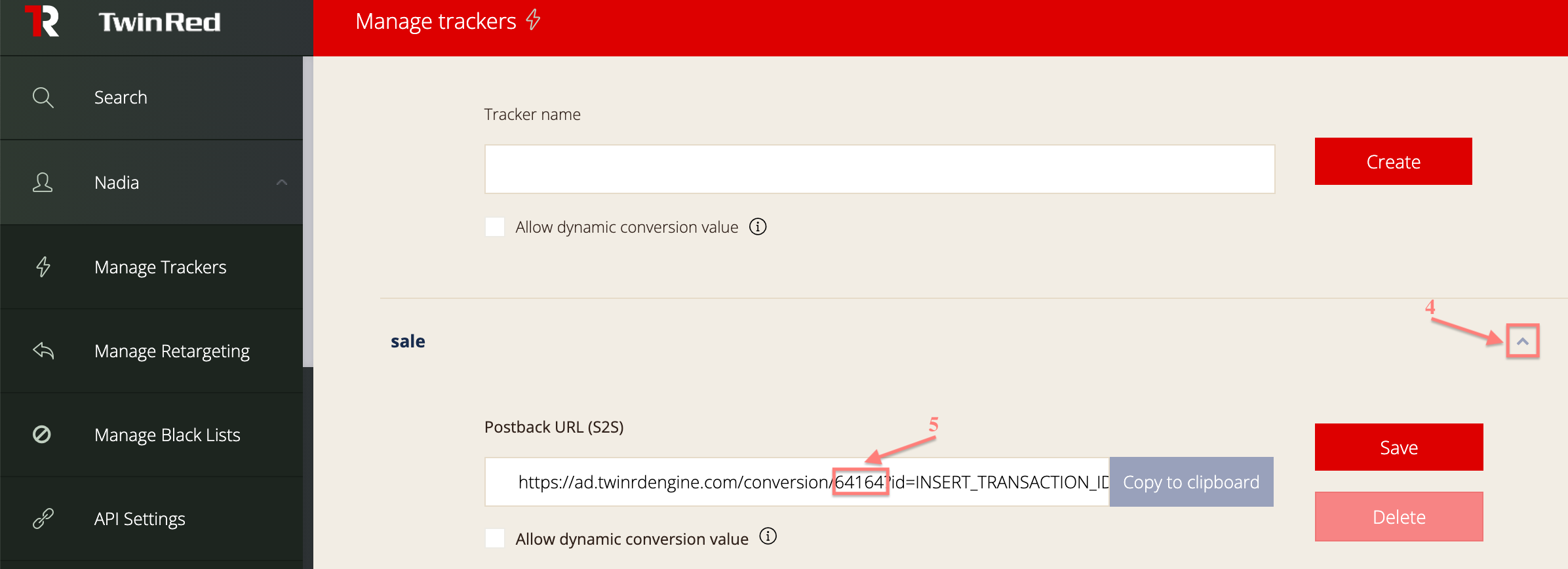
2. Expand the event to reveal its Postback URL (S2S) → copy the number that follows /conversion/ (this is your Tracker ID):
5. Add the TwinRed template to RedTrack
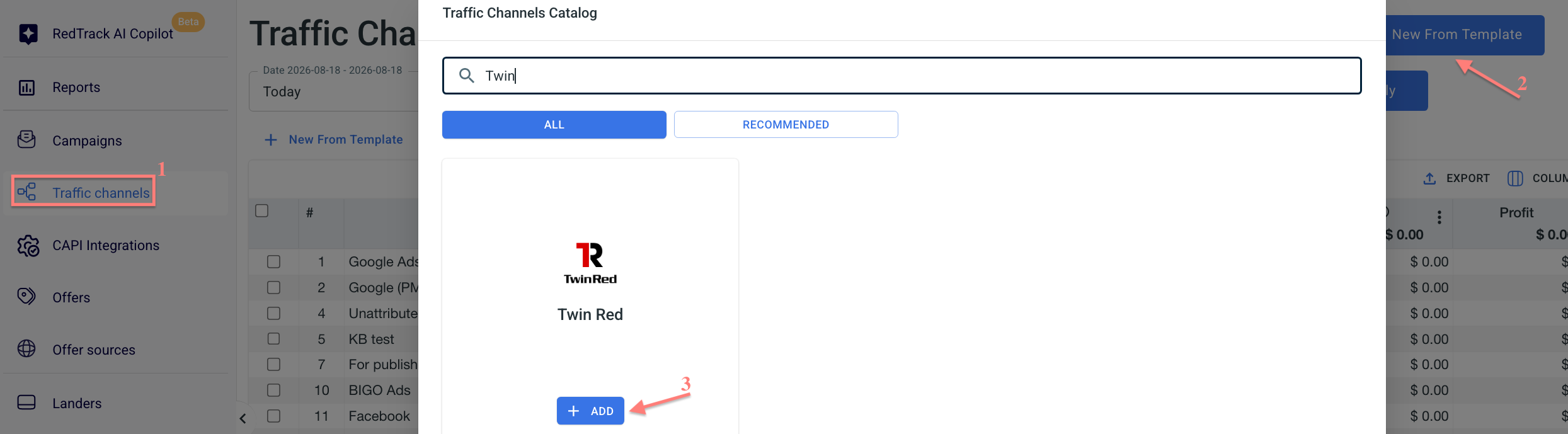
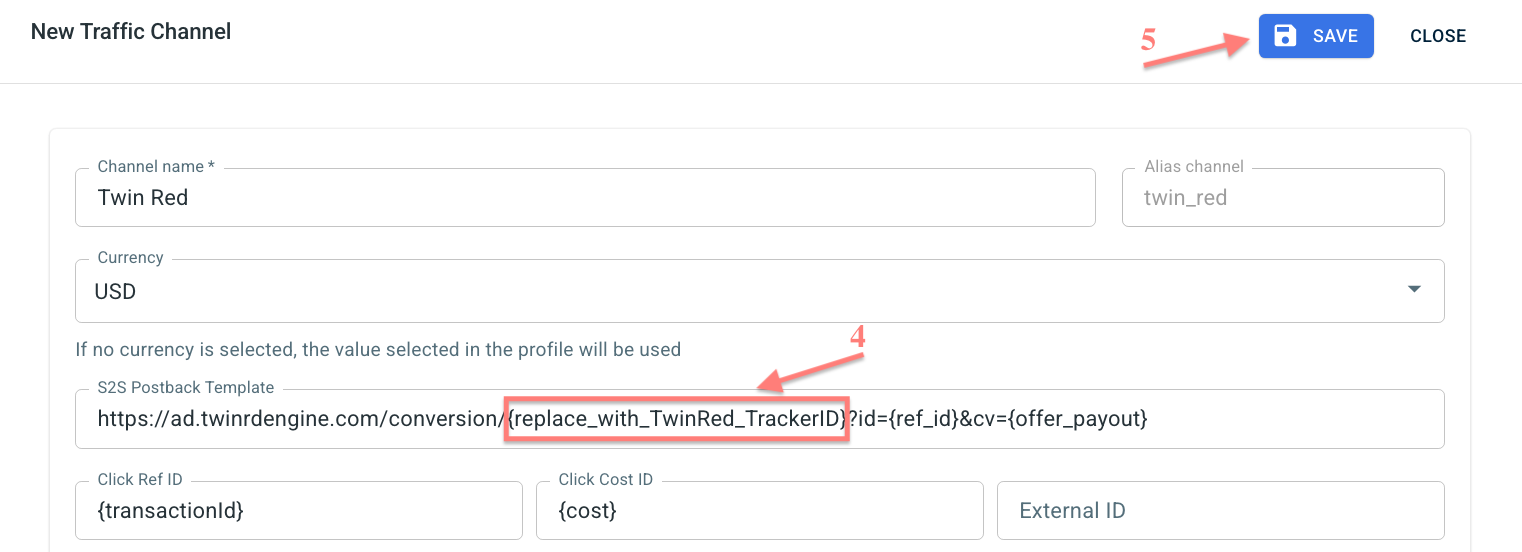
In your RedTrack account, go to Traffic channels → New from template → find TwinRed → Add → put in the Tracker ID value instead of {replace_with_TwinRed_TrackerID} in the Postback URL → Save:
6. Create a campaign/ad tracking in RedTrack
1. Create a campaign in RedTrack with TwinRed as your traffic channel.
In your RT account, go to Campaigns → Create new campaign → fill in the info in all the sections and tabs:
- General: give it the name, and choose the traffic channel, tracking domain, and cost-tracking method.
- Funnels: choose the type of funnel you are using and add the elements from the drop-downs.
- S2S postback: this field will be filled in automatically based on the data you have added to your traffic channel settings.
In your RT account go to Ad Tracking → New Ad Tracking → fill in the info in all the sections and tabs:
- General: give it the name, and choose the traffic channel, and cost-tracking method.
- Funnels: choose the type of funnel you are using and add the elements from the drop-downs.
- Ad network webhook for conversions: this field will be filled in automatically based on the data you have added to your traffic channel settings.
2. Once the campaign/ad tracking is added, your tracking link is automatically created, copy Click URL:
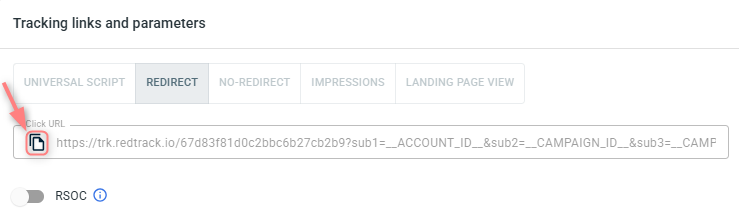
– Universal script
– No-redirect
– Impressions
3. Apply the postback for TwinRed:
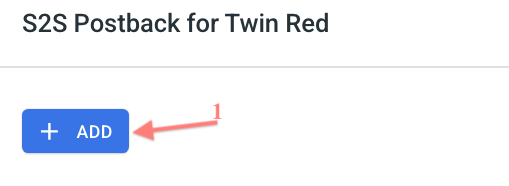
In the created RT campaign/ad tracking, navigate to the S2S Postback for TwinRed/ Ad network webhook for conversions section → Add → check if Tracker ID is added → Save changes:

4. Create a campaign in TwinRed and use the RedTrack redirect Click URL (copied within step 2) to promote your offer.

