Taboola and RedTrack


Taboola is the world’s largest discovery platform serving 360 billion content recommendations to over one billion people across the web each month.
RedTrack has an API integration with Taboola, which gives you the following benefits:
- Synchronize costs
- Pause: campaign, placement, creative
- Create automated rules
Integration
Important before you begin
Before you proceed with the integration, make sure to have the already added:
- Custom tracking domain
- Offer source and Offer (if you’re an Affiliate)/ Store and Store tracking URL (if you’re an Advertiser)
Integration steps
1. Add Taboola template to RedTrack and integrate the two platforms.
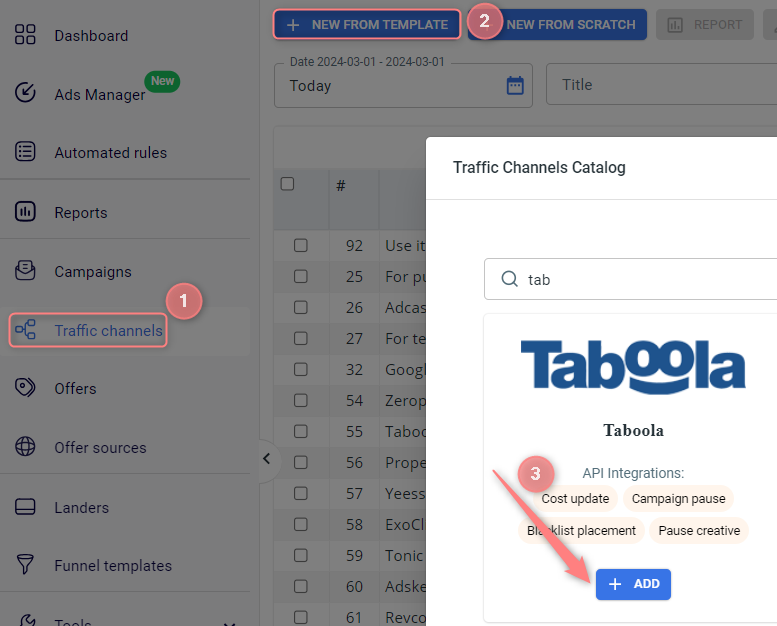
1.1 Traffic channels → New from template → find Taboola and press Add → Save the template:

1.2 In Taboola template scroll down to the section Taboola API integration → fill in the fields Account Id, Client ID, and Client Secret → press Save changes:
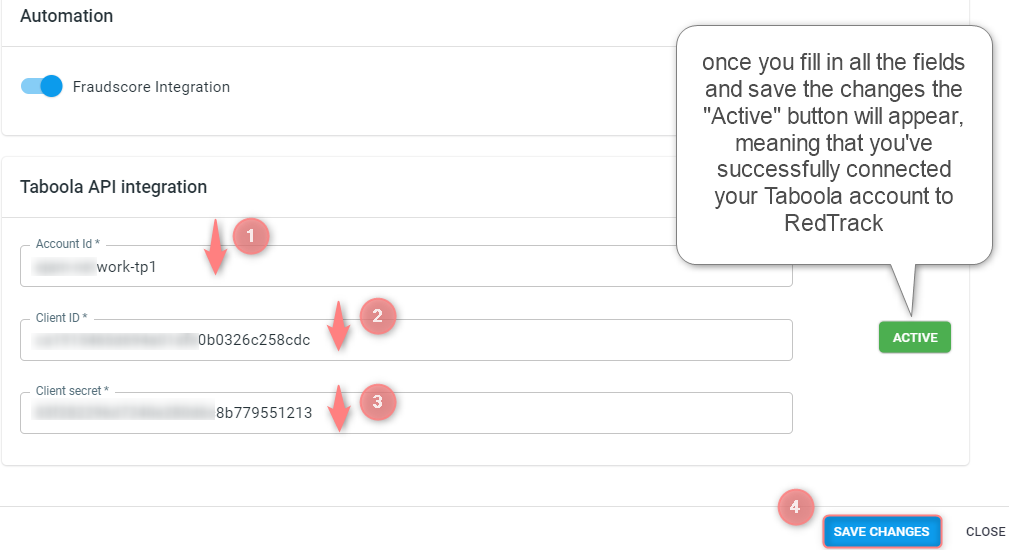
1. In case you have a manager account you must remember that the data for the integration should be taken from the account where your traffic is coming from. Meaning:
☛ you are connected to the network account type→ your traffic and Campaigns should be attributed to this account;
☛ you are connected to the sub-account type→ your traffic and Campaigns should be attributed to this account.
2. Account Id value cannot consist of just numbers or just letters. It’s a combination of letters + number(s) or/and special characters which usually looks in the code like “som2ething-sc” or “example-network“
3. Turn to your Taboola Account manager for the Client ID and Client secret.
4. Costs in the Taboola Traffic channel can be updated on the level Сampaign + Placement + Geo
3. Add conversion types.
- Here is the guide on how to add conversion events in RedTrack.
- Here is the guide on how to add conversion events in Taboola.
▸ Taboola accepts conversion types (event names) typed only in small letters.
4. Create the Campaign/Ad Tracking in RedTrack with Taboola as the Traffic channel.
To create a campaign/ad tracking in RT act depending on your account type:
4.1. Campaigns → Create new campaign → fill in the info in all the sections and tabs:
- General: Give it the name, and choose the traffic channel, tracking domain, and cost-tracking method.
- Funnels: Choose the type of funnel you are using and add the elements from the drop-downs.
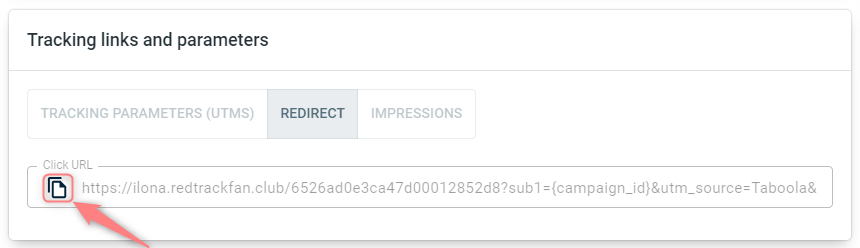
4.2. Once the Campaign is saved go to Tracking links and parameters → copy the automatically generated click URL (your tracking link):
4.1. Ad Tracking → New Ad Tracking → fill in the info in all the sections and tabs:
- General: Give it the name, and choose the traffic channel, and cost-tracking method.
- Funnels: Choose the type of funnel you are using and add the elements from the drop-downs.
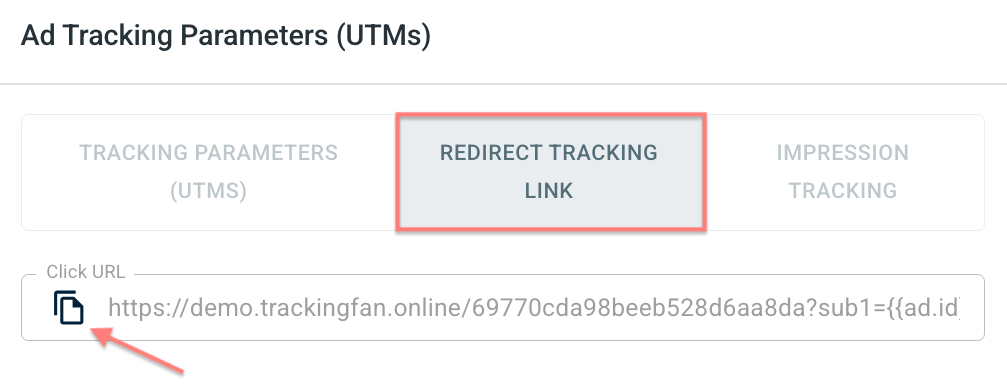
4.2. Once the Ad Tracking is saved go to Ad Tracking Parameters (UTMs) → copy the tracking parameters from the Redirect tracking link tab:
5. Follow this guide to help you set up RT’s tracking link and manage settings on the Taboola side.
6. Set up the Postback URL/Ad network webhook for conversions in RedTrack.
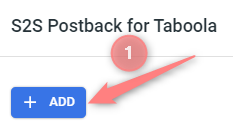
Go to Campaign/Ad Tracking settings (created within step 4) → scroll down to S2S Postback for Taboola/ Ad network webhook for conversions → press Add → check if the value for the EVENT_NAME parameter is replaced as needed → Save changes:
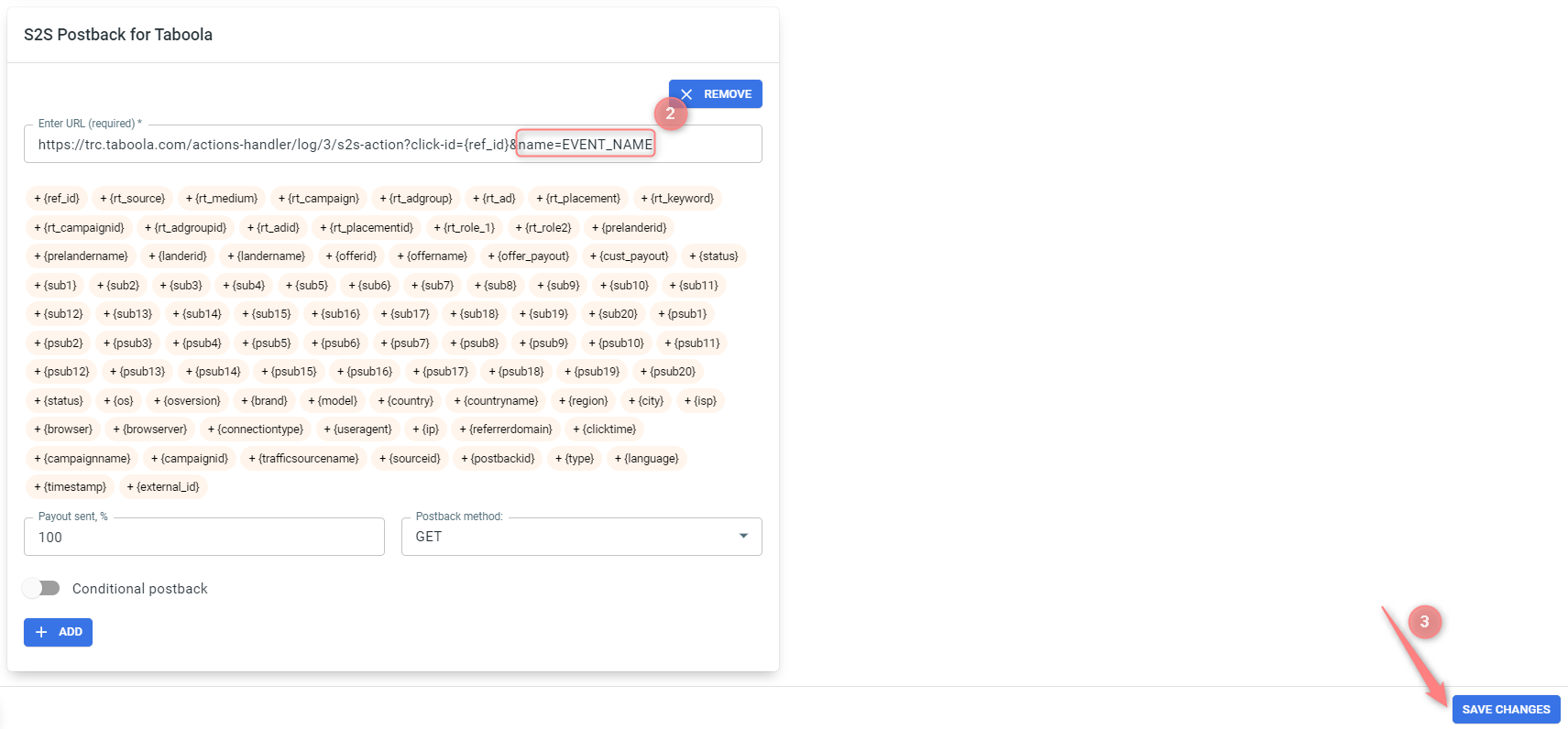
▸ If you changed the Postback URL in the Traffic channel (added/removed some parameters to it), remember to manually update the link in Campaign/Ad Tracking settings as well, as it won’t be generated correctly automatically.
▸ Some Traffic channels require you to edit the Postback with specific parameters for each Campaign/Ad Tracking (e.g., the goal for Exoclick or ap_key for Go2Mobi). If the field remains blank or something like “REPLACE” is stated, that means you need to define the Postback conditions manually.
7. Set up the automation.
- Use this guide to help set up rules.
- Use this guide for setting up the auto update cost feature.

