

PrestaShop and RedTrack

PrestaShop is an online platform that allows users to create an e-commerce presence, enabling them to sell products and services through the web to an online audience. Business owners looking to move their company online can use PrestaShop to build their website, add features, and, with SumUp, take payments.
Integration
Setup in RedTrack
1. Add custom tracking domain.
2. Add conversion events:
Go to Tools → Conversion tracking → Conversion type → use this guide to help you add the needed events.
▸ViewContent
▸AddToCart
▸InitiateCheckout
▸Purchase
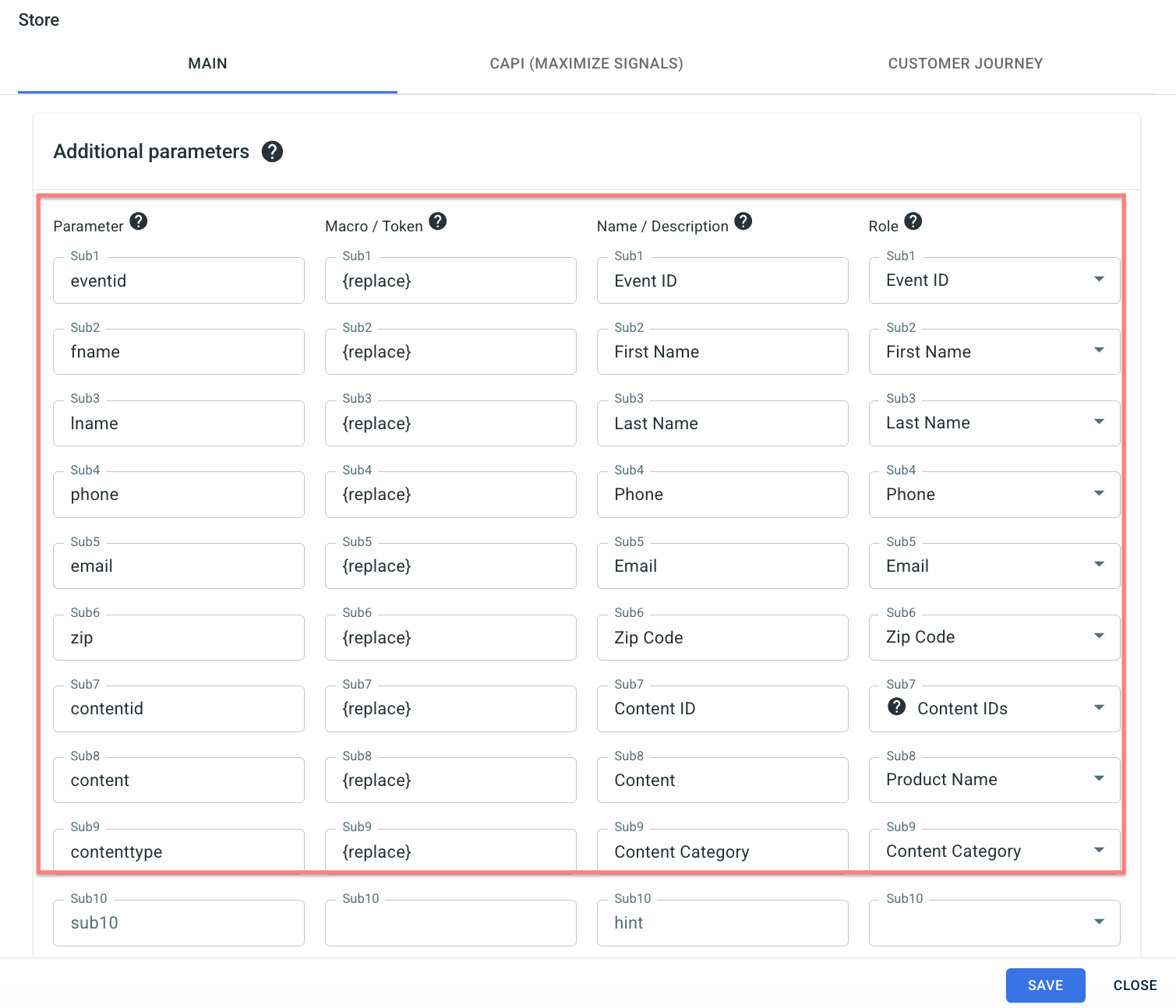
3. Add PrestaShop as a Store in RedTrack:
Stores → New from Template → find PrestaShop and click ADD → use this guide to help you with Store editing:
4. Add your Store tracking URL:
Store tracking URLs → click Store tracking URL → use this guide to help you add the store tracking URL (your offer).
5. Create a paid traffic ad tracking:
The ad tracking for the unattributed (organic) traffic is already in place. Now you need to create the one for the paid traffic. To do that act as follows:
- Add the Traffic channel. Most of them have a preset template in RedTrack: API-integrated traffic channels/ Non-API integrated traffic channels.
- Launch an ad tracking for the paid Traffic channel. Your website/shop will be the main link added to the traffic channel.
Setup in PrestaShop
1. Login to your store in PrestaShop and add RedTrack module/plugin to PrestaShop
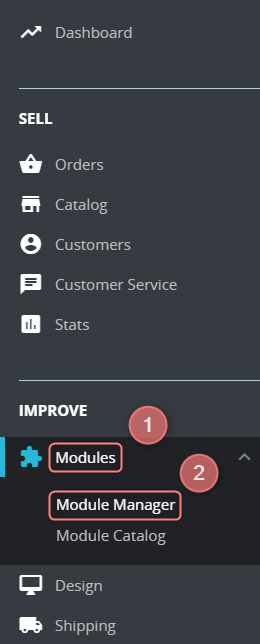
1.1 Navigate to the Modules section → go to Module Manager:
1.2 Press the Upload a module button at the top right corner → drag the RedTrack module to the pop-up drag-and-drop window:
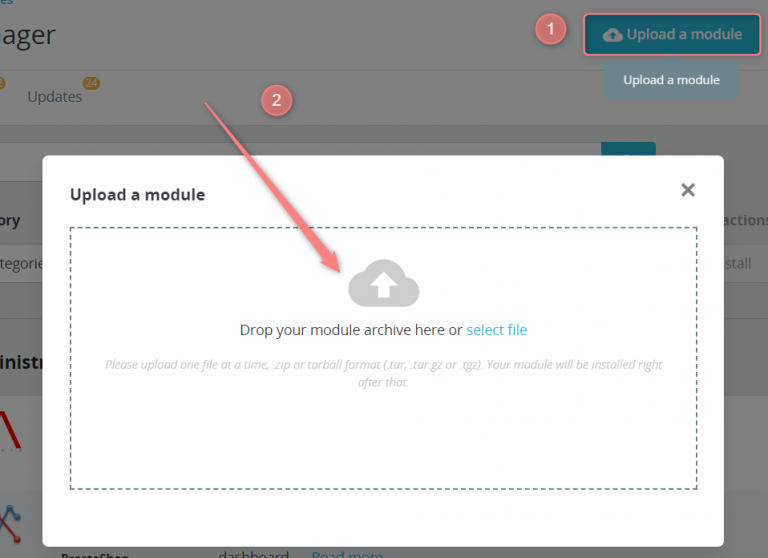
1.3 Once the file is detected, the installation will start automatically: PrestaShop will upload the module from your computer to its server, unpack it, place the files in the correct location, and update the page, all this in a handful of seconds. PrestaShop will then display Module installed!
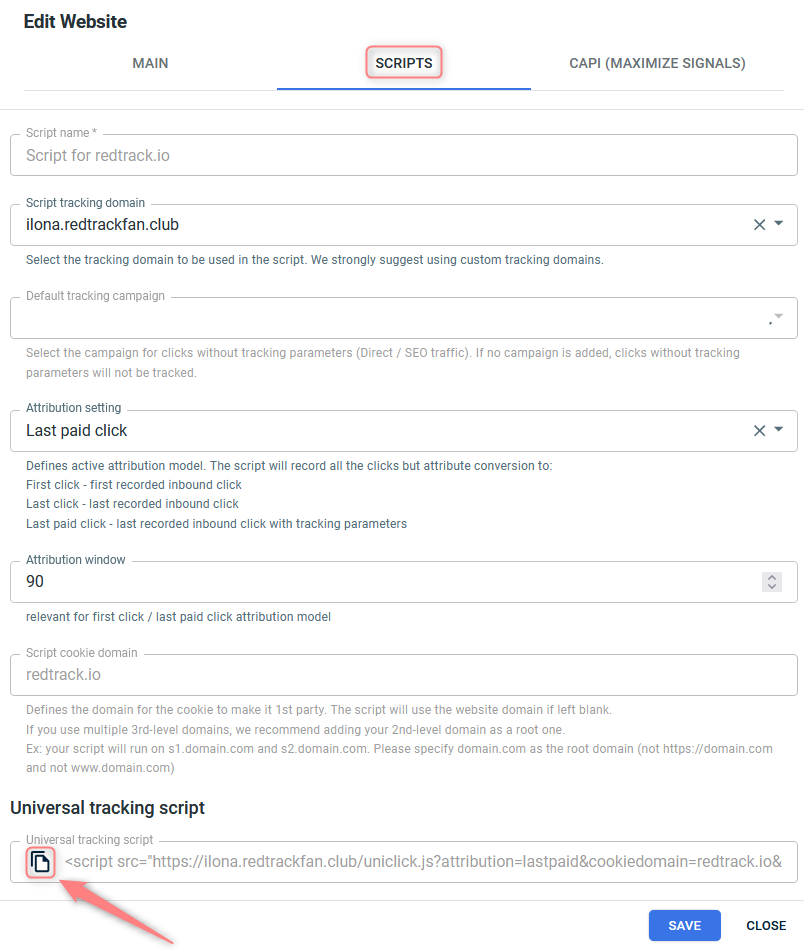
2. Add the universal tracking script to PrestaShop and the needed Order Status for Purchase Event
2.1 Press Configure next to the added RedTrack module → insert the Universal tracking script in the RedTrack Universal Script field:


2.2 Choose the needed value from the drop-down of the field Order Status for Purchase Event → press Save to apply the changes:

You can define what a purchase is and fix it at different stages (e.g.: purchase=paid, or purchase=delivered, or else). You decide it based on the needs and specifics of your business.

