

BigCommerce and RedTrack

BigCommerce is a commerce solution provider.
Integration
Setup in RedTrack
1. Add custom tracking domain.
2. Add conversion events:
Go to Tools → Conversion tracking → Conversion type → use this guide to help you add the needed events.
– ViewContent
– AddToCart
– InitiateCheckout
– Purchase
3. Add BigCommerce as a Store in RedTrack:
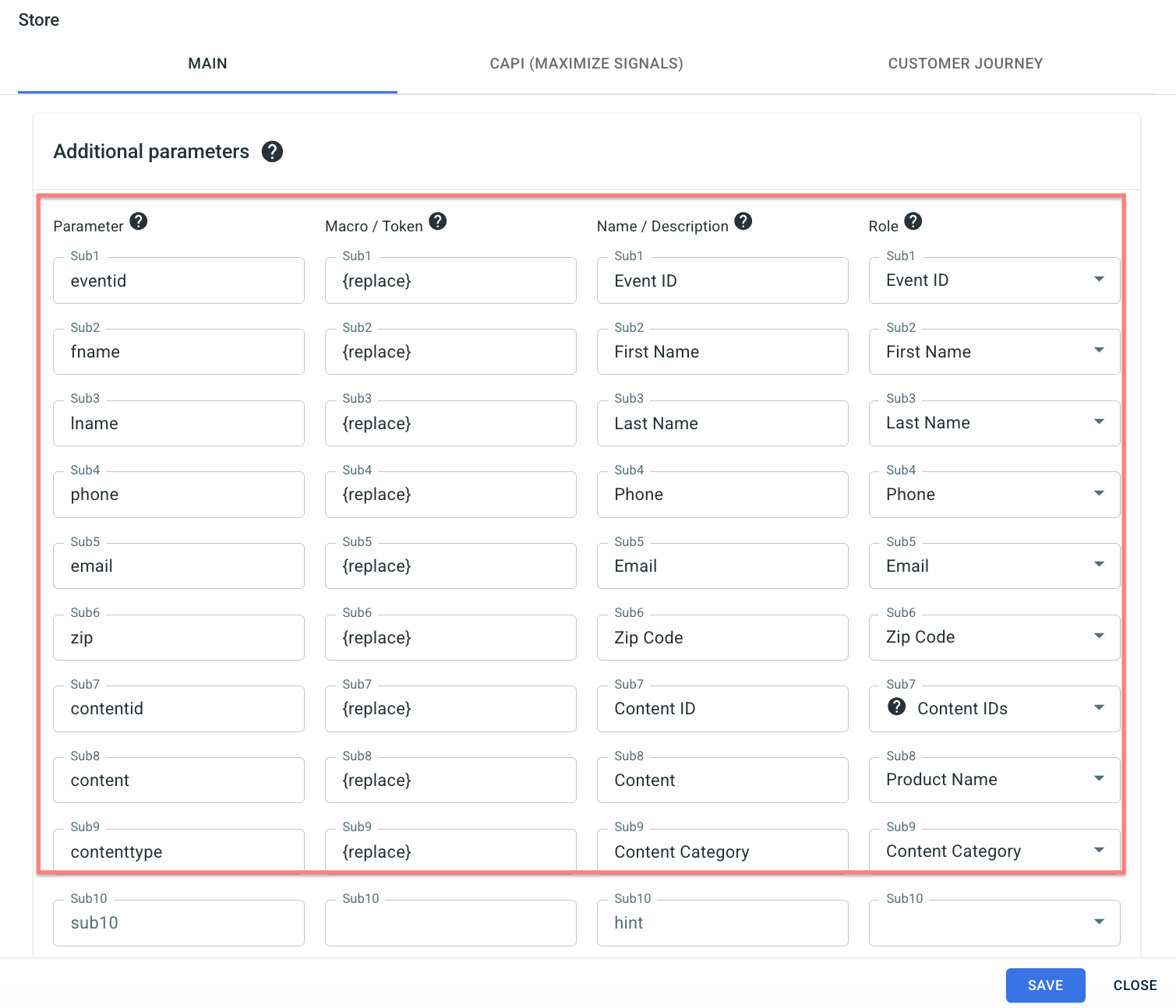
Stores → New from Template → find BigCommerce and click ADD → use this guide to help you with Store editing.
4. Add your Store tracking URL:
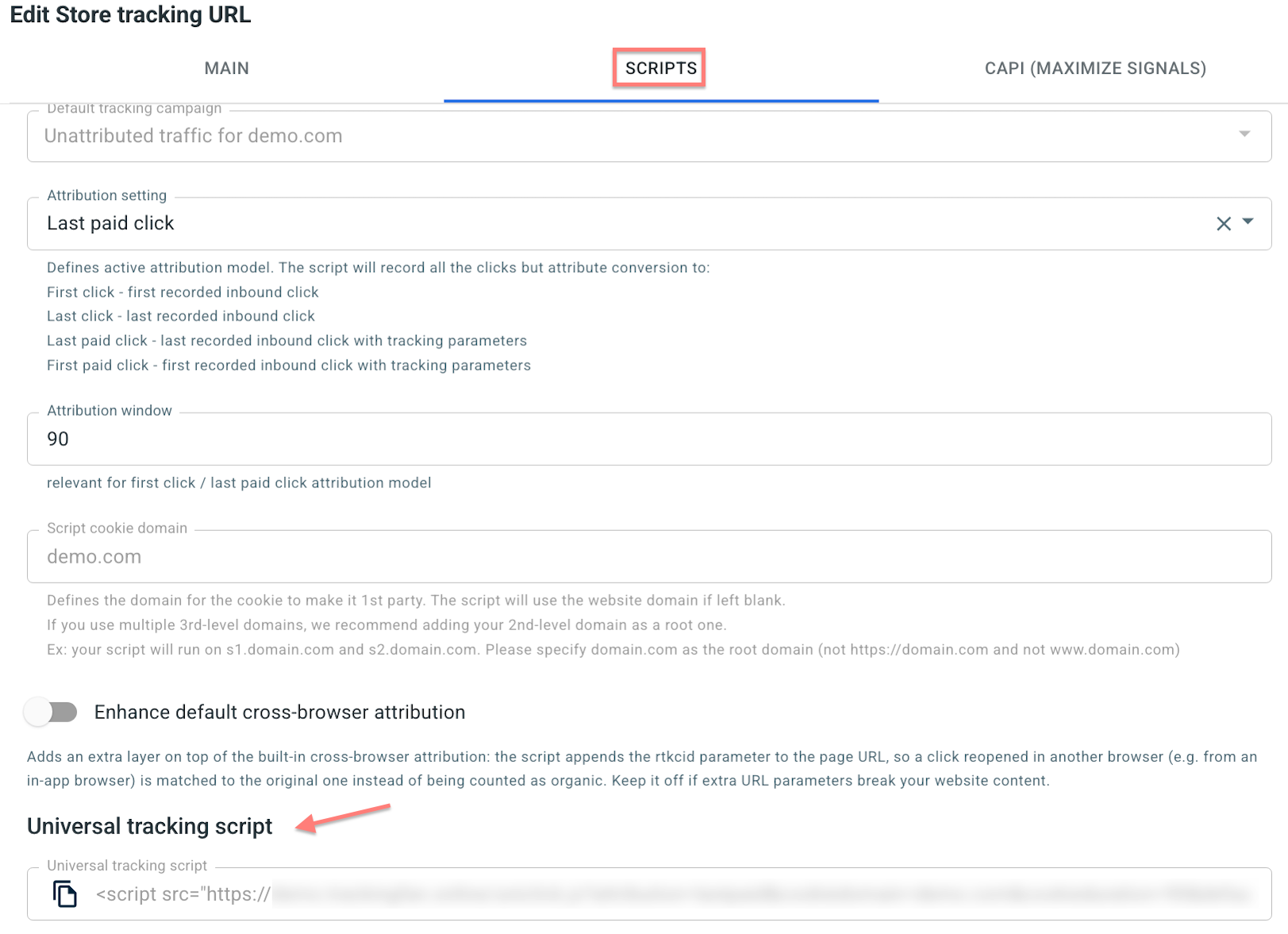
Store tracking URLs → click Store tracking URL → use this guide to help you add the store tracking URL (your offer).
5. Create a paid traffic ad tracking:
The ad tracking for the unattributed (organic) traffic is already in place. Now you need to create the one for the paid traffic. To do that act as follows:
- Add the Traffic channel. Most of them have a preset template in RedTrack: API-integrated traffic channels/ Non-API integrated traffic channels.
- Launch an ad tracking for the paid Traffic channel. Your website/shop will be the main link added to the traffic channel.
Setup in BigCommerce
1. Add click_id parameter to the list of fields in the BigCommerce form
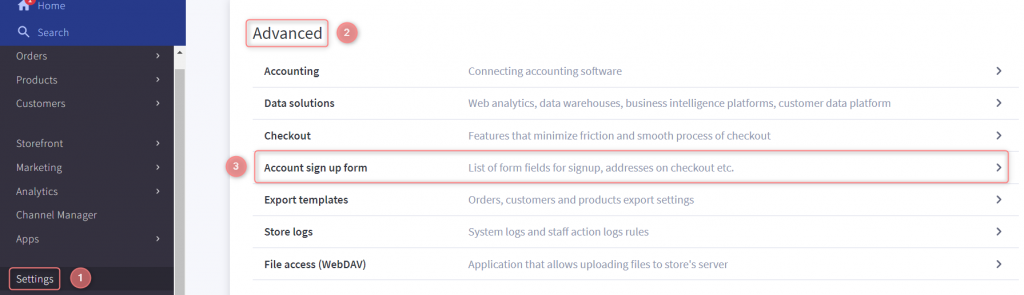
1.1 In your BigCommerce account go to Settings → scroll down to the section Advanced → choose the option Account sign up form:
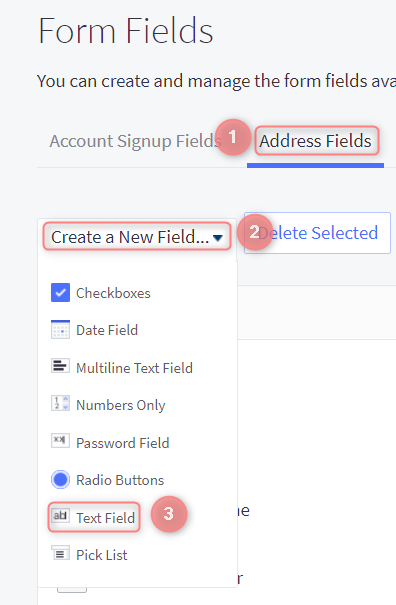
1.2 Address Fields → Create a New Field → choose the option Text Field:
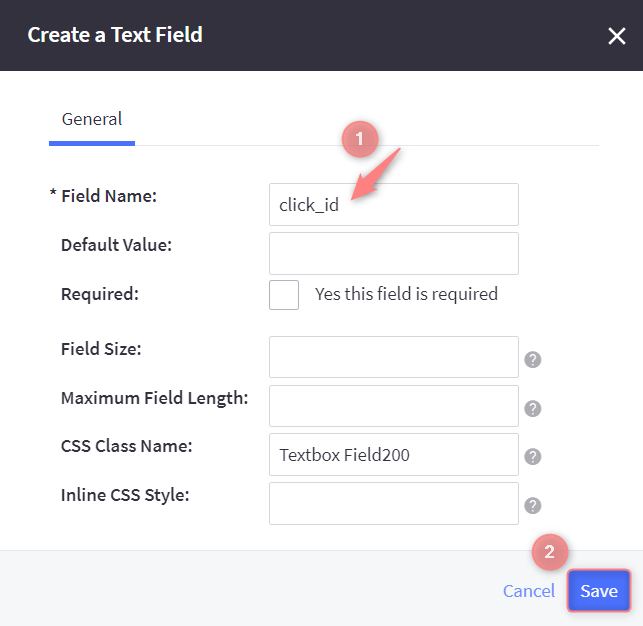
1.3 Type click_id in the Field Name → Save:
2. Find and install your app in BigCommerce
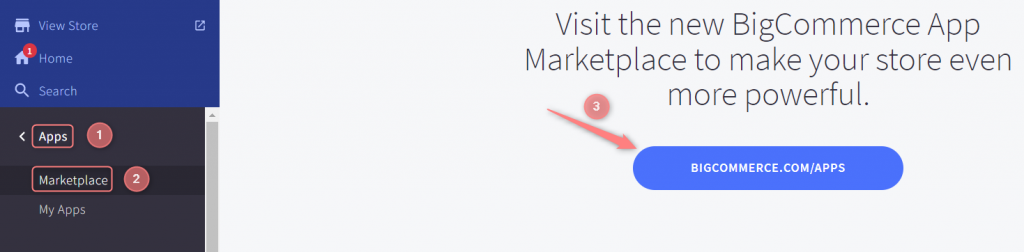
2.1 In your BigCommerce account go to Apps → Marketplace → press Bigcommerce.com/Apps:
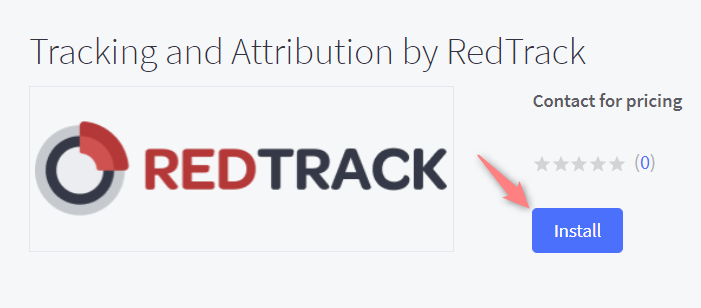
2.2 Navigate to the app’s name → click on the Get this app button → Install:

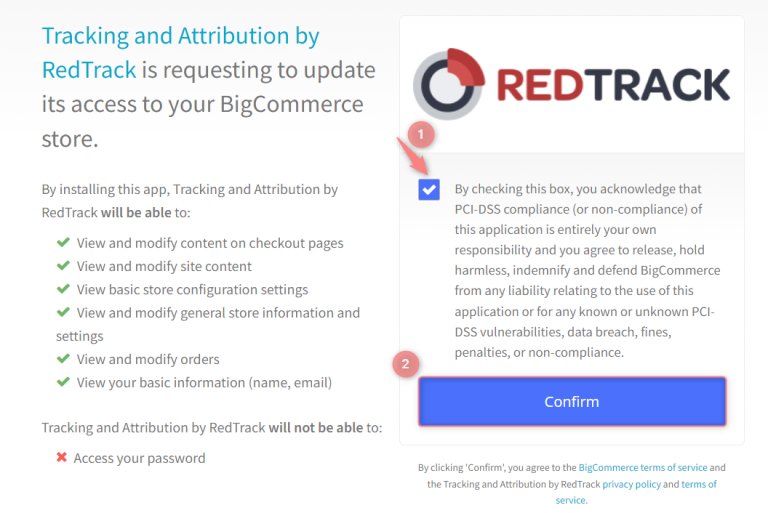
2.3 Accept the compliance Terms and Conditions → press Confirm:
2.4 Add RT universal tracking script (Setup in RedTrack → step 4) to the popped up field → Save:


