


ChatGPT Ads and RedTrack

Intro
ChatGPT Ads is OpenAI’s advertising channel for running paid campaigns. RedTrack’s ChatGPT Ads integration allows you to track ChatGPT Ads traffic in RedTrack, send conversion events back to OpenAI via the Conversions API, and sync ad spend from OpenAI Ads.
The integration is used to pass real conversion data from RedTrack to OpenAI. This helps OpenAI receive the events needed for campaign reporting and optimization, while RedTrack keeps click tracking, attribution, conversion tracking, and payout data in one place.
With this integration, you can:
- track ChatGPT Ads clicks and conversions in RedTrack
- capture OpenAI’s “oppref” click ID for attribution
- send matched conversion events to OpenAI via Conversions API
- sync ChatGPT Ads ad spend from OpenAI Ads at the campaign, ad group, and ad level.
Integration
1. Add a custom tracking domain in RedTrack
1. Add a CNAME record pointing to your RedTrack default domain in your domain registrar.
2. On the left menu, go to Tools → Domains → Create new domain.
3. Add the integrated domain to your RedTrack account and activate the Free SSL option.
2. Add conversion types you want to track with RedTrack
In your RT account go to Tools → Conversion tracking → Conversion type → add the events you want to track → Save.
The names will remain the same and be sent to the traffic channel exactly as you added them in RedTrack.
3. Add the offer/store tracking URL you are promoting
1. This is the target destination link where you plan to run the traffic: it can be an affiliate offer, a direct link to your website, or the shop.
1. Add the offer source: Offer sources → New from template/New from scratch → find the affiliate network you work with/add your custom name → Save.
2. Add the offer link: Offers → New → choose the offer source from the list, add the offer URL → save the changes.
For example: &affsub={clickid} where {clickid} is RedTrack parameter
More info on the offer source and offer in RT can be found here.
1. Go to Stores → New → Add your store (it is the name of your shop).
2. Go to Store tracking URLs → New → Add your store URL (this is your e-com shop).
3. Follow the suggested steps to generate the scripts. You will need it later for your e-com platform.
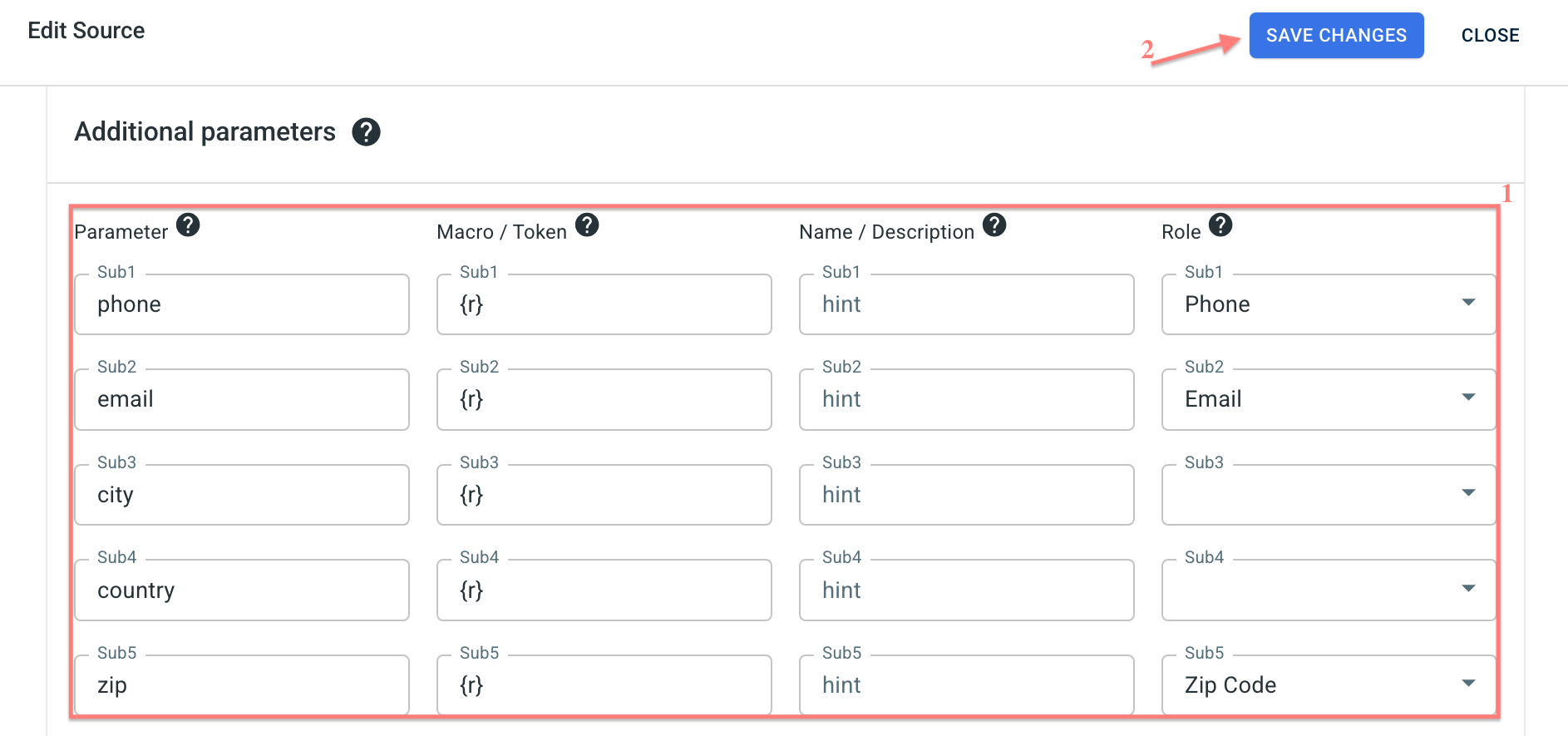
2. For better conversion attribution in the added Offer source/ Store template, go to Additional parameters → assign the roles:
- Phone
- City
- Country
- Zip
- IP adress
- User agent
Here you can find the general principle of the PII data enrichment process in RT.
4. Add the ChatGPT Ads traffic channel to RedTrack
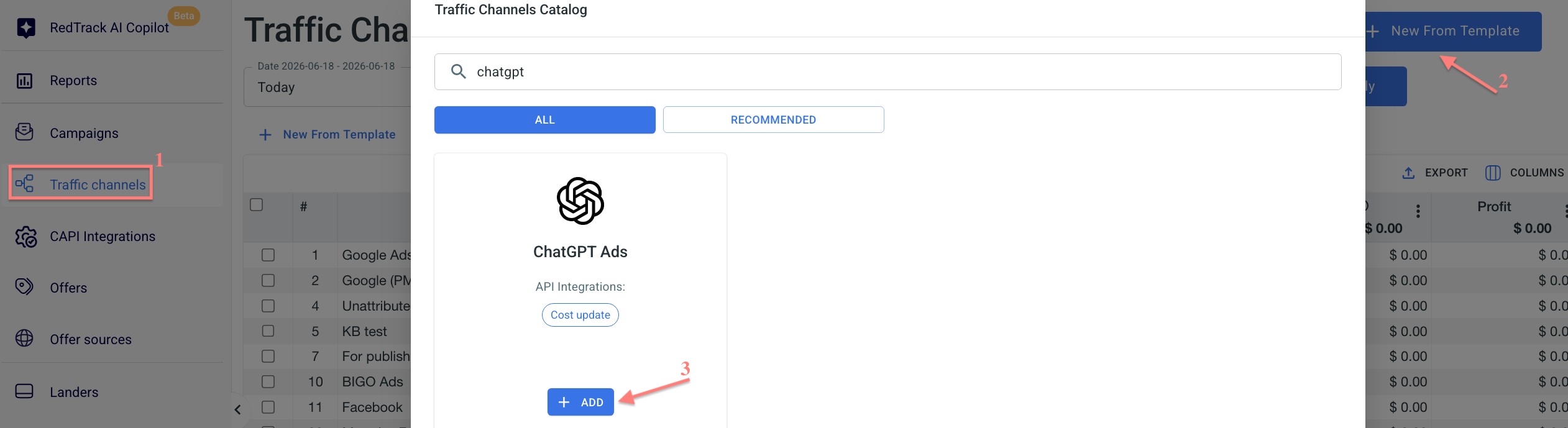
1. Traffic channels → New from template → ChatGPT Ads → Add → Save the template:


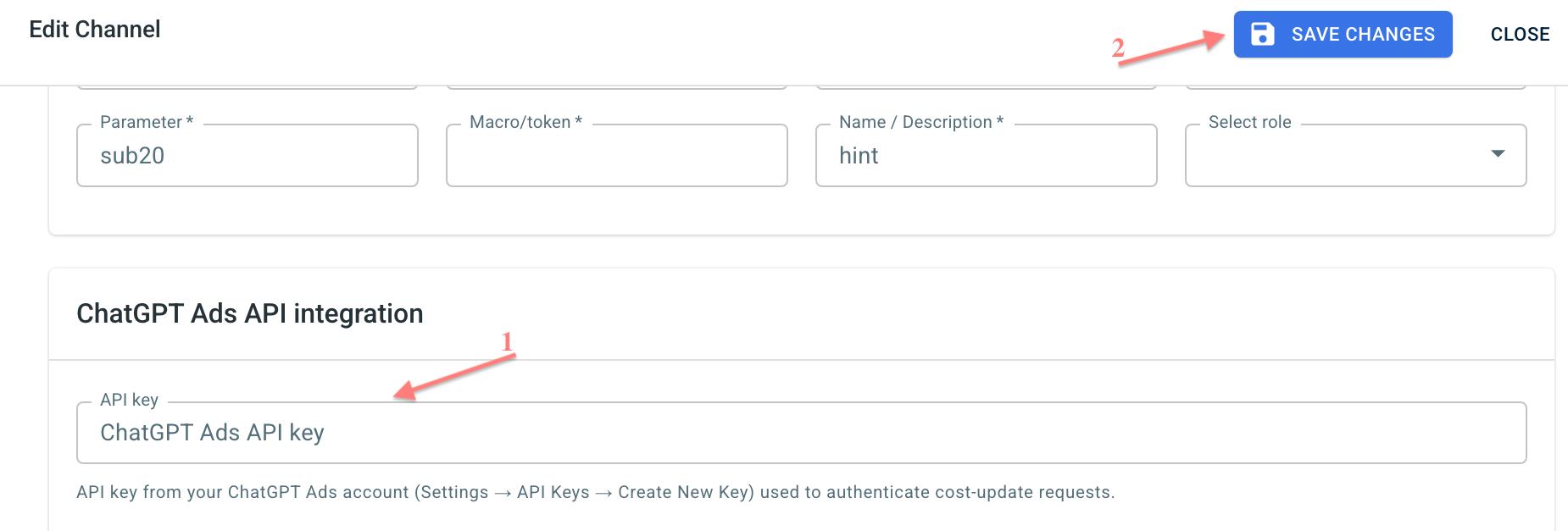
2. Add the API key to enable cost sync:
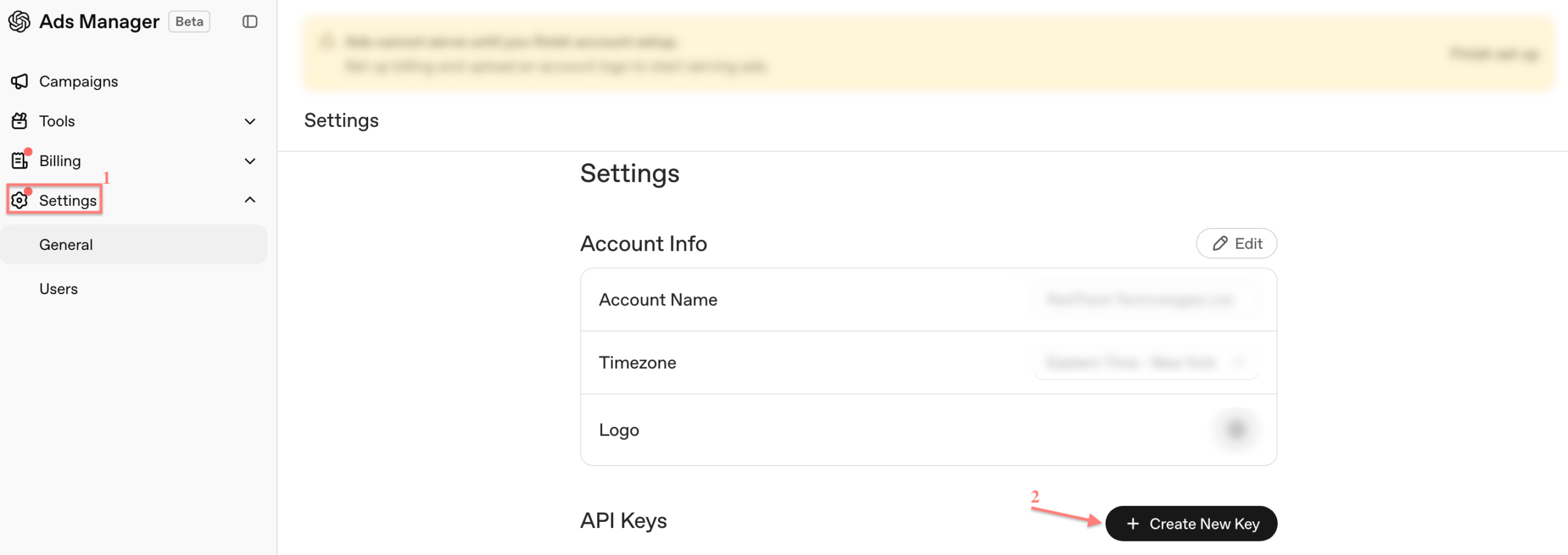
- Go to your ChatGPT Ads account → Settings → API Keys → Create New Key:
5. Get Pixel ID and API key from ChatGPT Ads
In your ChatGPT Ads account, copy the following:
1. Go to Ads Manager → Tools → Conversions → click the Create button in the top-right corner → Data Source:

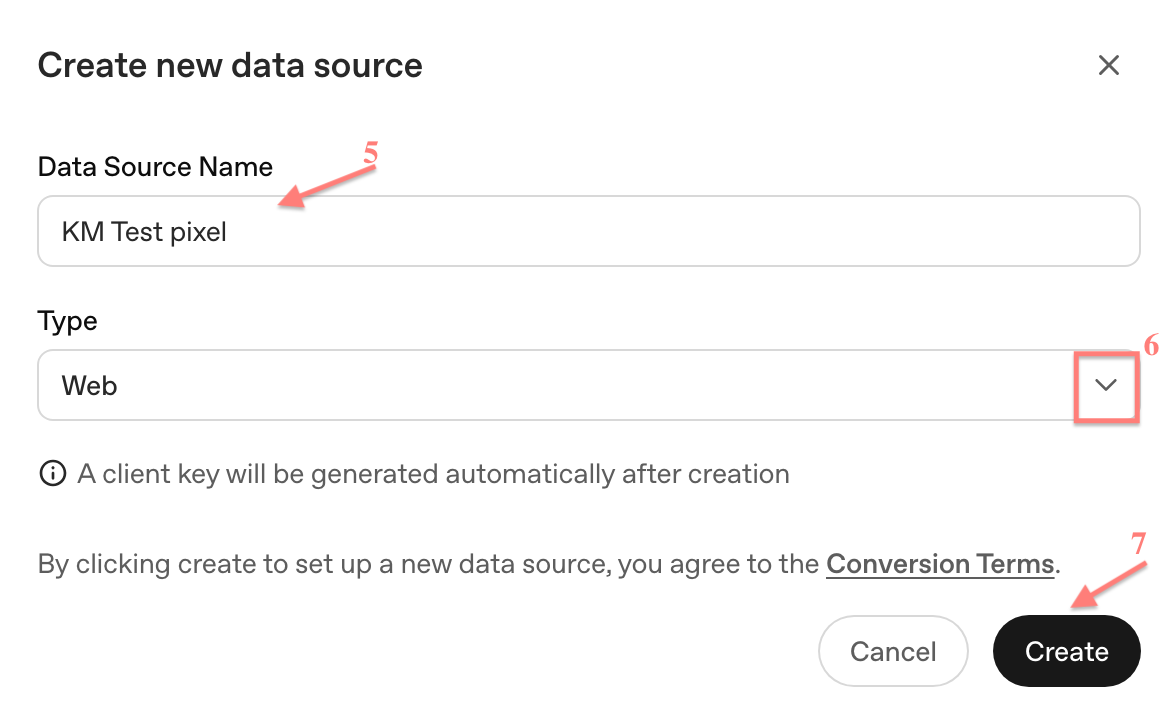
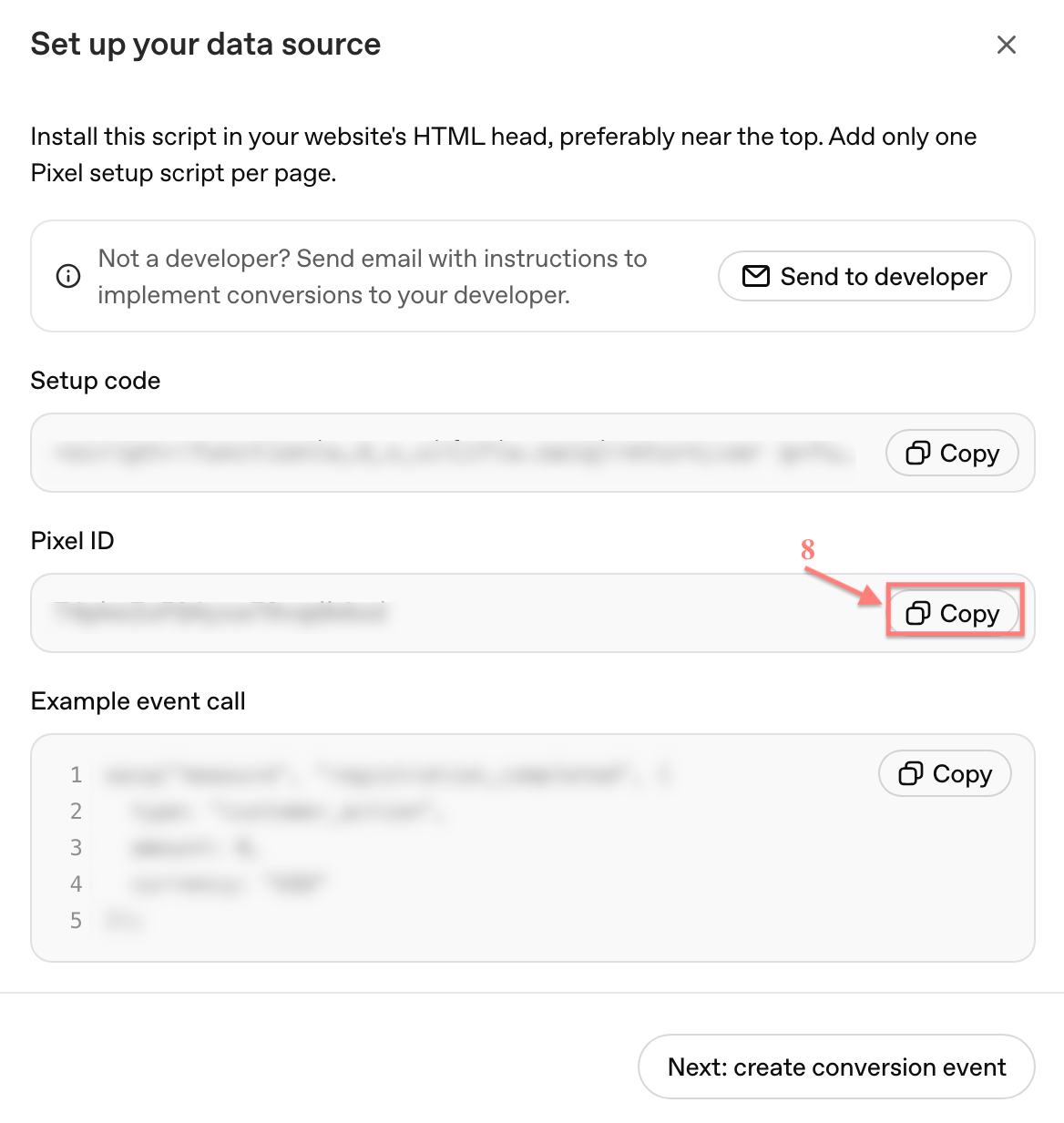
2. Give the name to your Data Source → select the type → Create → copy Pixel ID:
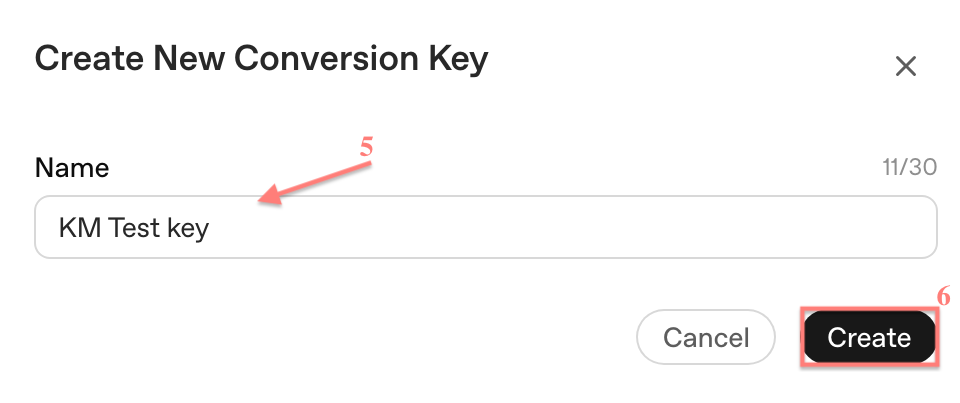
1. Go to Ads Manager → Tools → Conversions → click the Conversion keys button in the top-right corner → Create new key:

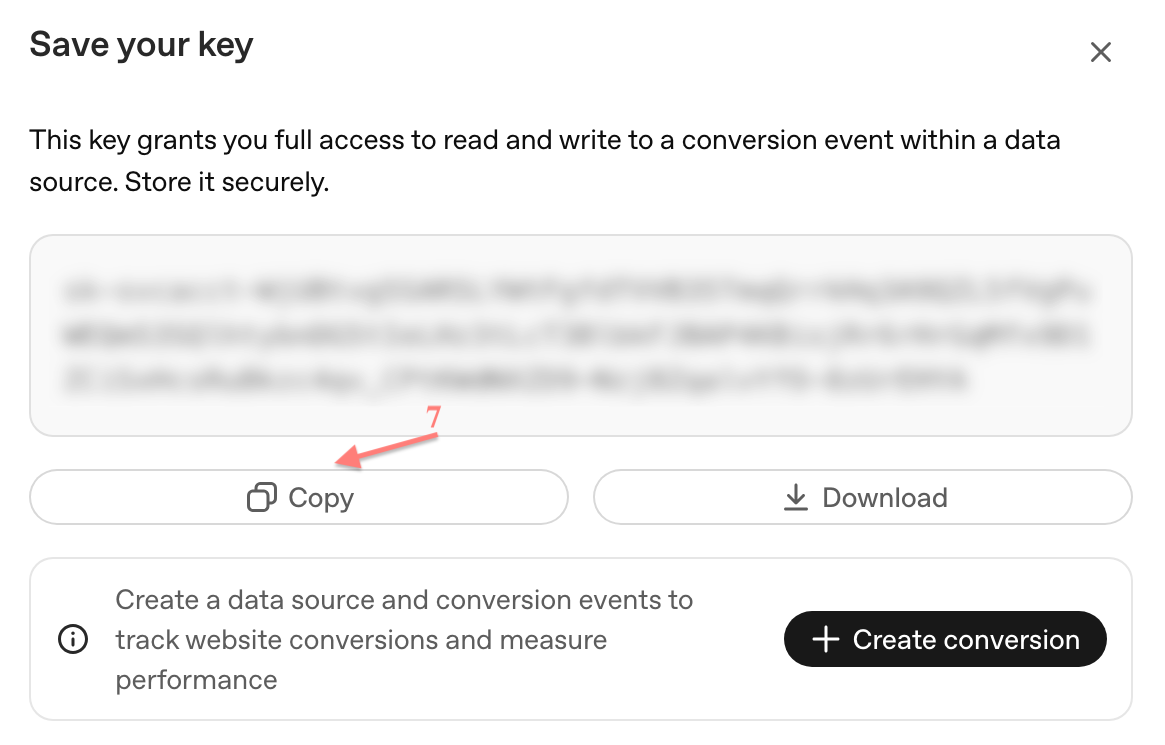
2. Give the name to your Conversion key → Create → click Copy:
6. Add ChatGPT Ads Pixel ID and API key to RedTrack
In your RedTrack account, you should:
- Add the copied Pixel ID and Conversion API key to CAPI Integrations.
- Assign the added pixel details to your offer/store/traffic channel.
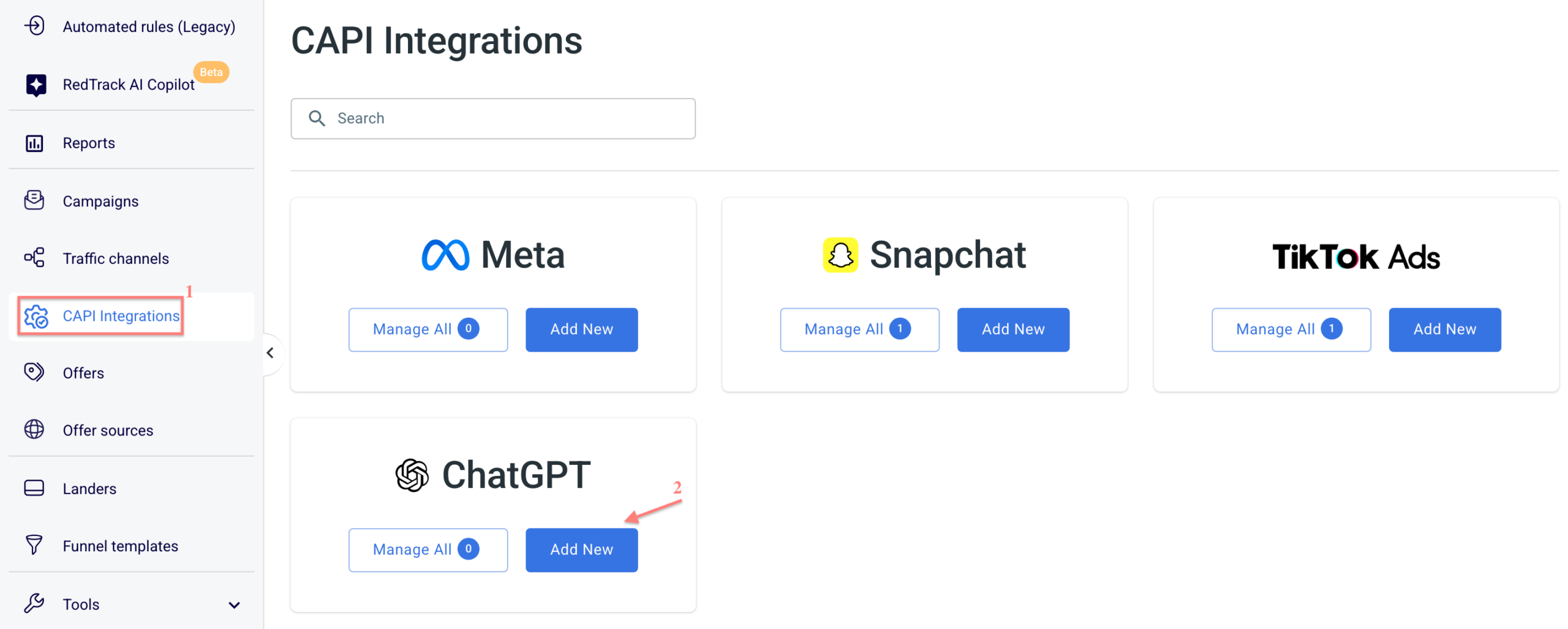
1. RedTrack → CAPI Integrations → ChatGPT Ads → Add New:
2. Fill in the mandatory fields → match RT conversion event types with the ones in ChatGPT Ads → Save:
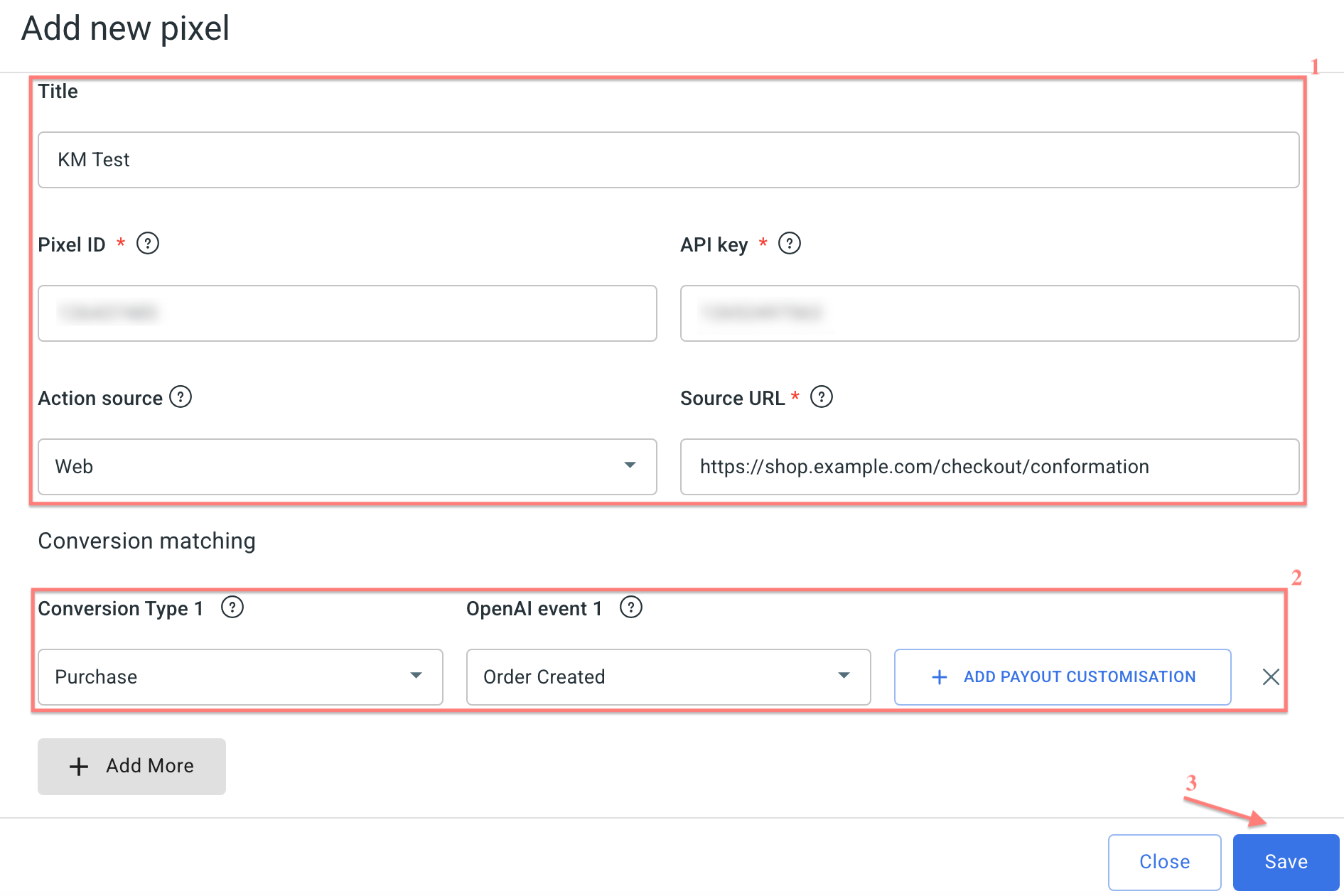
Fields explained:
Give your ChatGPT Ads pixel a name to distinguish it from the other added pixels in the list.
Here goes your Pixel ID and Conversion API key copied from your ChatGPT Ads account (step 5).
This is where your conversion physically happened: web, mobile app, offline, physical store, etc.
Required when Action source is set to Web. This is the URL of the web page where the conversion happens
Example: https://shop.example.com/checkout/confirmation
In this section, you will map your RedTrack conversion events to the corresponding ChatGPT Ads events. This tells RedTrack which conversions to send to ChatGPT Ads and ensures your tracking data is correctly reflected in both platforms.
To set up conversion matching, act as follows:
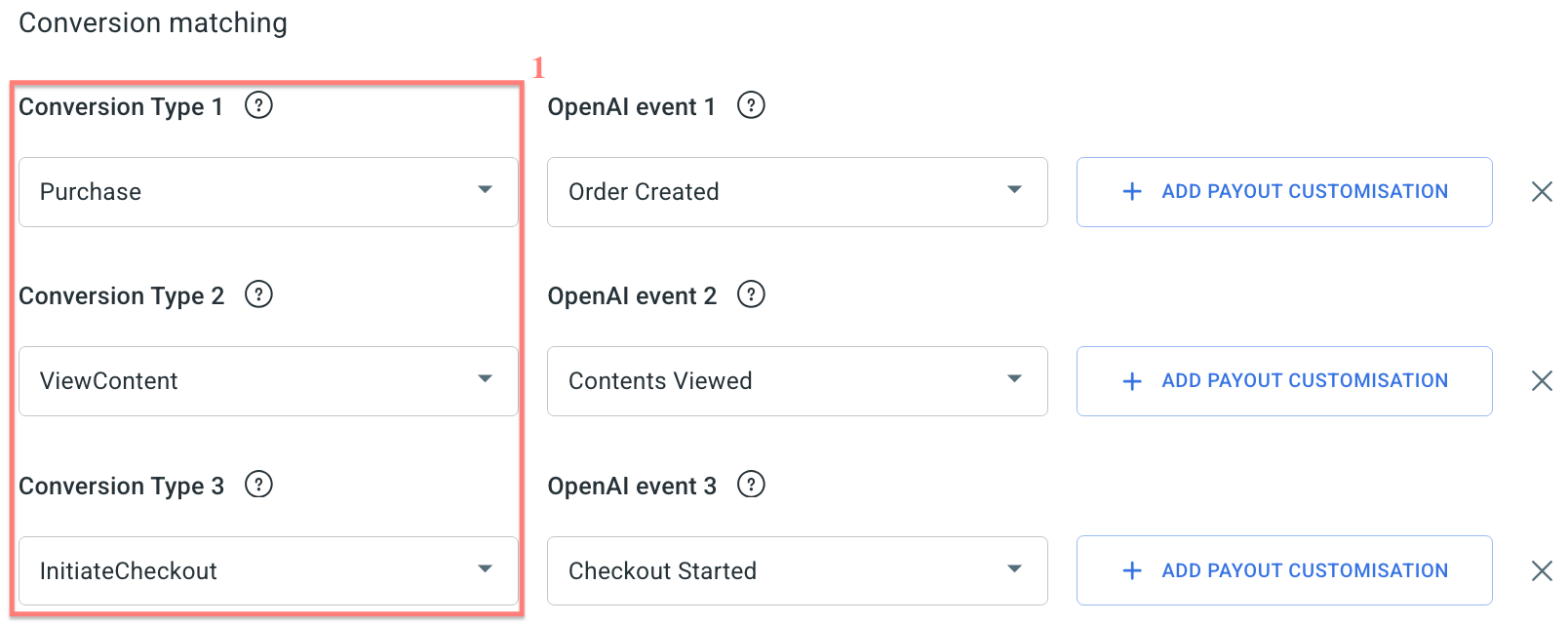
1. Under the Conversion Type column, select the RedTrack event you want to send to ChatGPT Ads. The list shows the conversion types you’ve added to RedTrack within step 2.
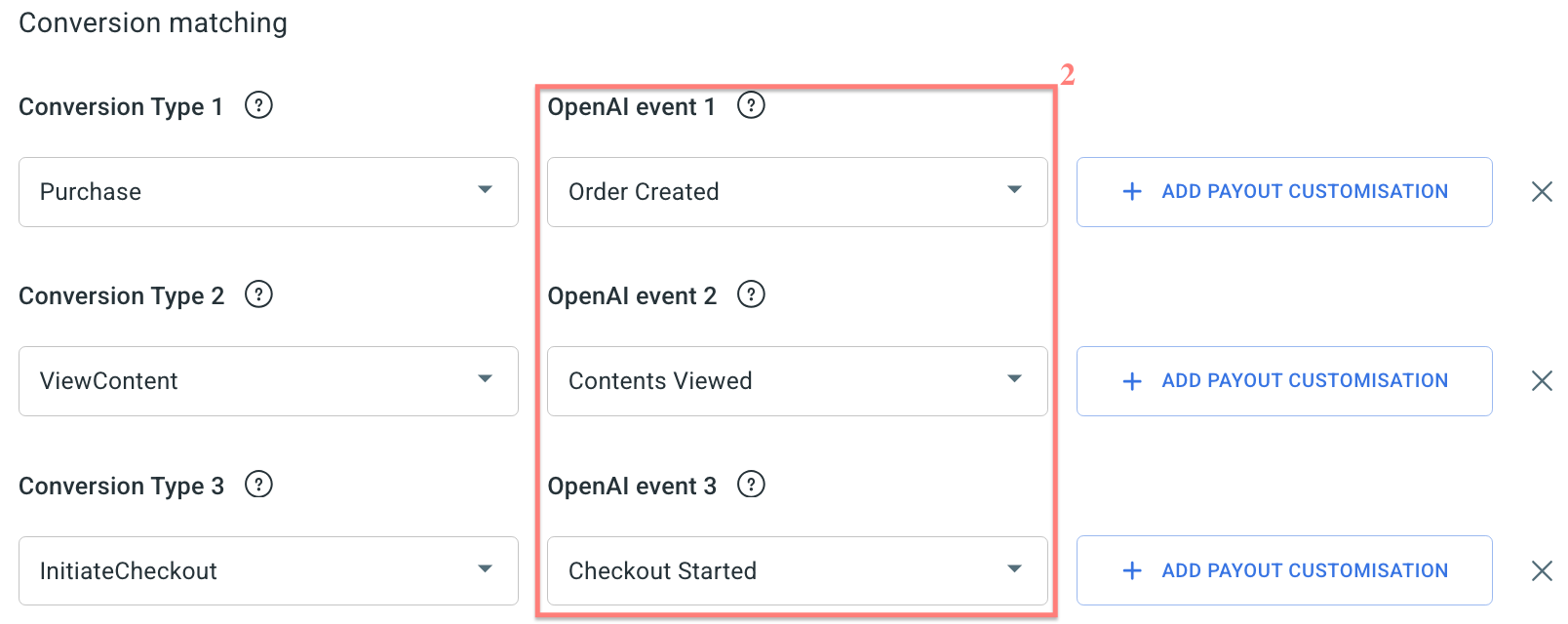
2. In the OpenAI event column, select the corresponding ChatGPT Ads event for each RedTrack conversion type.
3. Optionally, you can set up Payout customisation for the matched events.
Payout customisation → Payout type & Value
Why use payout customisation
Payout customisation for the matched Conversion Type & OpenAI Event controls the financial data associated with this conversion event. You can define a concrete payout type and value that RedTrack will associate with that conversion event when reporting to ChatGPT Ads. This is useful when you want to report a different value than the one originally recorded.
How to set up payout customisation
Press Add payout customisation → select the Payout type → define the payout value for the matched event:
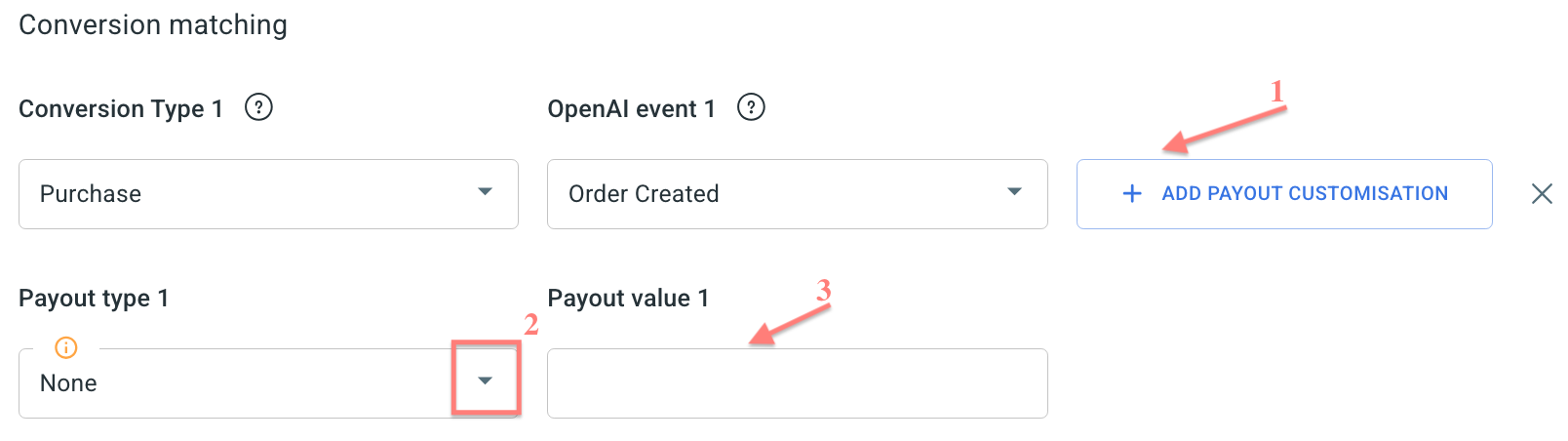
– None: RedTrack will send the full revenue amount associated with the conversion event. The value is sent in cents and rounded down if needed.
– Numeric: RedTrack will send this fixed amount as the revenue. The value is multiplied by 100 before being sent to ChatGPT Ads.
– Percentage: RedTrack will calculate and send the specified percentage of the revenue in cents. For example: 15% of $40 is sent as 600, which equals $6.
Examples
What’s given:
You receive 3 conversions with different payouts:
- Conversion 1 → $20
- Conversion 2 → $10
- Conversion 3 → $30
Payout setup example 1:
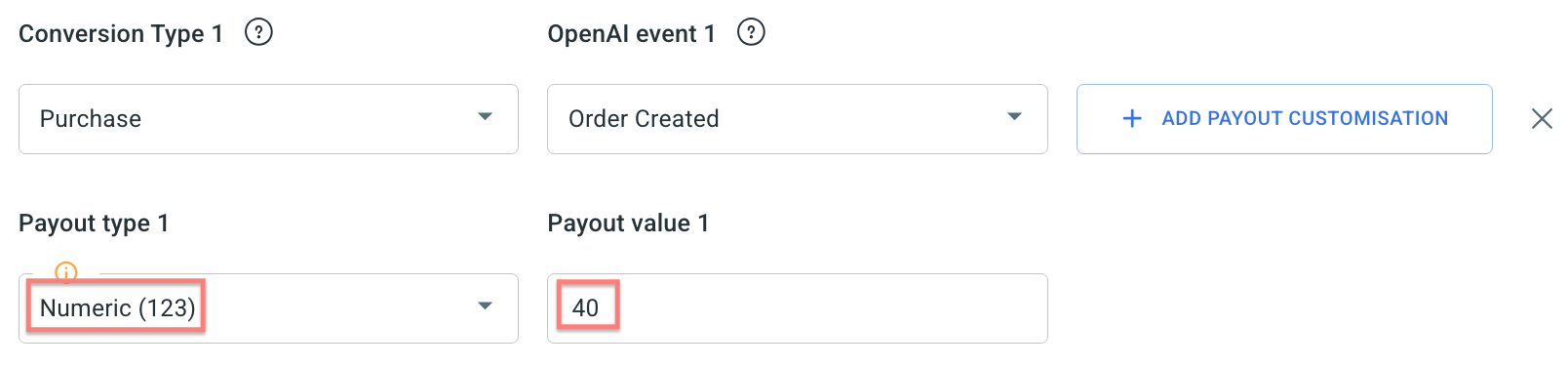
What it means:
You want every conversion sent to ChatGPT Ads with a fixed payout of 40, regardless of its actual payout. RedTrack ignores the original payout and replaces it with 40 for reporting.
Outcome for payout setup example 1:
- Conversion with $20 → sent as 4000
- Conversion with $10 → sent as 4000
- Conversion with $30 → sent as 4000
Payout setup example 2:
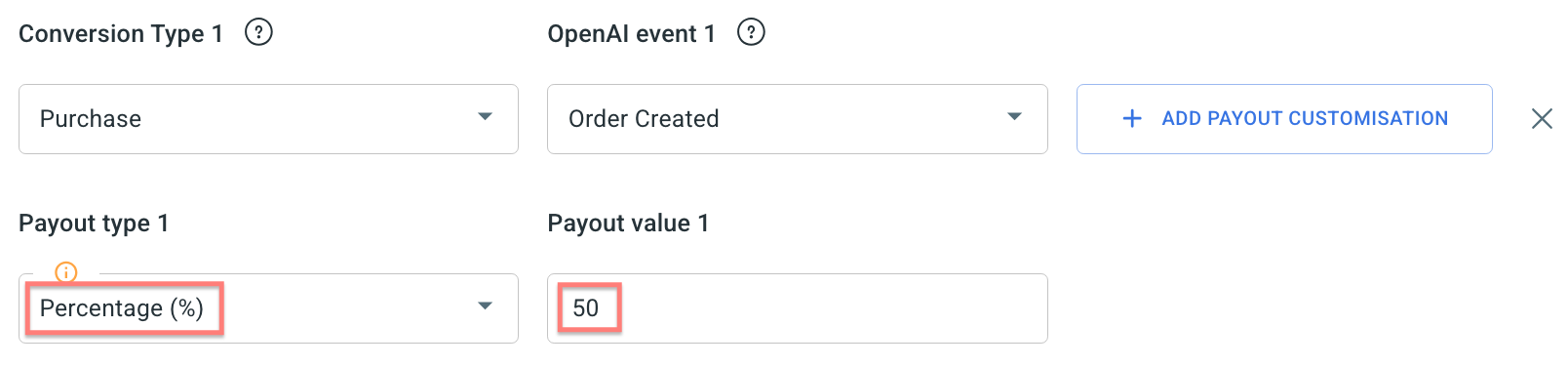
What it means:
You want to send 50% of each conversion’s actual payout to ChatGPT Ads. RedTrack calculates half of the real payout and uses that number for reporting.
Outcome for payout setup example 2:
- Conversion with $20 → sent as 1000
- Conversion with $10 → sent as 500
- Conversion with $30 → sent as 1500
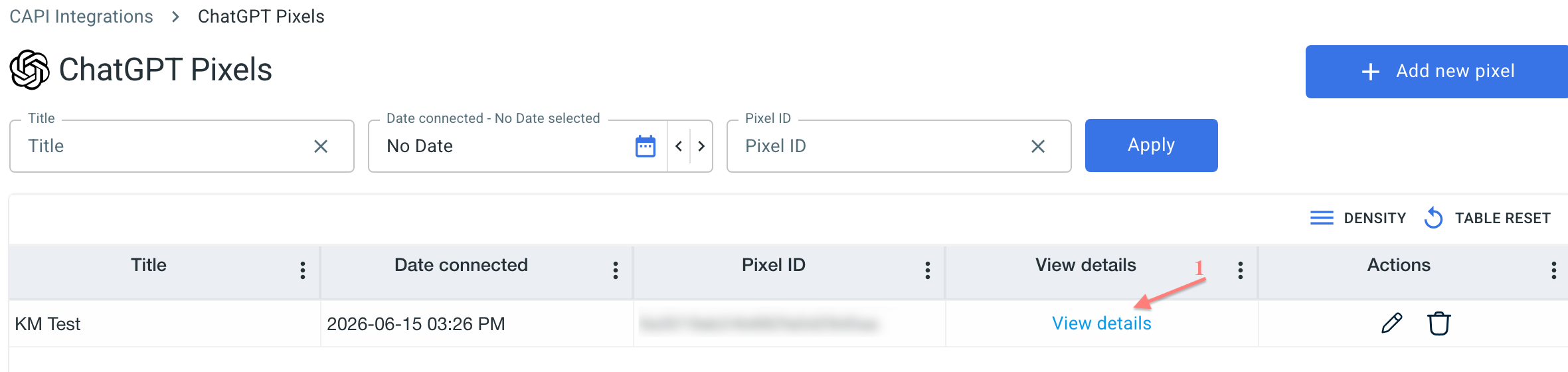
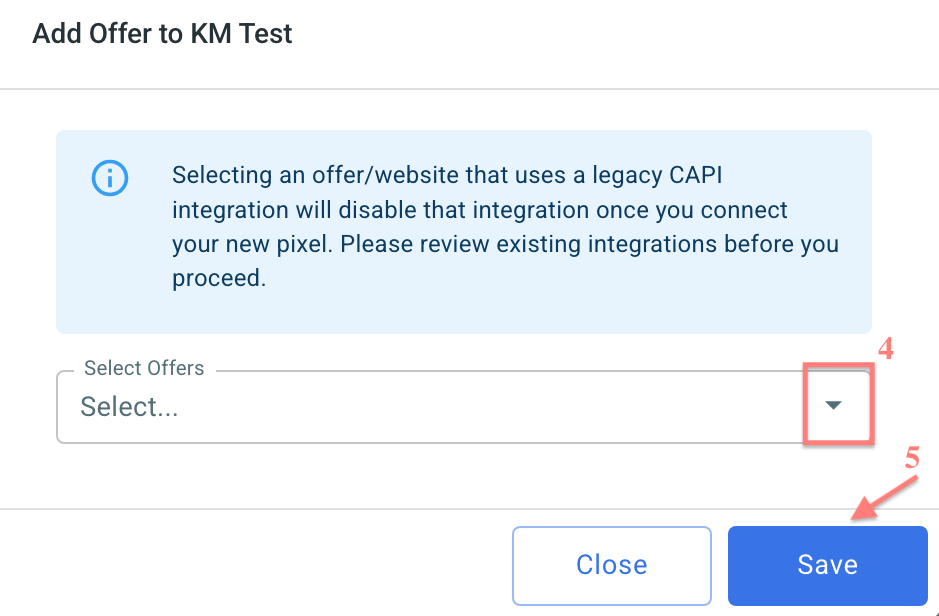
3. To assign this pixel: View details → select Traffic Channels or Offers/ Stores → Add new → select destination → Save:

7. Create a campaign/ad tracking in RedTrack
To create a campaign/ad tracking in RT act depending on your account type:
1. Campaigns → Create new campaign → fill in the info in all the sections and tabs:
- General: Give it the name, and choose the traffic channel, tracking domain, and cost-tracking method.
- Funnels: Choose the type of funnel you are using and add the elements from the drop-downs.
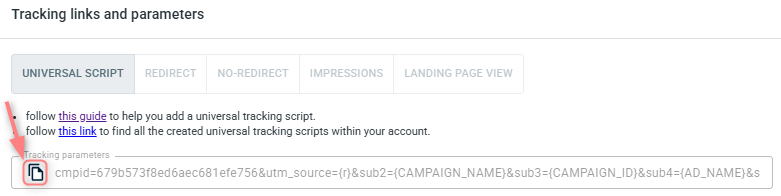
2. Once the Campaign is saved go to Tracking links and parameters → copy the campaign’s tracking parameters to paste them in ChatGPT Ads:
1. Ad Tracking → New Ad Tracking → Fill in the info in all the sections and tabs:
- General: Give it the name, and choose the traffic channel, and cost-tracking method.
- Funnels: Choose the type of funnel you are using and add the elements from the drop-downs.
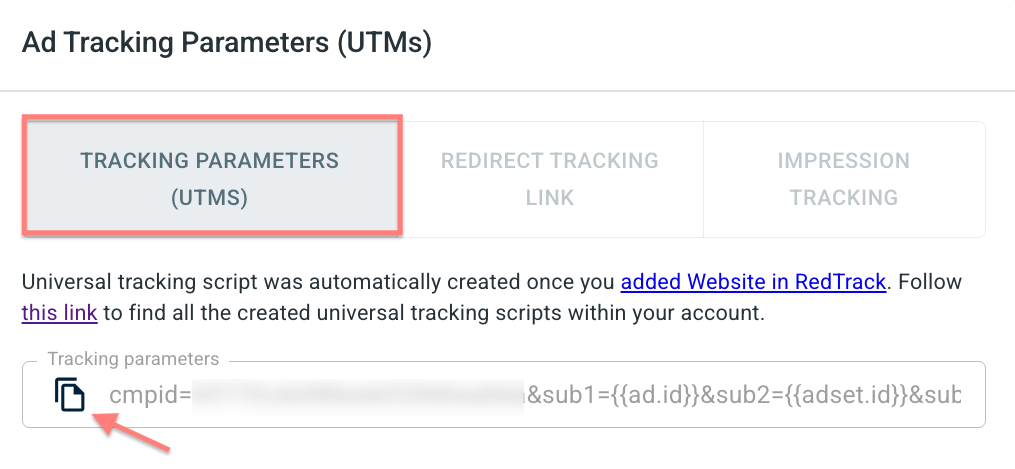
2. Once the Ad Tracking is saved go to Ad Tracking Parameters (UTMs) → copy the tracking parameters from the Tracking parameters (UTMs) tab:
Refer to these articles for details on other tracking methods:
– Universal script
– No-redirect
– Impressions
8. Create a campaign in ChatGPT Ads with RT’s tracking URL
Set up the tracking in ChatGPT Ads:
Campaigns → Create → Create campaign → use this ChatGPT Ads guide to help you navigate your campaign settings. Your tracking parameters from RedTrack (copied within step 7) should be inserted in the Tracking parameters field:
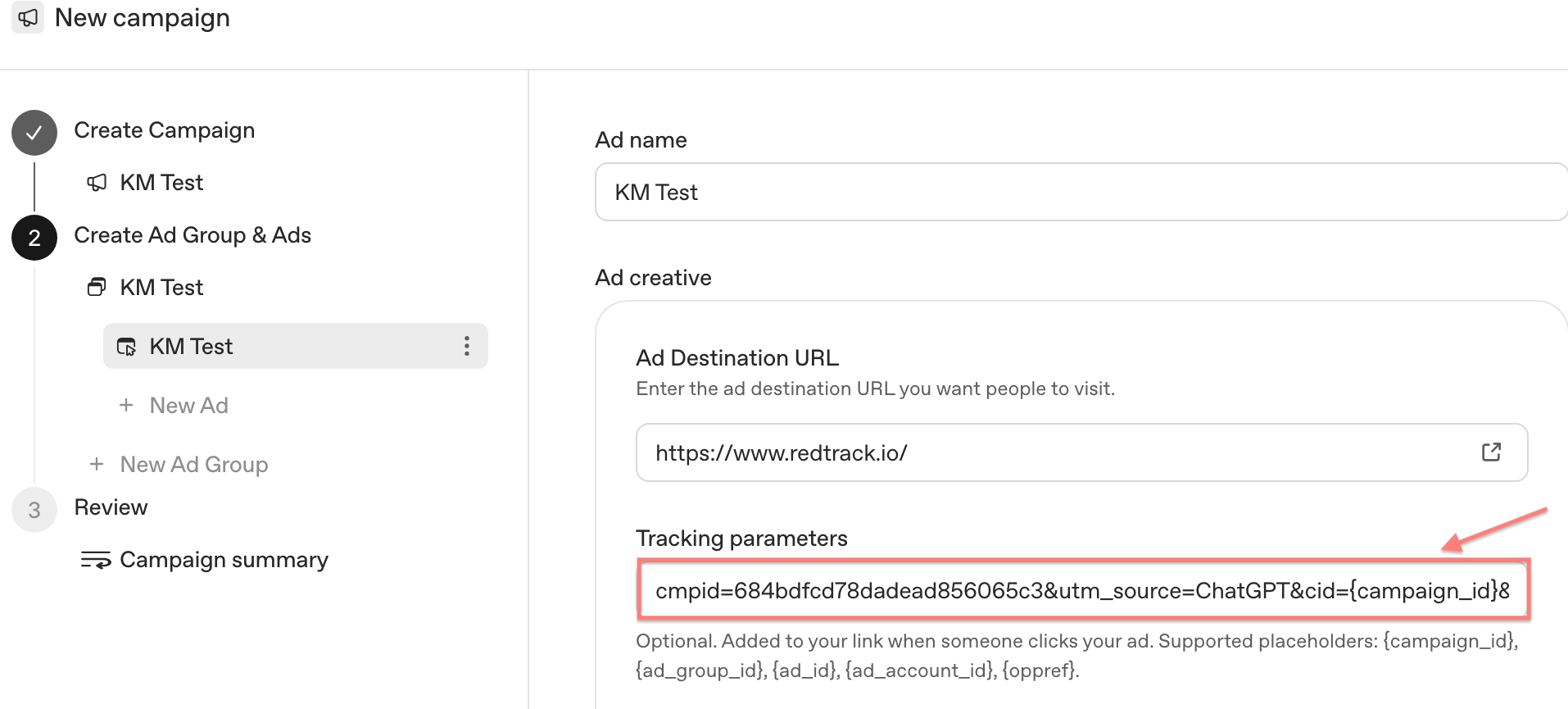
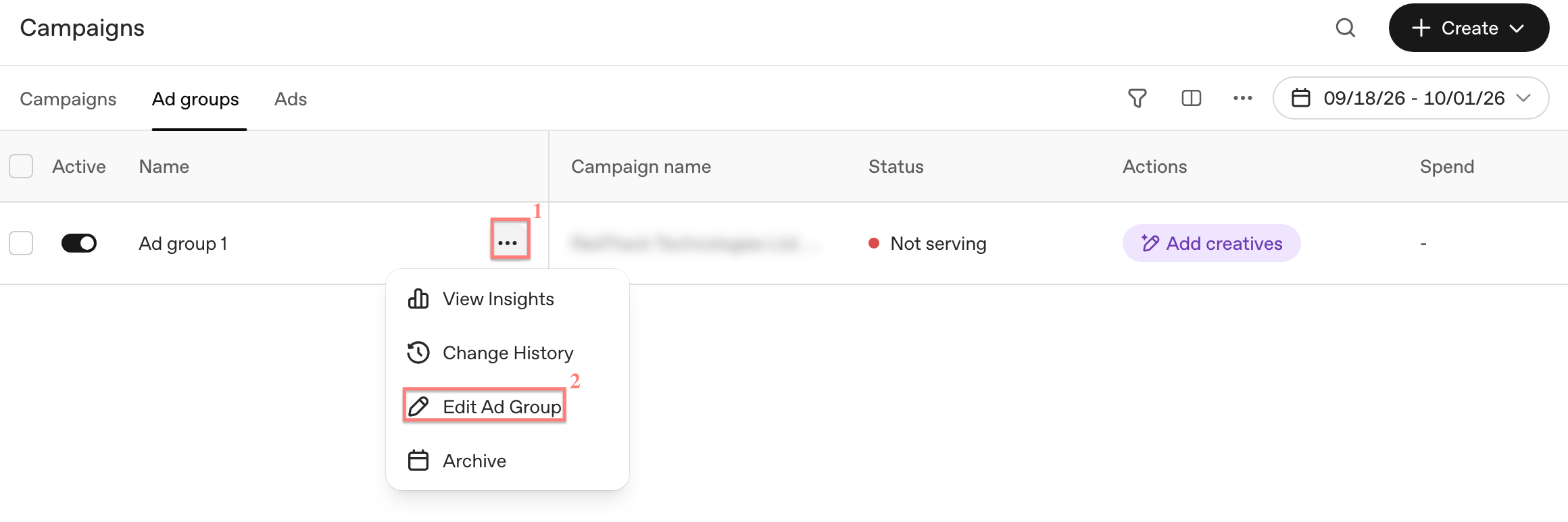
Campaign-level parameters apply to all ad groups and ads in the campaign.
If parameters are set at more than one level, the more specific setting takes precedence: Ad URL → Ad → Ad group → Campaign. Parameters already included in the ad’s destination URL are not overwritten by campaign, ad group, or ad-level settings.

