


Rumble and RedTrack

Info
Rumble is a user-generated video sharing platform that is available through its website and apps.
Integration
1. Add a custom tracking domain
1. Add a CNAME record pointing to your RedTrack default domain in your domain registrar.
2. On the left menu go to Tools → Domains → Create new domain.
3. Add the integrated domain to your RedTrack account and activate the Free SSL option.
2. Add the offer/store tracking URL you are promoting
This is the target destination link where you plan to run the traffic: it can be an affiliate offer, a direct link to your website, or the shop.
1. Add the offer source: New from template/New from scratch → find the affiliate network you work with/add your custom name → Save.
2. Add the offer link: Offers → New → choose the offer source from the list, add the offer URL → save the changes.
For example: &affsub={clickid} where {clickid} is RedTrack parameter
Follow this guide for additional details about the offer source and offer setup in RT.
1. Go to Stores → New → Add your store (it is the name of your shop).
2. On the same page, in the Additional parameters section, add the purchase data parameters – Name/Description is what you will see in reports – Roles define their use with CAPI.
3. Go to Store tracking URLs → New → Add your store URL (this is your e-com shop).
4. Follow the suggested steps to generate the scripts. You will need it later for your e-com platform.
– this guide for additional details on Store and Store tracking URL setup in RT.
– this guide for more info on e-commerce platform integration.
3. Set up the conversion events
In your RT account go to Tools → Conversion tracking → Conversion type → add the events you want to track → Save.
The names will remain the same and be sent to the traffic channel exactly as you added them in RedTrack.
4. Get the unique value & API key from Rumble Ads
Copy the following from your Rumble account:
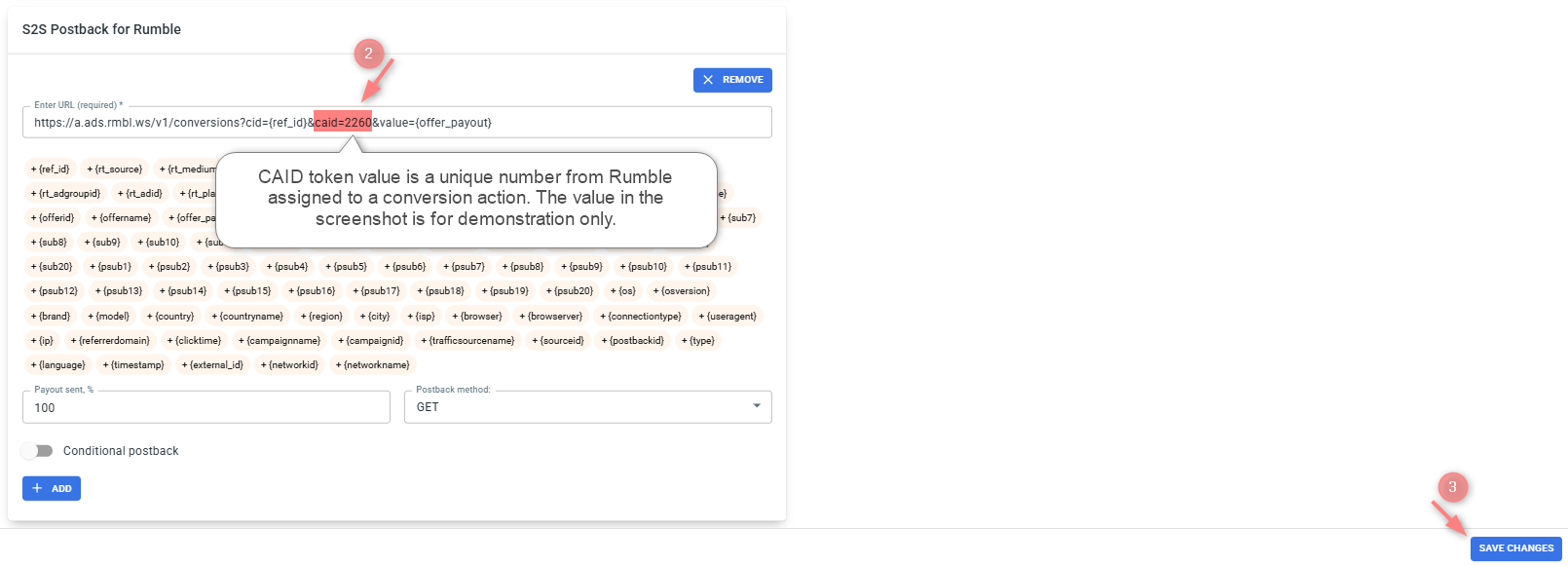
In your Rumble Ads account go to Advertisers → Conversion Tracking → value for the caid token is the ID number next to the created action (conversion):
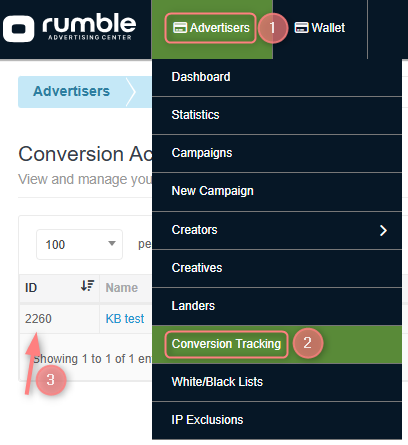
Use the recommendations in this Rumble doc to obtain your API key.
5. Add the Rumble template to RedTrack
1. In your RedTrack account go to Traffic channels → New from template → find Rumble → Add:
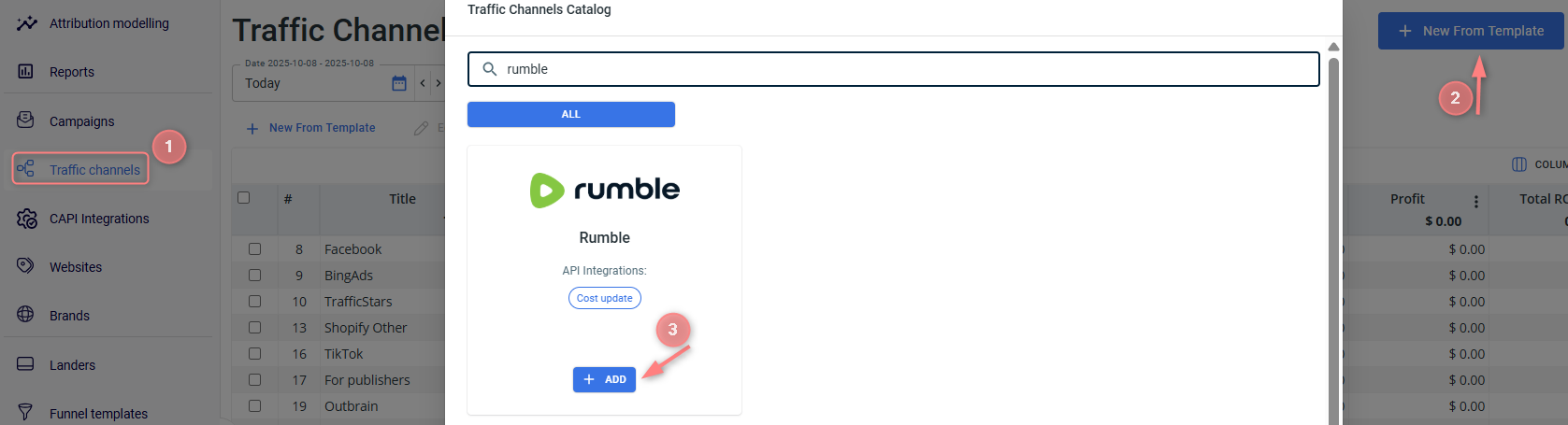
2. Make the following changes to the template:
- Add Cost update depth and frequency to enable the auto update cost feature:
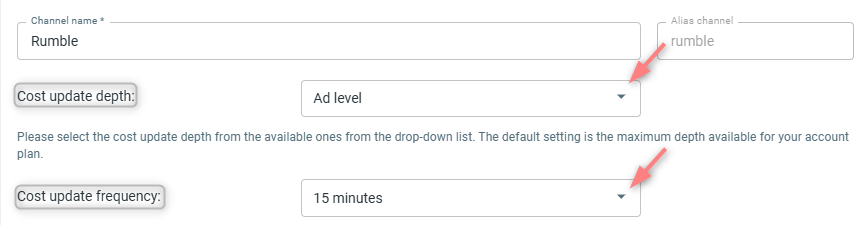
- put in the value for the caid token (taken from Rumble) instead of REPLACE in the Postback URL:

- Insert the API key from Rumble to the Rumble API integration section → Save the template:
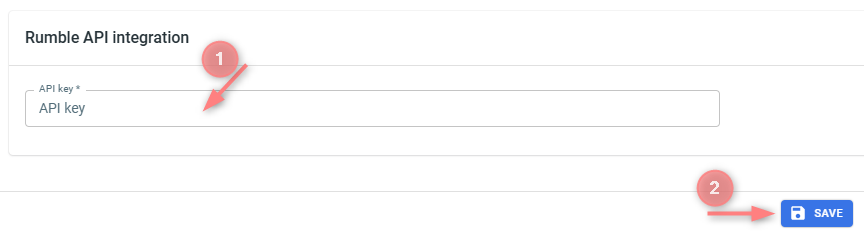
6. Create campaign/ad tracking in RedTrack
1. Create a campaign/ad tracking in RedTrack with Rumble as your traffic channel.
In your RT account go to Campaigns → Create new campaign → fill in the info in all the sections and tabs:
- General: give it the name, and choose the traffic channel, tracking domain, and cost-tracking method.
- Funnels: choose the type of funnel you are using and add the elements from the drop-downs.
- S2S postback: this field will be filled in automatically based on the data you have added to your traffic channel settings.
In your RT account go to Ad Tracking → New Ad Tracking → fill in the info in all the sections and tabs:
- General: give it the name, and choose the traffic channel, and cost-tracking method.
- Funnels: choose the type of funnel you are using and add the elements from the drop-downs.
- Ad network webhook for conversions: this field will be filled in automatically based on the data you have added to your traffic channel settings.
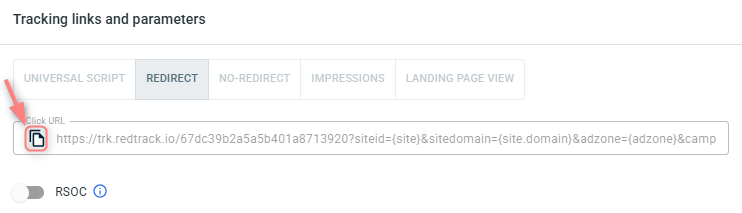
2. Once the campaign/ad tracking is added, your tracking link is automatically created, copy Click URL:
– Universal script
– No-redirect
– Impressions
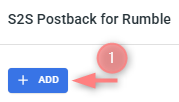
3. To apply your postback within your campaign/ad tracking settings, navigate to S2S Postback for Rumble/ Ad network webhook for conversions section → Add → check if the mandatory value for the caid token is added → Save changes:
Although the Auto update costs toggle is enabled automatically for campaigns/ad trackings with API-integrated traffic sources, such as Rumble, it’s still a good idea to double-check that it’s turned on:

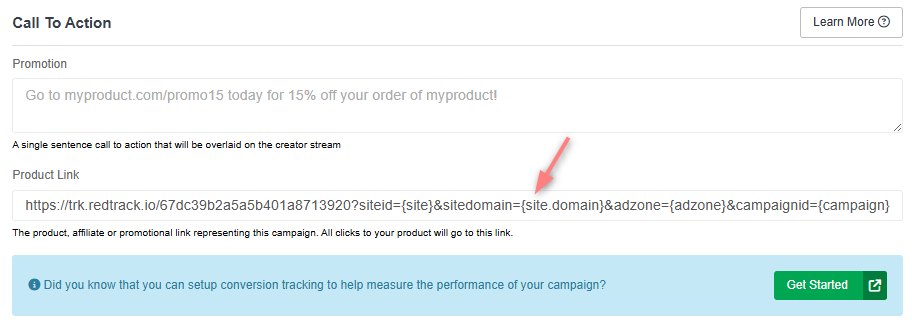
4. Create a campaign in Rumble and add the RT tracking link.
When adding a campaign in your Rumble Ads account add the copied RT tracking link to the Product Link field:
– Display Traffic Campaign
– Live Read Campaign

