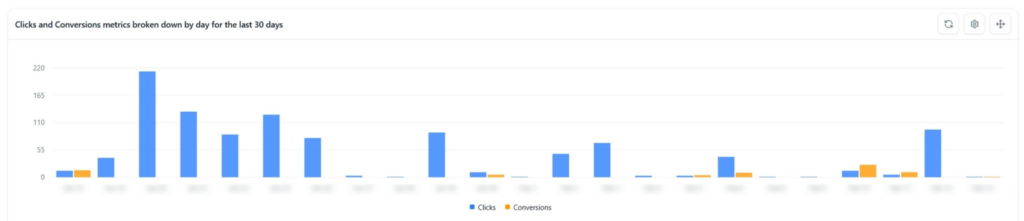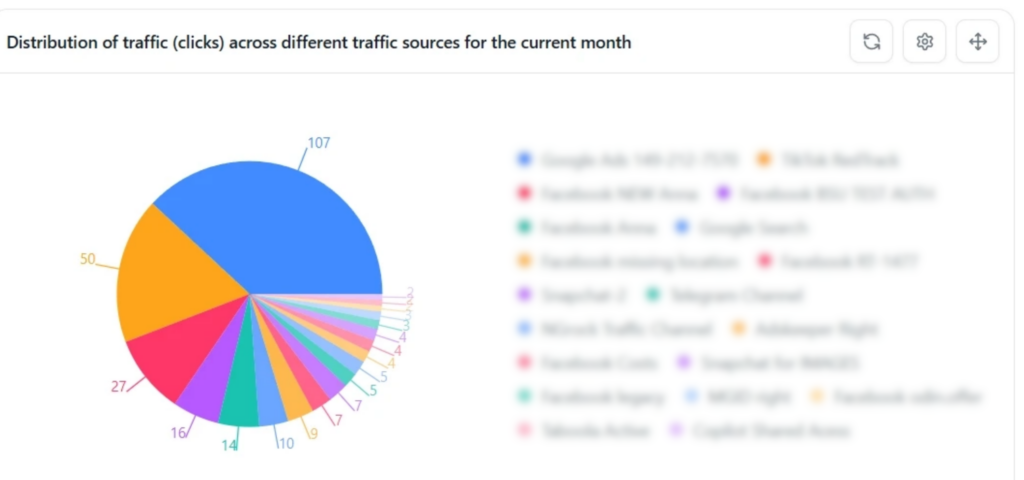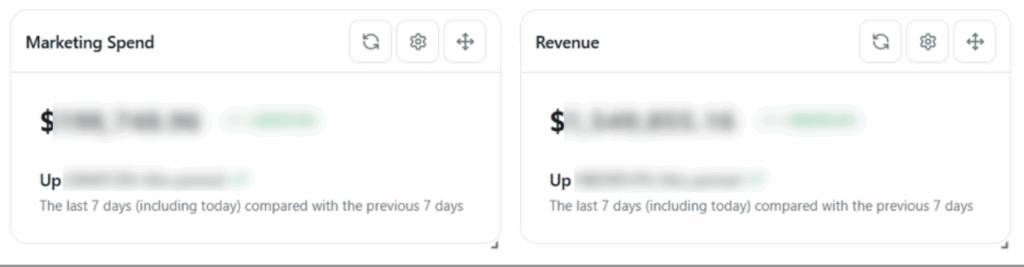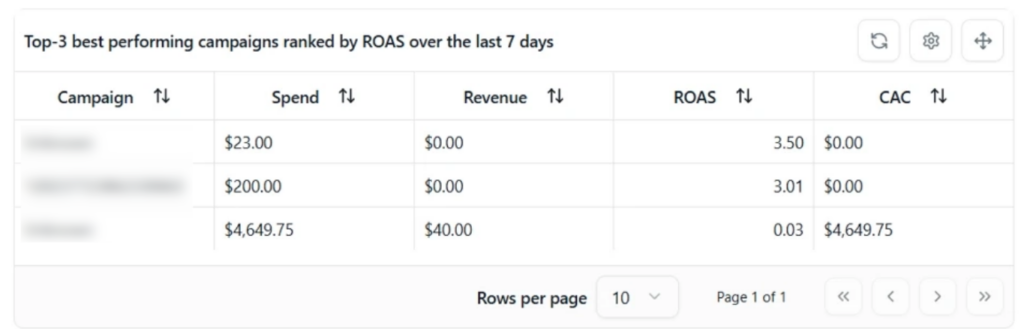

🤖 RedTrack AI Copilot
RedTrack AI Copilot is an AI-powered feature designed to help you work more efficiently with your data. It provides intelligent insights, predictive analysis, and automated suggestions to improve tracking performance and streamline daily workflows.
The Copilot chat is available directly inside the RedTrack UI. Every response — whether it’s a chart, table, or metric card — can be saved and added to a dashboard. This transforms Copilot from a simple “question-and-answer” tool into a centralized reporting and decision-making workspace.
AI Copilot provides key benefits to simplify reporting and analysis:
- Get insights instantly. Instead of building reports from scratch, you can simply ask a question and get immediate results.
- Turn questions into dashboards. Copilot converts your requests into visual components like charts, tables, and metric cards, which can be added directly to your dashboards.
- Start with ready-to-use dashboards. Use prebuilt dashboards tailored to your business model.
- Analyze data with AI assistance. Use built-in AI to explore performance, identify trends, and understand results faster.
- Manage performance from one place. Save reports and widgets to dashboards and use them as your daily workspace.
How to use RedTrack AI Copilot
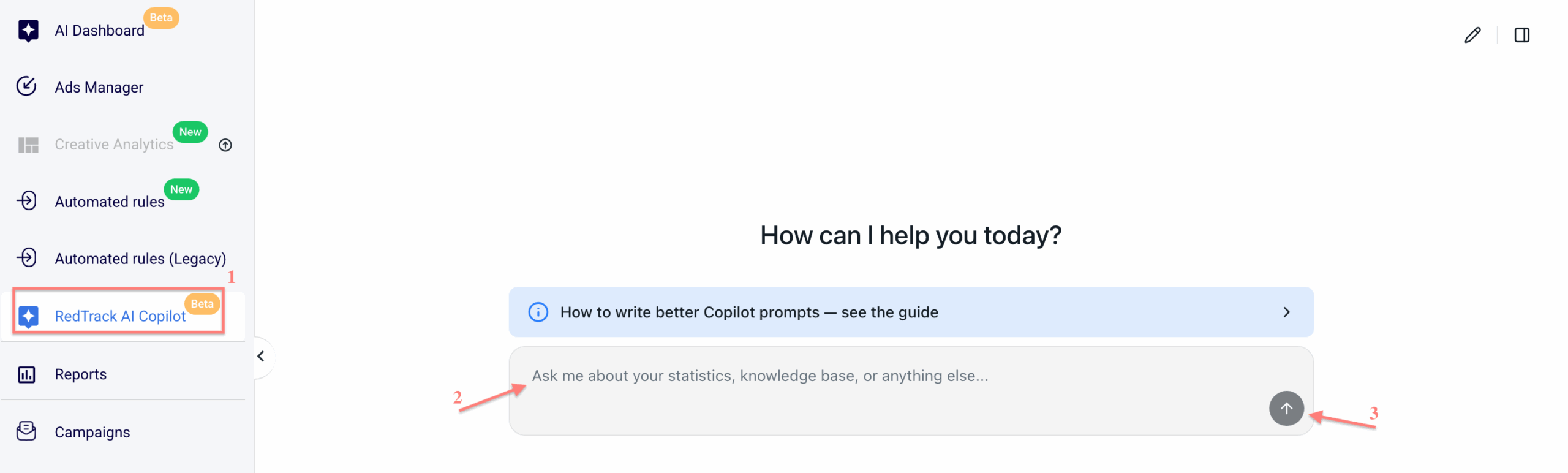
1. Go to the RedTrack AI Copilot → type your request into the input field → click the submit button:
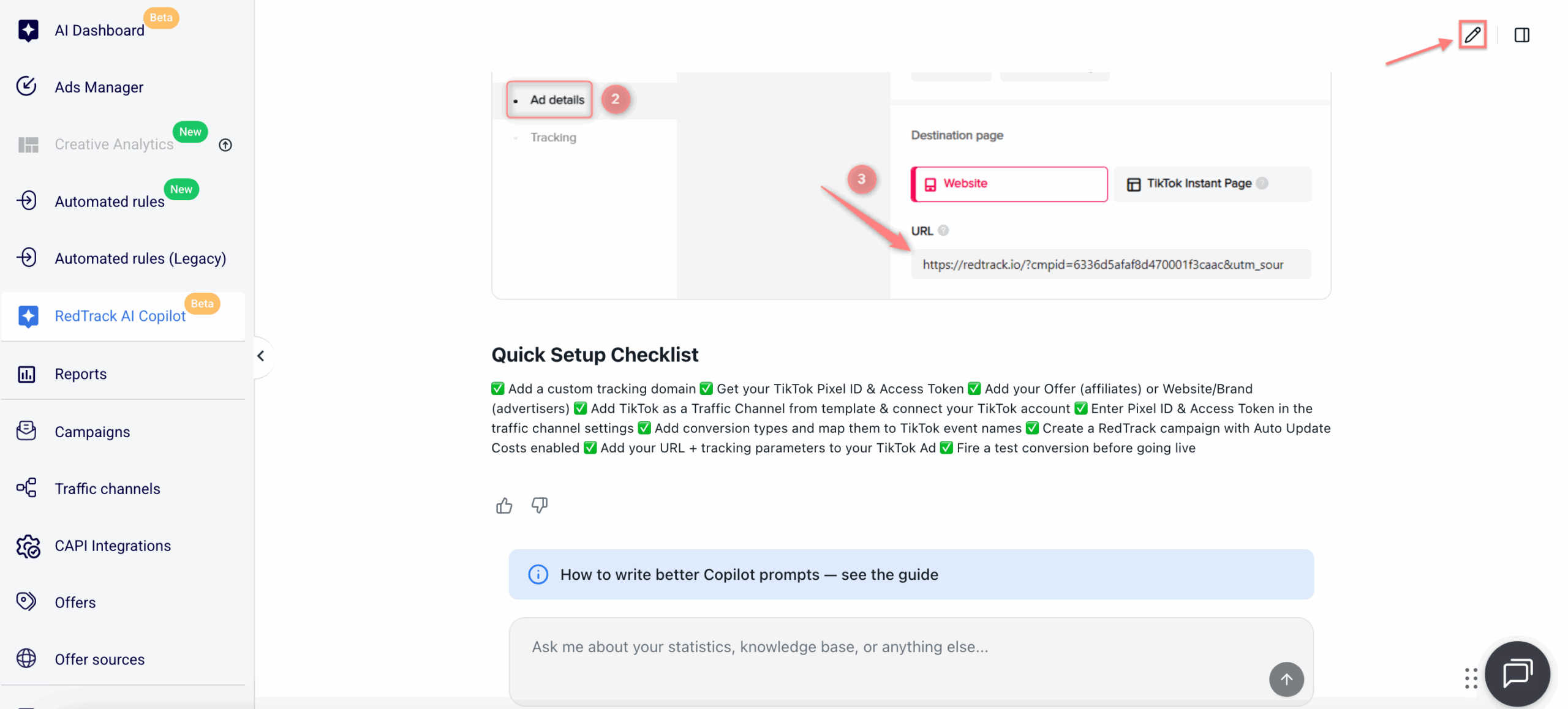
2. Once a response is generated, you can continue the conversation by asking follow-up questions in the same chat, or start a new chat for a separate topic by clicking the pencil icon in the top-right corner:
Other functions of RedTrack AI Copilot
You can ask Copilot to generate reports in different formats, making data more interactive and easier to interpret. AI Copilot helps you quickly create reports based on your request and save them for further analysis or dashboard use:

Pie chart

Metric Cards

Stacked bar chart & Table
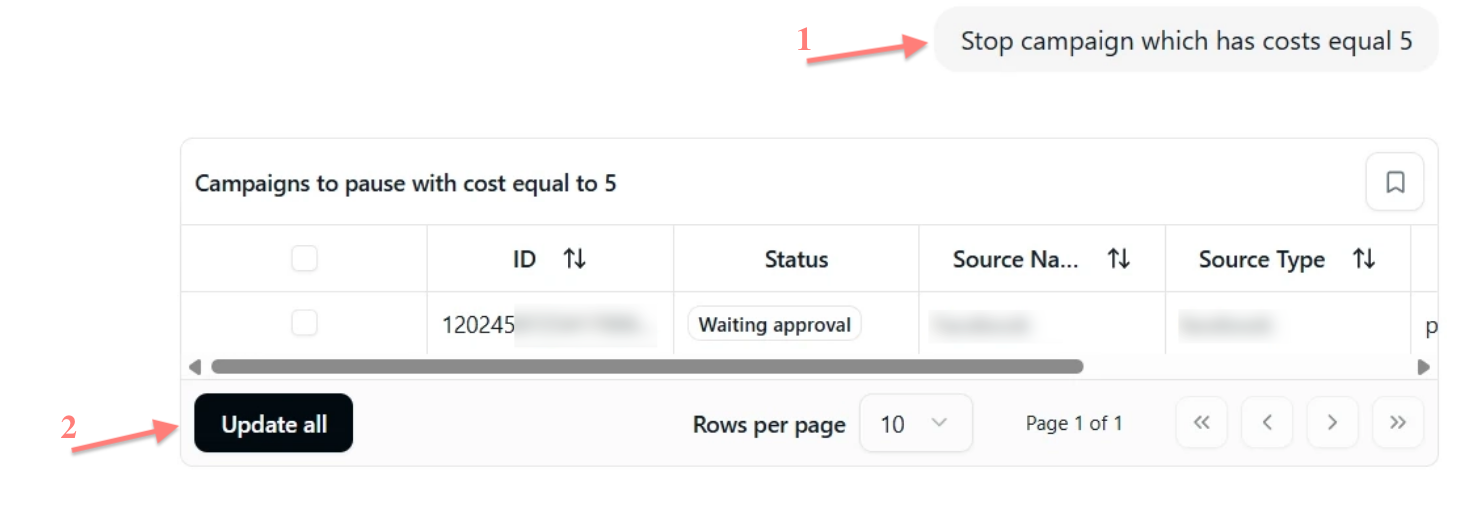
With the help of Copilot, you can easily adjust campaign statuses and budgets to boost performance:
1. Enter your request or command in Copilot.
2. Review the generated response.
3. Confirm the action by clicking Update all or Update selected.
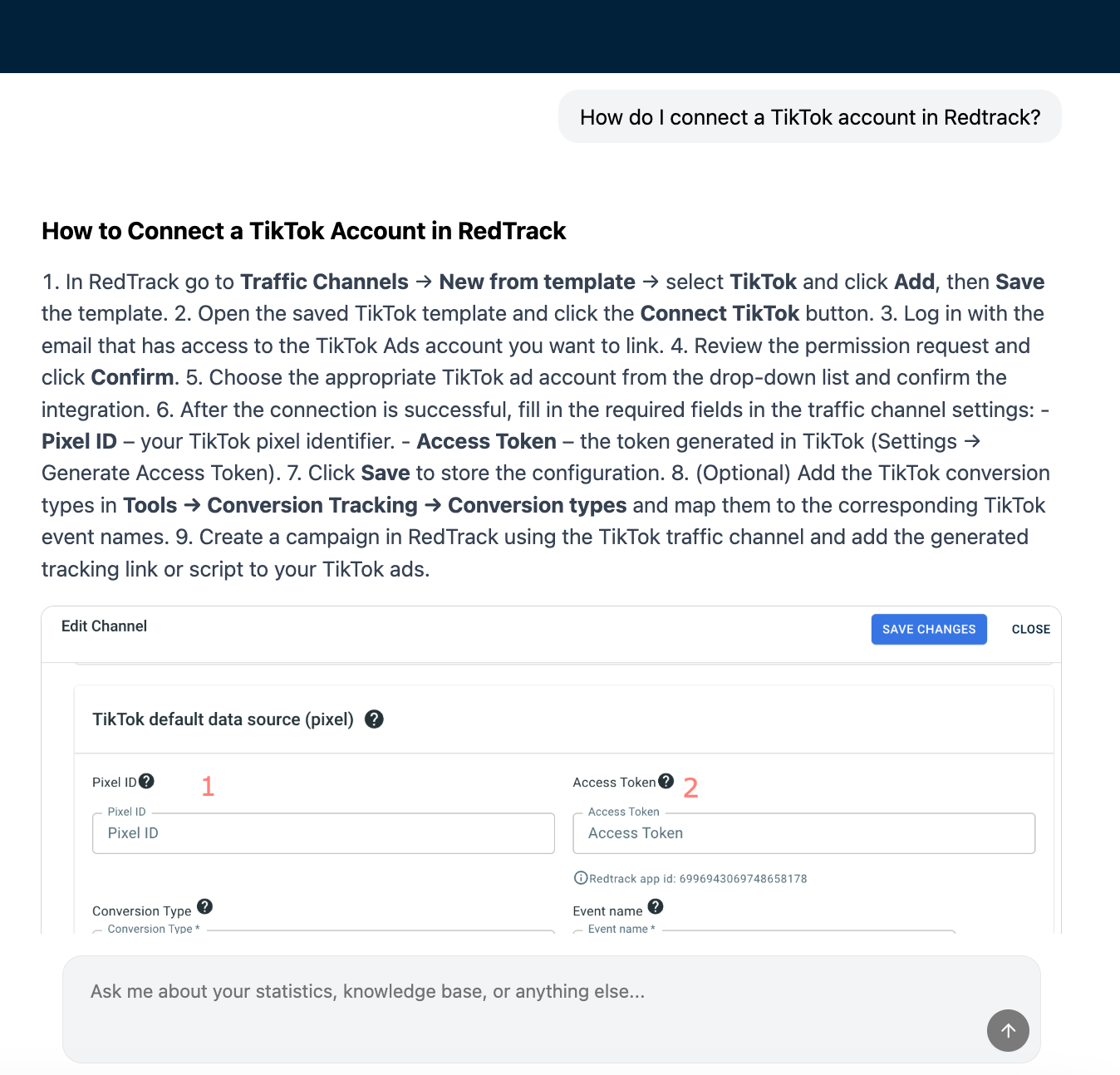
Copilot can guide you through RedTrack’s documentation and direct you to the most relevant guide based on your question or use case:
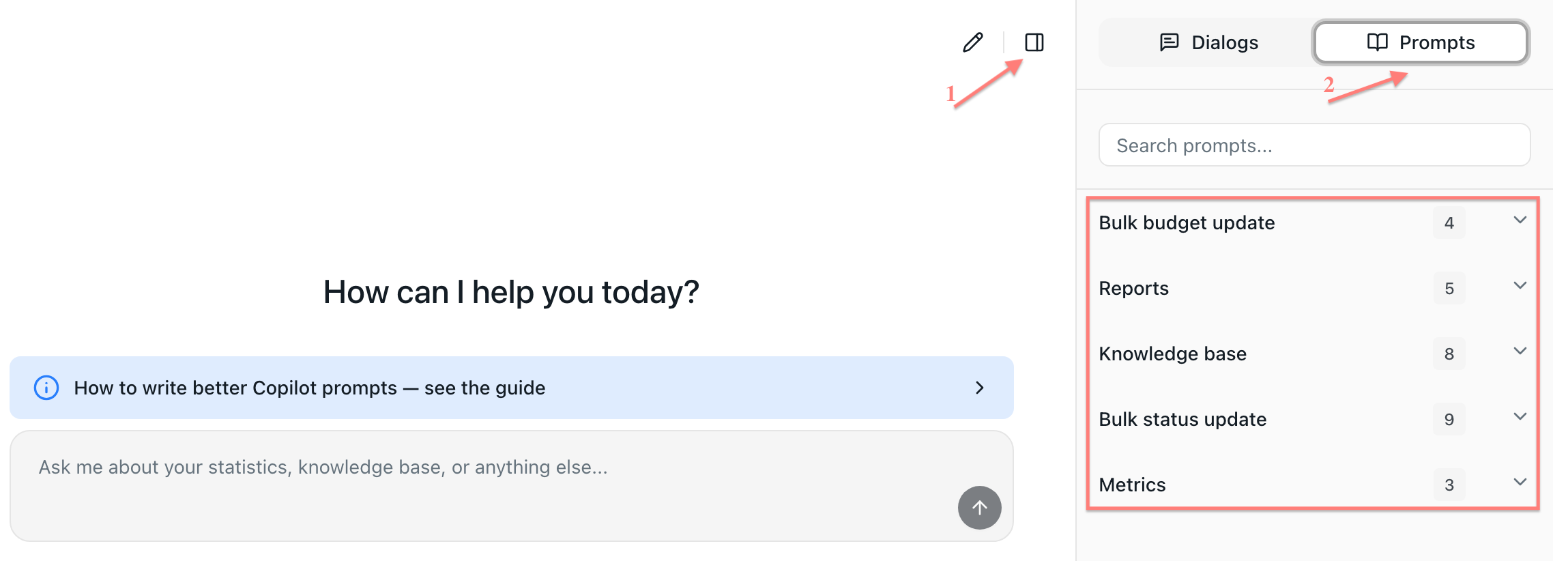
Click the history icon to view your previous interactions with AI Copilot and access available prompt suggestions. This allows you to revisit past conversations and reuse common requests more efficiently.

How to use AI Dashboard
Dashboard is a workspace where you collect the reports you need. You can create a custom dashboard to visualize your data. Dashboards include various charts, diagrams, metric cards, and tables, allowing you to monitor performance in one place.
- Click New Dashboard → enter a dashboard name → Create Dashboard:


1. Open the dashboard you want to rename → click the settings icon next to the dashboard name → edit the name in the Dashboard Name field → Save Changes:


1. Go to RedTrack AI Copilot → enter a question about your stats → click the bookmark icon in the top-right corner of the report:

2. Select a dashboard → enter the report name (auto-filled, you can change it)→ choose the refresh interval → Save Report:

You can change the report name, the refresh interval, or remove the report from the report menu.
1. Choose the report → click the settings icon in the top-right corner of the report → change the name or auto-refresh interval → click Save:

2. To delete the report, click the Remove Report button:

1. To move a report, hold the move icon in the top-right corner of the report and drag it to a new position:

2. To resize a report, drag the bottom-right corner of the report: