

EZmob and RedTrack

EZmob is a self-serve advertising network, which provides monetization for website owners and SSPs and enables advertisers, agencies, and app developers with access to over 1 Billion users.
Integration
Important before you start
Before you proceed with the integration, make sure to have the already added:
- Custom tracking domain
- Offer source and Offer (if you’re an Affiliate)/ Store and Store tracking URL (if you’re an Advertiser)
- Conversion types you’re planning to work with
Integration steps
1. Add EZmob as a Traffic channel in RedTrack
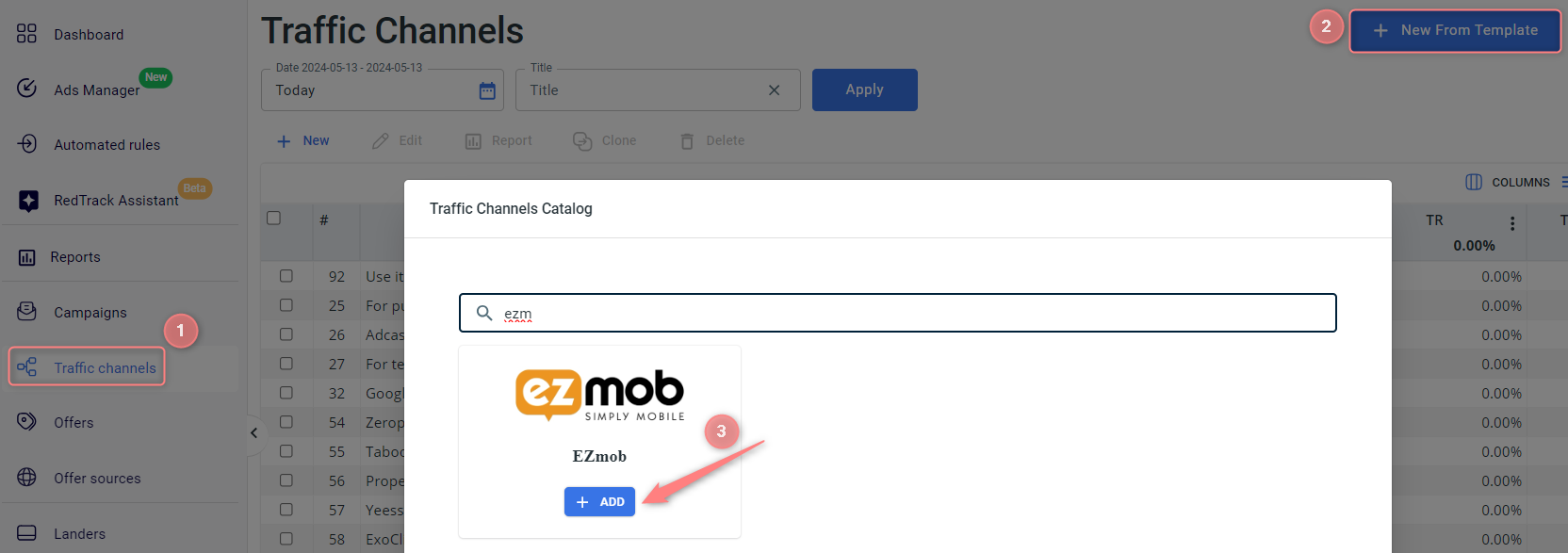
In your RedTrack account go to Traffic channels → New from template → find EZmob → Add → Save the template:

2. Set up a campaign/ad tracking in RedTrack with the EZmob traffic channel.
To create a campaign/ad tracking in RT act depending on your account type:
2.1 Campaigns → Create new campaign → fill in the info in all the sections and tabs:
- General: Give it the name, and choose the traffic channel, tracking domain, and cost-tracking method.
- Funnels: Choose the type of funnel you are using and add the elements from the drop-downs.
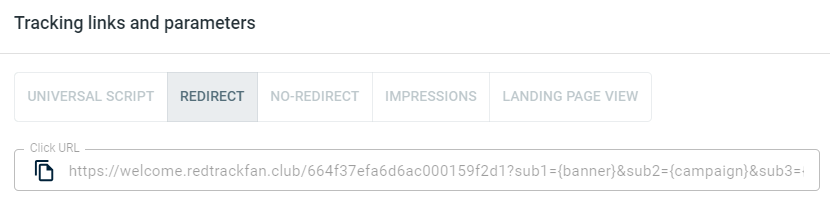
2.2 Once the Campaign is saved go to Tracking links and parameters → copy the automatically generated click URL (your tracking link):
2.1 Ad Tracking → New Ad Tracking → fill in the info in all the sections and tabs:
- General: Give it the name, and choose the traffic channel, and cost-tracking method.
- Funnels: Choose the type of funnel you are using and add the elements from the drop-downs.
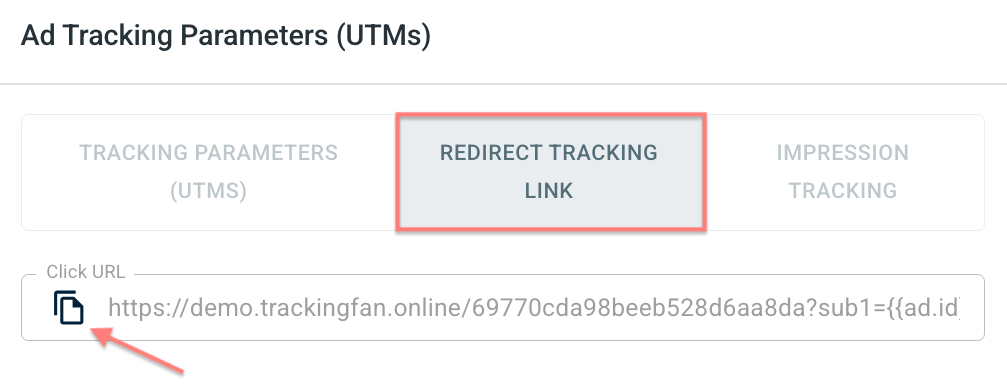
2.2 Once the Ad Tracking is saved go to Ad Tracking Parameters (UTMs) → copy Click URL from the Redirect tracking link tab:
– Universal script
– No-redirect
– Impressions
3. Set up the tracking on the EZmob side.
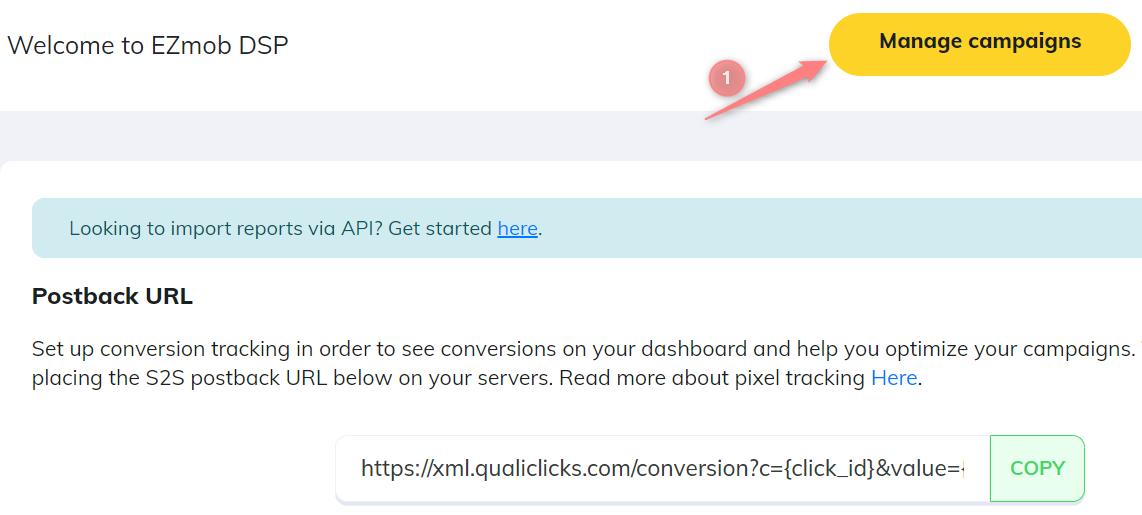
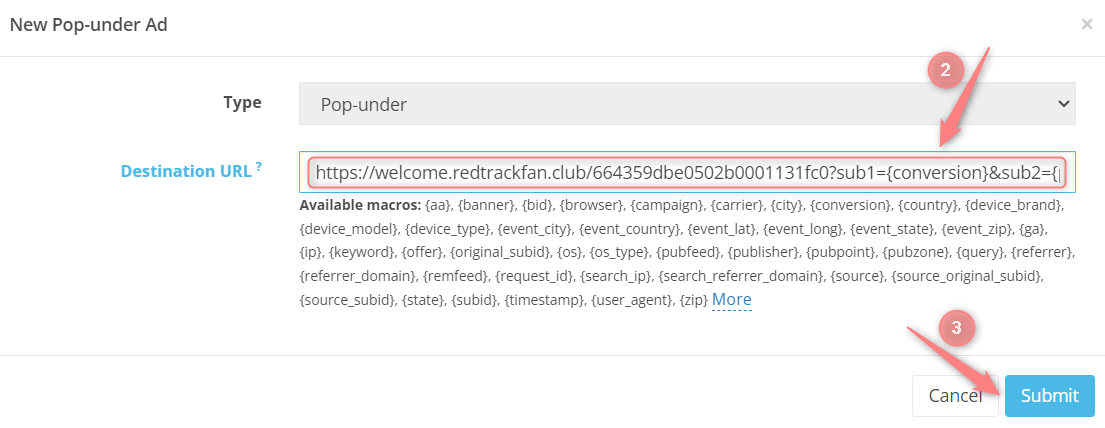
In your EZmob account click Manage Campaigns → set up your campaign in EZmob → place the tracking URL from RedTrack (copied in step 2) into the Destination URL field:
4. Copy the S2S Postback URL from EZmob.
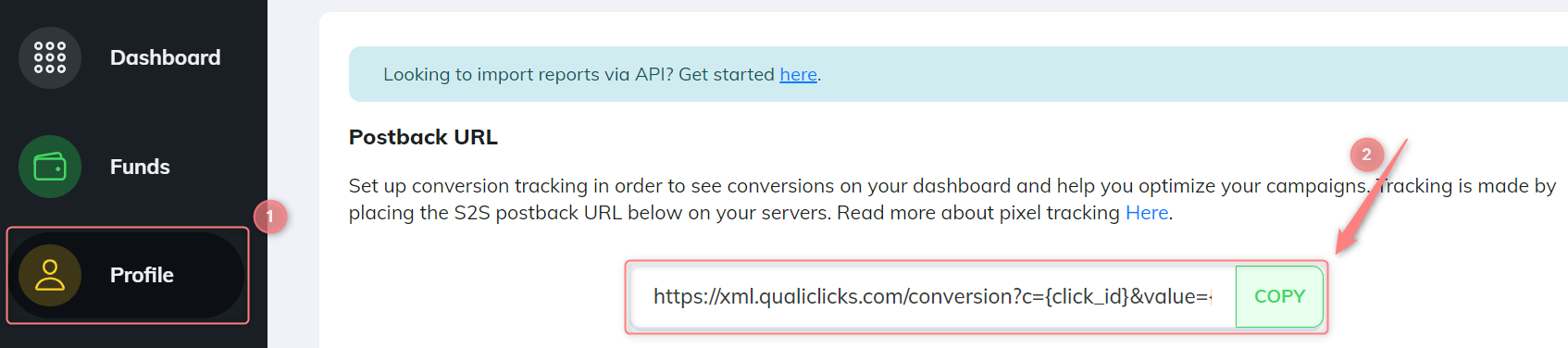
In order to see conversions on your dashboard and help you optimize your campaign you need to set up conversion tracking. Tracking is made by placing the S2S postback URL from EZmob into the “S2S postback” field in RedTrack. A postback is unique for each advertiser. To find it in your EZmob account go to Profile → copy the Postback URL:
5. Set up the postback URL in RedTrack.
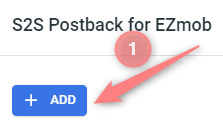
Go to Campaign/Ad Tracking settings (created within step 2) → scroll down to S2S Postback for EZmob/ Ad network webhook for conversions → Add → paste the Postback URL (copied in step 4 ) → check if all the needed values for the tokens are in place → Save changes:
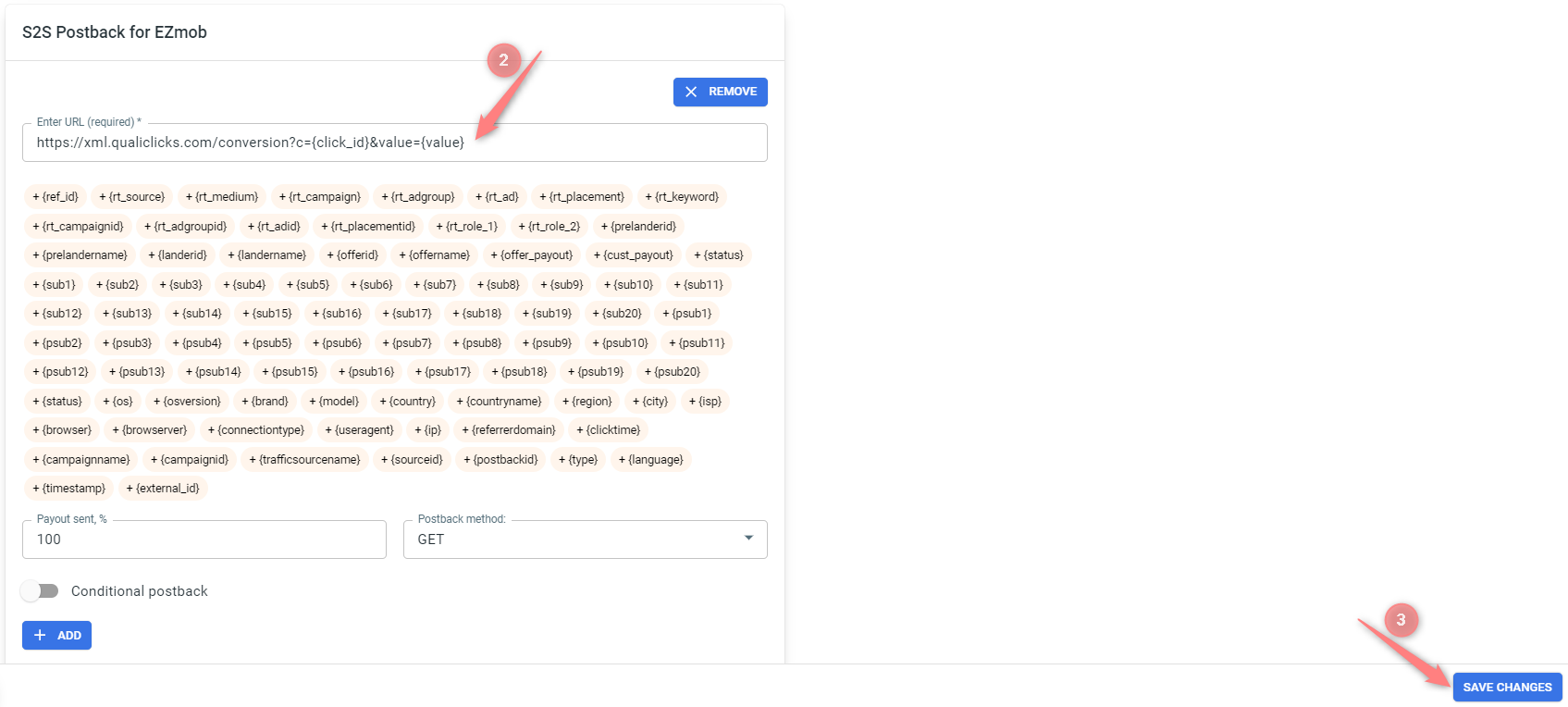
▸ If you changed the Postback URL in the Traffic channel (added/removed some parameters to it), remember to manually update the link in Campaign/Ad Tracking settings as well, as it won’t be generated correctly automatically.
▸ Some Traffic channels require you to edit the Postback with specific parameters for each Campaign/Ad Tracking (e.g., the goal for Exoclick or ap_key for Go2Mobi). If the field remains blank or something like “REPLACE” is stated, that means you need to define the Postback conditions manually.

